Remote control is a method of viewing another computer’s screen and transmitting input. Even if it seems like you are directly using an app on the screen, the PC opening the connection and the target PC where the app is actually running use different memory. Before reducing memory, you must first distinguish which one is slow and which app you intend to close.
Cleaning up Chrome on the accessing PC does not automatically reduce the memory of an editor running on the target PC. Conversely, if you terminate the remote access component on the target PC, the path to return to the work screen may be cut off, regardless of the free memory on the accessing PC.
While the remote control tool comparison article covered tool selection, this article focuses on the order in which to check saving, memory cleanup, and reconnection when already working remotely. It uses Chrome Remote Desktop as an example and does not assume that the termination and session maintenance behavior of other tools are identical. This is not an experiment involving actual equipment memory cleanup or system setting changes.
This is a conceptual image generated by AI. It does not represent actual screens or measurement results.
1. Name the PC Roles Before Viewing the Screen
In this article, we will refer to the two roles as follows:
| Role | What is running | Location to check |
|---|---|---|
| Accessing PC | Chrome opening remote screen, local apps | Memory/process screen of the accessing PC itself |
| Target PC | Remote access component, work apps | Memory/process screen of the target PC opened within the remote screen |
In a hypothetical scenario, let’s assume the accessing PC has a Chrome remote tab and a local memo app open, and the target PC has an editor and Chrome open. Closing the local memo app reduces the running apps on the accessing PC. The editor on the target PC remains unchanged. Closing the editor on the target PC affects the opposite side.
In nested remote screens, it can be particularly confusing which computer menus and windows belong to. Before terminating an app, check the window title and the PC’s role. Open memory management screens separately on each PC. If you are unsure whether a shortcut key is sent to the local or remote side, it is better to first confirm the location via the target screen’s menu rather than pressing a termination command immediately.
The same principle applies to save locations. If you performed a regular save in an editor on the target PC, the file is saved to the path on the target PC chosen by that app. Without a separate shared folder, synchronization, or file transfer, you cannot assume a copy has been created on the accessing PC. Confirm the file transfer function of your remote tool separately from screen control.
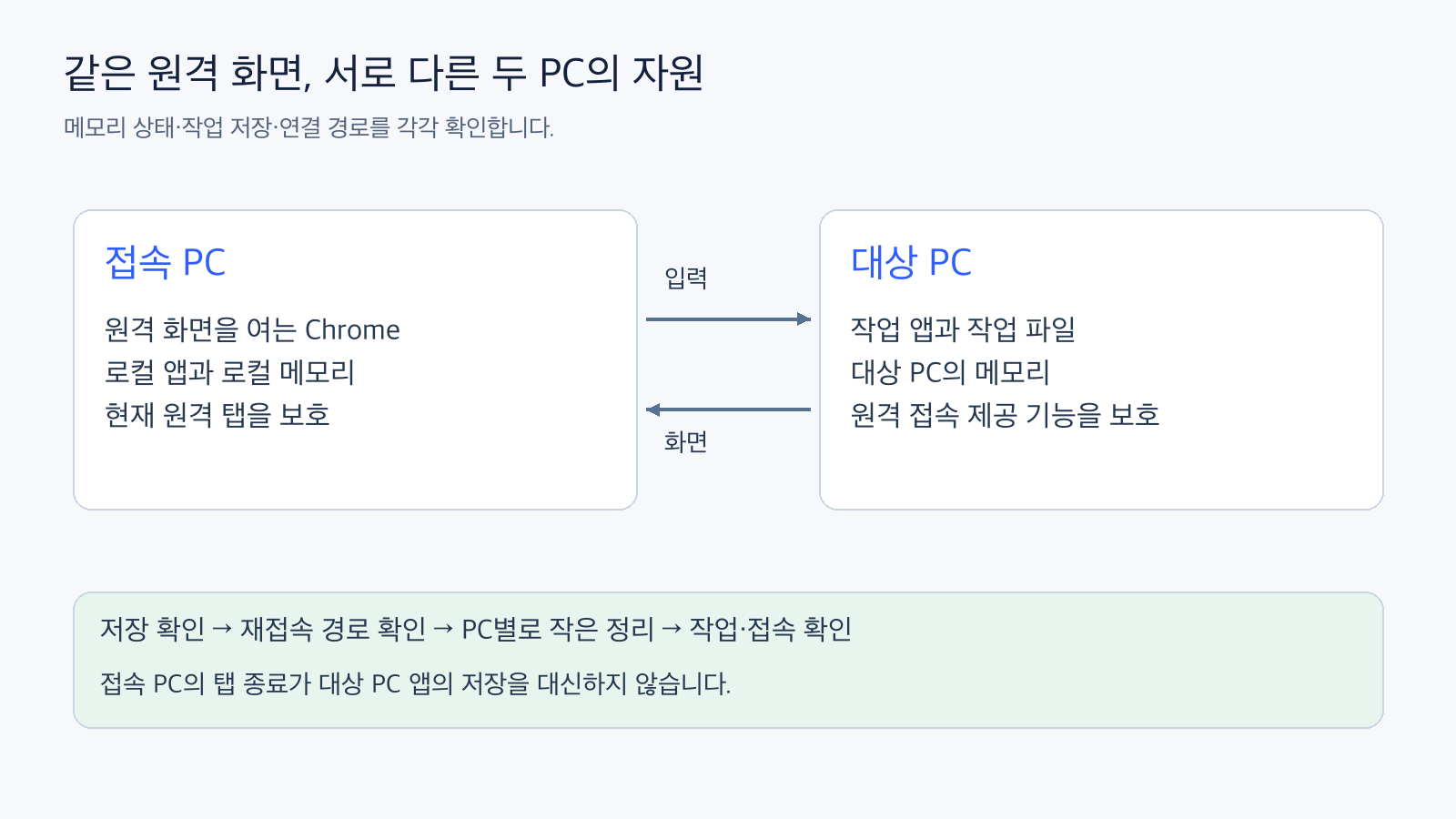
Figure: Roles of two PCs and checking order. This is a verification model reconstructed based on official documentation and not actual equipment measurements. Official Basis 1 · Official Basis 2
2. Do Not Treat Memory Usage and Remote Screen Lag as the Same Problem
Just because a remote screen is slow doesn’t immediately tell you which PC is low on RAM. Different causes, such as tab processing on the accessing PC, tasks on the target PC, CPU/screen processing, and network latency, can all produce similar symptoms. This article is not a comparison of the performance of these causes, but rather a checklist for distinguishing where to check.
First, observe the status of both PCs separately at the same time. Do not record large memory figures observed on the accessing PC as figures for the target PC. For each memory entry, attach the role, either Accessing PC or Target PC, and which app was observed. There is no need to include actual customer names, PC names, connection addresses, or account screens in public examples.
On Mac, you can view memory pressure, used memory, compression, and swap in the Memory tab of Activity Monitor. Apple explains that memory pressure reflects available memory, swap rate, wired memory, and cached memory. Do not interpret the fact that cached files occupy memory as a waste that needs to be entirely cleared. Apple Activity Monitor Memory Guide
If it’s a Windows target PC, check it in that PC’s Task Manager. Here, we do not set a specific memory percentage as a failure criterion for all devices. Document the state to compare the same app/task before and after cleanup, and narrow down changes by gracefully terminating one unnecessary app at a time.
3. Distinguish Which PC’s Chrome the Chrome Settings Belong To
Chrome’s Memory Saver mode is a feature that frees up memory by deactivating unused tabs, allowing them to be reloaded when reopened. It is not a substitute for an app’s save button or a remote connection termination procedure. Google Chrome Performance Settings
The location to check settings is Chrome on the PC running the tab → Settings → Performance. To protect a remote tab on the accessing PC, look at the Chrome on the accessing PC. If you check this setting in Chrome within the remote screen, you are adjusting the browser on the target PC.
If you want to keep a remote connection or a web app that is saving active, you can review Google’s ‘Always keep these sites active’ exclusion list. In the example, to protect the remote screen tab on the accessing PC, you would add the corresponding connection site to the accessing PC’s list. Choose sites that genuinely need to remain open rather than broadly excluding all sites.
Official documentation explains that activities such as screen sharing, ongoing downloads, partially filled forms, or pinned tabs can affect deactivation. However, this should not be taken as a reason to skip save verification or connection verification. Memory Saver settings and exclusion lists adjust site and browser behavior; they do not guarantee that a session will be maintained even in the event of network failure or app termination.
When changing Memory Saver mode, first check the save status of open work, and note down the current selection so you can revert to the original settings if necessary. Setting names or items may vary depending on the version and management policy. The setting descriptions in this article are based on official help documentation verified on October 14, 2026, and have not been applied to actual user equipment.
4. Protect the Connection Path After Confirming Saves
During remote work, the following sequence can be used as a checklist. This is not a single official cleanup procedure set by Google, but rather a sequence proposed by the author, combining the roles of the two PCs and official session behavior.
- Save the work on the target PC. Confirm not only that the save button was pressed but also the app’s save completion indicator and save location. For web apps, also separately confirm if uploads/synchronization are complete.
- Verify the reconnection path. Ensure the target PC remains powered on, and that the remote access component and authorized connection methods are maintained. Login, PIN, and additional authentication should be handled using existing approved methods, without recording or sharing content.
- Start by cleaning up unnecessary tabs/apps on the accessing PC, one by one. Exclude the tab and browser currently providing the remote screen from cleanup, and gracefully terminate one app at a time that is unrelated to the work.
- Separately clean up unnecessary apps on the target PC. Start by checking apps whose saving is complete, and do not terminate the remote access providing component based solely on memory figures.
- Confirm that the same work continues. Check the input/response of the remote screen and the saved files, and record separately which PC’s state changed before and after cleanup.
- Perform reconnection checks only when save and recovery paths are secured. Disconnecting itself can affect work, so distinguish it from important ongoing processes. After reconnecting, open the target file to confirm that the saved content is maintained.
Even with apps that have auto-save, do not assume completion until you confirm the indicator. Saving/synchronizing cloud documents and remote session connections are different states. Even if the remote screen moves smoothly, uploads might not be finished, and even if saving is complete, the authorization or path to reconnect might change.
Closing all of Chrome on the accessing PC is a broader action than closing a single unnecessary tab. Google advises that closing a tab or selecting disconnect in Chrome Remote Desktop stops the remote session. Therefore, if you mass-terminate the accessing browser for ‘Chrome memory cleanup,’ you should expect the current screen to be disconnected. Stop a Chrome Remote Desktop session
This guidance does not mean that all target PC app states will be saved or target tasks will be rolled back. Logout/session termination in other tools or operating systems can have different effects on apps, so do not group disconnection with target PC logout/restart as the same action.
Record Three Separate Results Before and After Cleanup
In the work log, separately record which PC’s resources changed, whether the target work was saved, and whether the connection was maintained or restored. For example, “closed one unnecessary tab on the accessing PC” and “confirmed save completion of target PC document” are separate results. Combining them into a single line like ‘Memory cleanup complete’ eliminates points to check in case of a failure.
Gracefully terminating one item at a time and checking the response of the same task makes it easier to narrow down the cause of changes. If there’s no expected change after termination, instead of mass-terminating more apps, re-examine which PC was observed and other causes like network or CPU. The synthetic code below only checks this role distinction and is not a tool to prove actual performance improvement.
If saving/synchronization is in progress or the method to re-enter the target PC is unclear, postpone reconnection testing until those conditions are resolved. The completion criterion here is not just reducing numbers, but rather a state where saved content can be confirmed and necessary connection paths remain.
5. Distinguish Between What Was Confirmed with Synthetic Scenarios and What Needs Actual Confirmation
The attached verify_role_scenarios.py expresses the roles of the two PCs and apps as virtual states within memory. It does not access actual browser or operating system processes.
python3 verify_role_scenarios.py --output results.jsonThe execution result showed that all 6 logical checks passed. We confirmed whether the target app list is maintained even if the accessing PC app is removed, whether termination is rejected before saving a target document, whether the save location remains on the target side, and whether the two connection components are protected in the cleanup plan. It also includes virtual states demonstrating the effects of incorrect termination.
This check is a consistency test of a small model representing the role distinction and sequence of the manuscript. It is not an actual measurement of Chrome’s tab deactivation, remote session termination/reconnection, file saving, or memory reduction. A PASS in a virtual state does not represent successful reconnection on actual equipment. In actual operation, the observed results of the above six steps must be confirmed separately.
If the connection is lost after cleanup, first distinguish whether the remote tab on the accessing PC was closed, whether the target PC remains connectable, and whether save completion and connection issues were confused. This article does not include procedures for unconditionally turning off system security settings or firewalls for resolution.
Reducing memory figures and preserving work are separate results that need to be confirmed. The sequence of determining which PC and which app to change, securing save and connection paths, and then verifying small changes and reconnection makes it easier to assess the recoverability of remote work.
Leave a Reply