Hello everyone interested in IT security! Nice to meet you. 😊
We download countless software programs from the internet every day. It’s convenient, but have you ever wondered, “Is this file I’m downloading truly the original file created by the developer? Or has someone injected malware into it? 😱”
A very powerful and reliable method to resolve such anxieties is digital signature verification using GPG (GNU Privacy Guard). Today, we’ll delve into how this process works easily and in detail through a simple Bash script!
Script at a Glance
The script we’ll analyze today is this one. It covers the process of securely downloading and verifying the famous text editor, Notepad++.
#!/bin/bash

# Register gpg server
wget https://notepad-plus-plus.org/gpg/nppGpgPub.asc
gpg --import nppGpgPub.asc

# Installation file and signature file addresses
EXE_URL="https://github.com/notepad-plus-plus/notepad-plus-plus/releases/download/v8.8.5/npp.8.8.5.Installer.x64.exe"
SIG_URL="https://github.com/notepad-plus-plus/notepad-plus-plus/releases/download/v8.8.5/npp.8.8.5.Installer.x64.exe.sig"
EXE_FILE="npp.8.8.5.Installer.x64.exe"
SIG_FILE="npp.8.8.5.Installer.x64.exe.sig"

echo "[+] 파일 다운로드"
curl -L -o "$EXE_FILE" "$EXE_URL"
curl -L -o "$SIG_FILE" "$SIG_URL"

echo "[+] GPG 서명 검증 (키가 등록되어 있어야 함)"
gpg --verify "$SIG_FILE" "$EXE_FILE"
Detailed Script Analysis by Step 🔍
Step 1: Register the Developer’s ‘Official Authentication Mark’ 🔑
# Register gpg server
wget https://notepad-plus-plus.org/gpg/nppGpgPub.asc
gpg --import nppGpgPub.asc
The first thing to do is download the Notepad++ developer’s Public Key and register it in your GPG keychain.
- wget https://…/nppGpgPub.asc: wget is a command for downloading files from the web. Here, nppGpgPub.asc is the developer’s ‘Public Key’ file. It’s easy to understand if you think of it as an ‘official authentication mark’ or ‘official signature stamp’. This stamp is necessary to later compare whether the received file is genuine or not, right?
- gpg –import nppGpgPub.asc: This is the process of registering the downloaded ‘official signature stamp’ with the GPG program on your computer. It’s like telling your computer, “This is the official stamp of Notepad++!”
Step 2: Set Up Download File Information 📝
# Installation file and signature file addresses
EXE_URL="..."
SIG_URL="..."
EXE_FILE="..."
SIG_FILE="..."
This section involves pre-defining the internet addresses (URLs) of the files to be downloaded and the file names to be saved on your computer as variables (a kind of alias).
- EXE_URL: This is the URL of the Notepad++ program (.exe file) we will install.
- SIG_URL: This is the URL of the digital signature file (.sig file). This small file contains information encrypted by the developer using their ‘Private Key’. This signature file can be considered the ‘official stamp applied by the developer’ itself.
Wait! Public Key and Private Key? 🧐 Digital signatures consist of a pair of keys (Public Key, Private Key).
>
– Private Key: Kept securely by the developer only, used when signing (stamping) files.
– Public Key: Made public for anyone to obtain, used when verifying signatures (checking if the stamp is genuine).
>
What the developer locks (signs) with their Private Key can only be opened (verified) with its corresponding Public Key.
Step 3: Download the Installation File and Signature File 📥
echo "[+] 파일 다운로드"
curl -L -o "$EXE_FILE" "$EXE_URL"
curl -L -o "$SIG_FILE" "$SIG_URL"
Now, we use the curl command to actually download the two files from the addresses set earlier.
- curl -L -o [save_name] [download_url]: curl is a powerful tool for downloading files, similar to wget. Through this command, we download both the original installation file (npp.8.8.5.Installer.x64.exe) and its certificate of authenticity, the signature file (…exe.sig).
Step 4: The Grand Signature Verification! ✨
echo "[+] GPG 서명 검증 (키가 등록되어 있어야 함)"
gpg --verify "$SIG_FILE" "$EXE_FILE"
Finally, the most crucial moment. We use the gpg –verify command to perform the final check on whether the downloaded file is genuine. This command does the following:
- Opens the signature file ($SIG_FILE).
- Verifies the signature using the developer’s Public Key (‘official signature stamp’) registered in Step 1.
- If the signature is valid, it mathematically calculates and compares whether that signature matches the installation file ($EXE_FILE).
What will be the result?
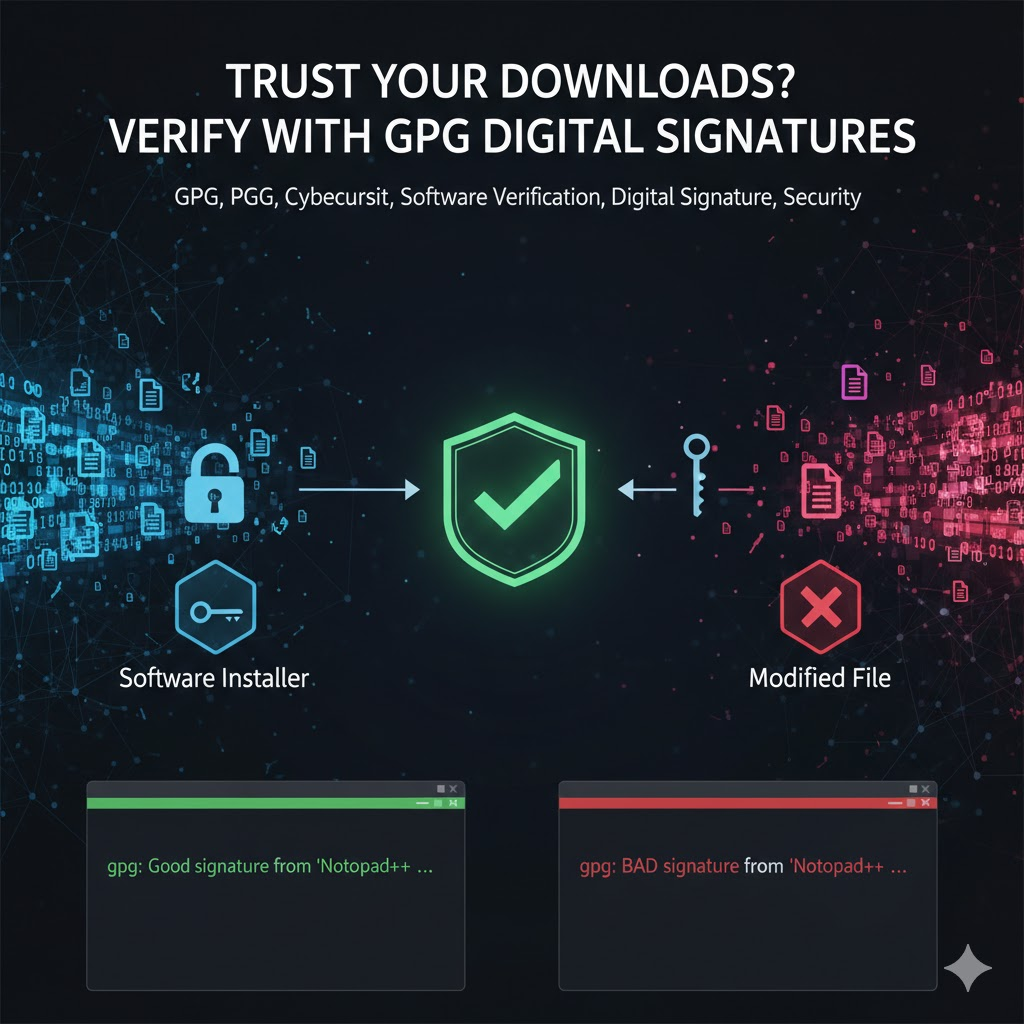
- ✅ Success: If you see the message “gpg: Good signature from “Notepad++ …””, it’s a success! This means the downloaded file is the original as created by the developer, and no one has tampered with it. You can install it with confidence. 🎉
- ❌ Failure: If you see the message “gpg: BAD signature from “Notepad++ …””, it’s a serious warning! 🚩 The file may have been altered after the developer signed it, or the signature itself might be fake. Never run the file and delete it immediately.
Why Go Through All This? 🤔
You might think, “Isn’t it safe if I just download it from the official website?” However, there’s always a possibility that hackers could compromise the official download server or intercept the user’s internet connection (Man-in-the-Middle attack) to swap out the file.
GPG signature verification protects us from all these threats. While a hacker might be able to replace the installation file with malware, they can never create a valid ‘digital signature’ without the developer’s ‘Private Key’.
Now, you’ve become a wise user who goes beyond just downloading, to checking the ‘provenance’ of a file. Make it a habit to verify GPG signatures when downloading important software! Your computer will be much safer. 💪
Tags: GPG, PGP, Bash, Shell Script, Cybersecurity, Software, Verification, Digital Signature, Notepad++, Security
Leave a Reply