An increasing number of users are seeing small characters moving on their ChatGPT or Codex screens and searching, “Why don’t I have a GPT Pet?” While various names like GPT Pet, ChatGPT Pet, and GPT Pet are used in searches, the “Pets” referred to here are not AI models themselves, but rather a user interface that displays the status of long-running tasks as animated characters.
Although we’ve already covered the concept of GPT Pets and how to create custom pets, actual setup often encounters issues such as menus not appearing, the /pet command not working, or the custom pet creation process freezing. This article, as of July 31, 2026, provides a practical checklist detailing which environments to check first and where to inspect based on symptoms.
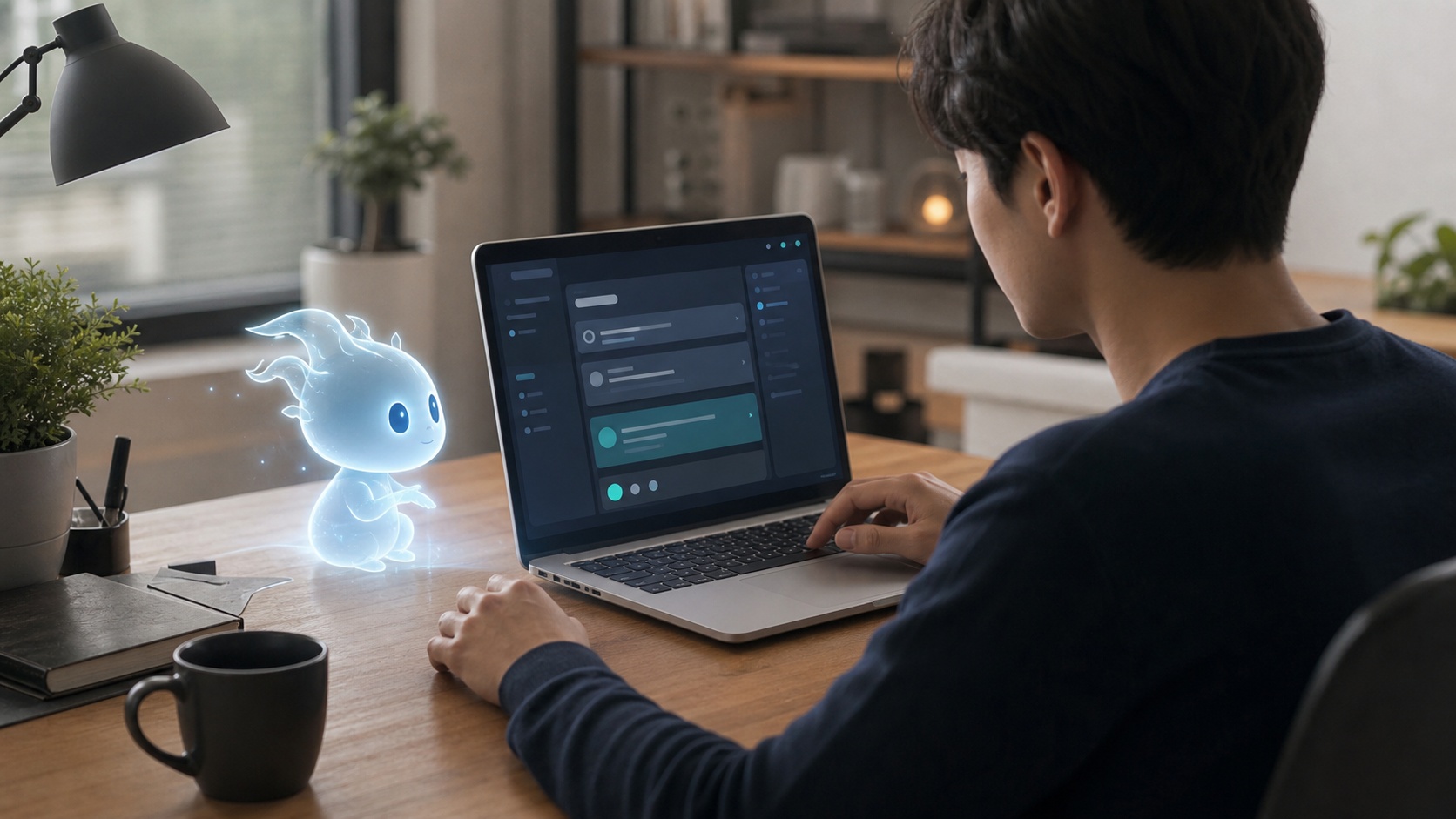
First Things First: GPT Pets Are Not New AI Models
Pets are not features that enhance GPT’s inference performance or change its response style. Changing a pet does not alter the model, token limits, code writing ability, or task speed. Their role is to visually display agent task statuses like “running,” “awaiting approval,” or “completed.”
Therefore, trying to solve the problem of a missing GPT Pet through the model selector will lead you astray. First, you need to check the product screen you are currently using, the app version, and whether the feature is available for your account.
OpenAI’s current product structure is divided into Chat for general conversations, Work for long multi-step tasks, and Codex for development tasks. Work is being progressively rolled out to target accounts, and Codex is maintained as a separate screen in the desktop app. You should not assume that the menus and features visible on web, mobile, and desktop are identical, even for the same account.
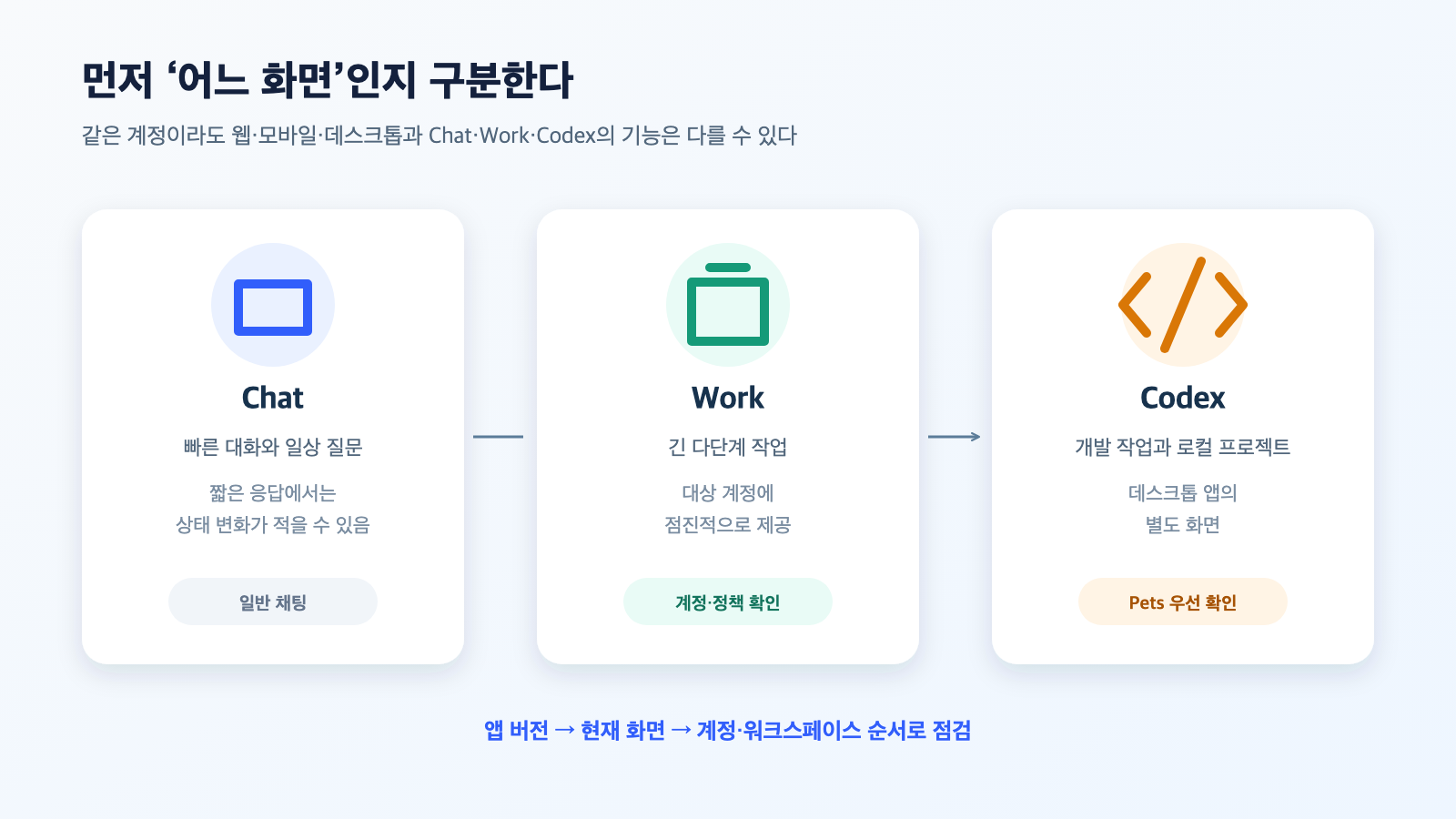
Figure: Product screen differentiation for GPT Pet troubleshooting. Reconstructed based on OpenAI ChatGPT Work and Codex documentation
1. When the Pets Menu Itself Is Not Visible
The most common reason is not incorrect settings, but rather that the feature has not yet been rolled out to that specific account or screen. New features may appear sequentially depending on the account, subscription plan, workspace policy, app version, and operating system.
Checking in the following order can quickly narrow down the cause:
- Run the latest ChatGPT desktop app, not a web browser.
- Check the current screen (ChatGPT or Codex) in the top-left of the app.
- If you were using the old Codex app, confirm if it has updated and switched to the new ChatGPT desktop app.
- If you have both a personal account and a company/school workspace, check the currently selected workspace.
- Completely close the app, then restart it and check the settings menu.
- If the menu is still missing, wait for the feature to be provided rather than trying to force it to match another account’s screen.
Accounts managed by companies or schools, in particular, may have feature usage restricted by an administrator. If it’s visible in a personal account but not in an organizational workspace, checking the administrator’s policy should precede reinstalling the app.
OpenAI states that when the old Codex app updates, it will transform into the new ChatGPT desktop app, which provides Chat, Work, and Codex together. It’s also possible that ChatGPT and ChatGPT Classic are installed on the same computer, so you should check if you are looking for new menus in an outdated app.
2. When the /pet Command Does Not Work
/pet is not a general command that works in all ChatGPT input fields. It’s safer to understand it as a UI command used in desktop screens that support pets and in environments where the feature is activated.
If you enter the command and it’s sent as plain text, check these three things:
- Is it a Work or Codex screen that supports pets, not a general Chat conversation window?
- Have you selected a pet to use in the app settings first?
- Are you running it in the desktop app, not on the web or mobile?
If you repeatedly enter the command without selecting a pet, or send /pet in a general chat window of web ChatGPT, you may not get the desired result. If the menu is available, don’t rely solely on commands; try actions like Wake, Select, or Tuck Away from the Pets screen in the settings first.
3. When the Pet Is Visible but the Task Status Doesn’t Change
A pet is not an agent that performs tasks independently, but rather an indicator that expresses the status of existing tasks. In Chat, which answers simple questions instantly, status changes may be barely visible. Its meaning becomes clearer in Work or Codex tasks that take time, such as file analysis, code modification, or document generation.
The following simple test is recommended:
1. 새 Work 또는 Codex 작업을 시작한다.
2. 여러 단계가 필요한 안전한 로컬 작업을 요청한다.
3. 실행 중 상태를 확인한다.
4. 승인이 필요한 작업이 있으면 승인 대기 상태를 확인한다.
5. 작업 완료 뒤 펫의 상태가 돌아오는지 확인한다.
Little movement during short questions does not necessarily mean it’s broken. Conversely, if the actual task has stopped but the animation continues, it’s not a pet issue but rather a need to check the agent task’s permission requests, tool errors, or network waiting status.
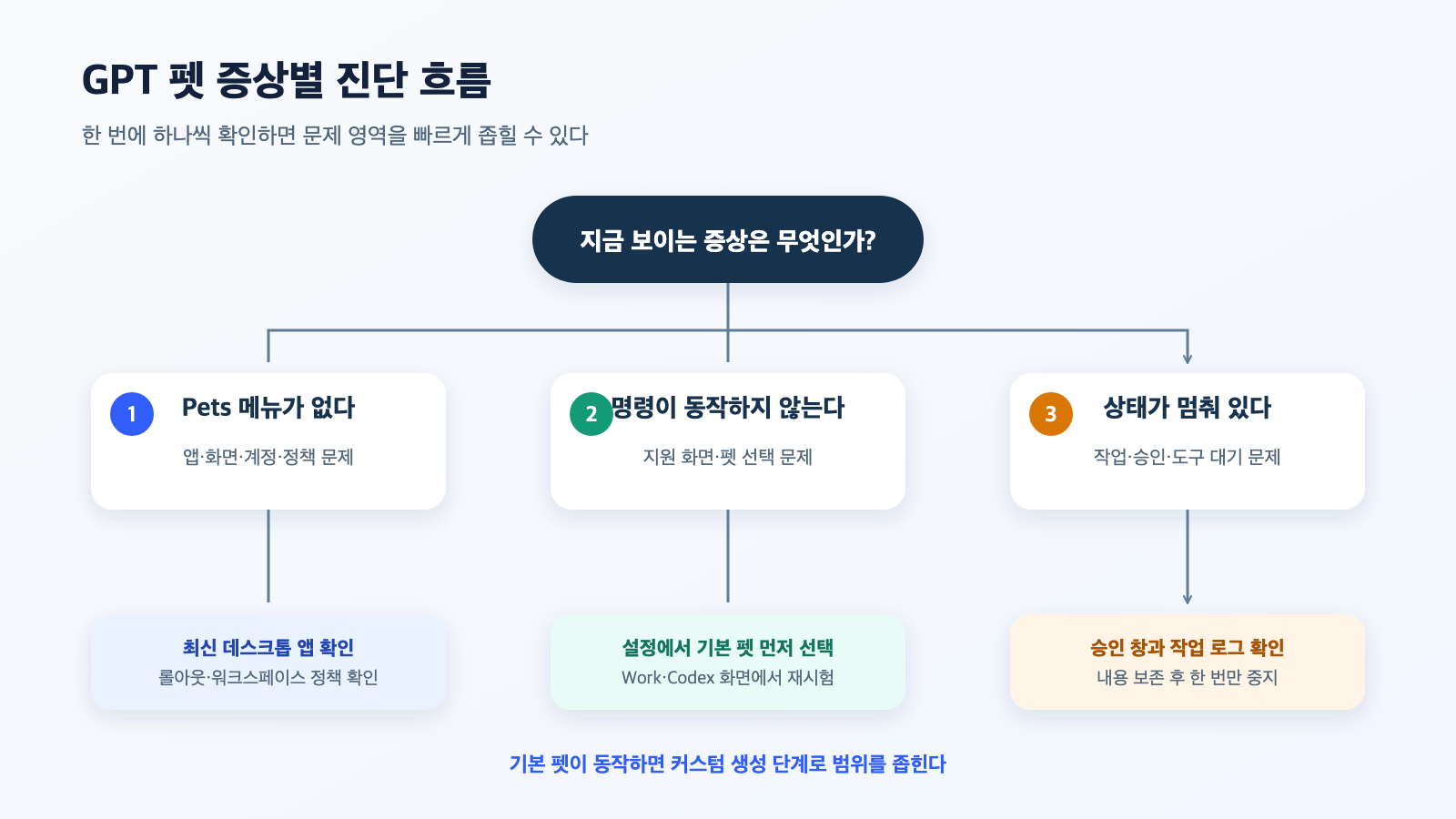
Figure: Diagnosis flow distinguishing symptoms of menu not displayed, command not working, and status frozen. Reconstructed based on OpenAI product documentation and user community reproduction cases
4. When Custom Pet Creation Freezes
Custom pets are different from simple profile features that register a single image. They require creating a sprite sheet that expresses various actions and states, and a process of validation against the structure required by the app. Since image creation, file saving, permission approval, and format checking occur sequentially during the creation process, there’s a possibility of it freezing at an intermediate stage.
The OpenAI developer community has reported cases where the custom pet creation flow freezes near permission requests, making it difficult for users to see additional instructions. OpenAI support staff have acknowledged these experiences but have not provided a specific correction schedule. This means not all freezing phenomena should be attributed to user configuration errors.
If creation appears to be frozen, respond in the following order:
- Check if any approval requests or confirmation windows are hidden on the current work screen.
- Check the recent messages and tool execution status of the creation task.
- Do not press the same button multiple times; stop the ongoing task only once.
- Update the app to the latest version and retry in a new task.
- Create the first version with a simple silhouette and fewer colors rather than a complex appearance.
- After completion, check if it’s identifiable against both dark and light backgrounds.
If the creation task freezes at permission approval, preserve the work content before forcibly closing the app. Keeping failed prompts, selected images, and error screens can prevent repeating the same process in the next attempt.
5. When Custom Pets Cannot Be Imported or Shared
The community also reports that while there are features to create, select, or refresh custom pets, there are no visible functions to directly export them from the screen or import pets from other users. Therefore, you should not expect to be able to immediately load a pet image you received from someone else into the settings screen.
Some custom pets shared on GitHub provide not only sprite sheets but also configuration files and installation scripts. While these unofficial packages are convenient, you must review their contents before running them.
- Does the installation script write files to any specific paths?
- Does it overwrite or delete existing pet files?
- Does it download additional files from external servers?
- Does it require administrator privileges?
- Can the creator and change history be verified?
Even if it looks like a simple character file, an installation script is code that modifies local files. It’s best to avoid running packages from unverified sources or pasting commands directly into the terminal.
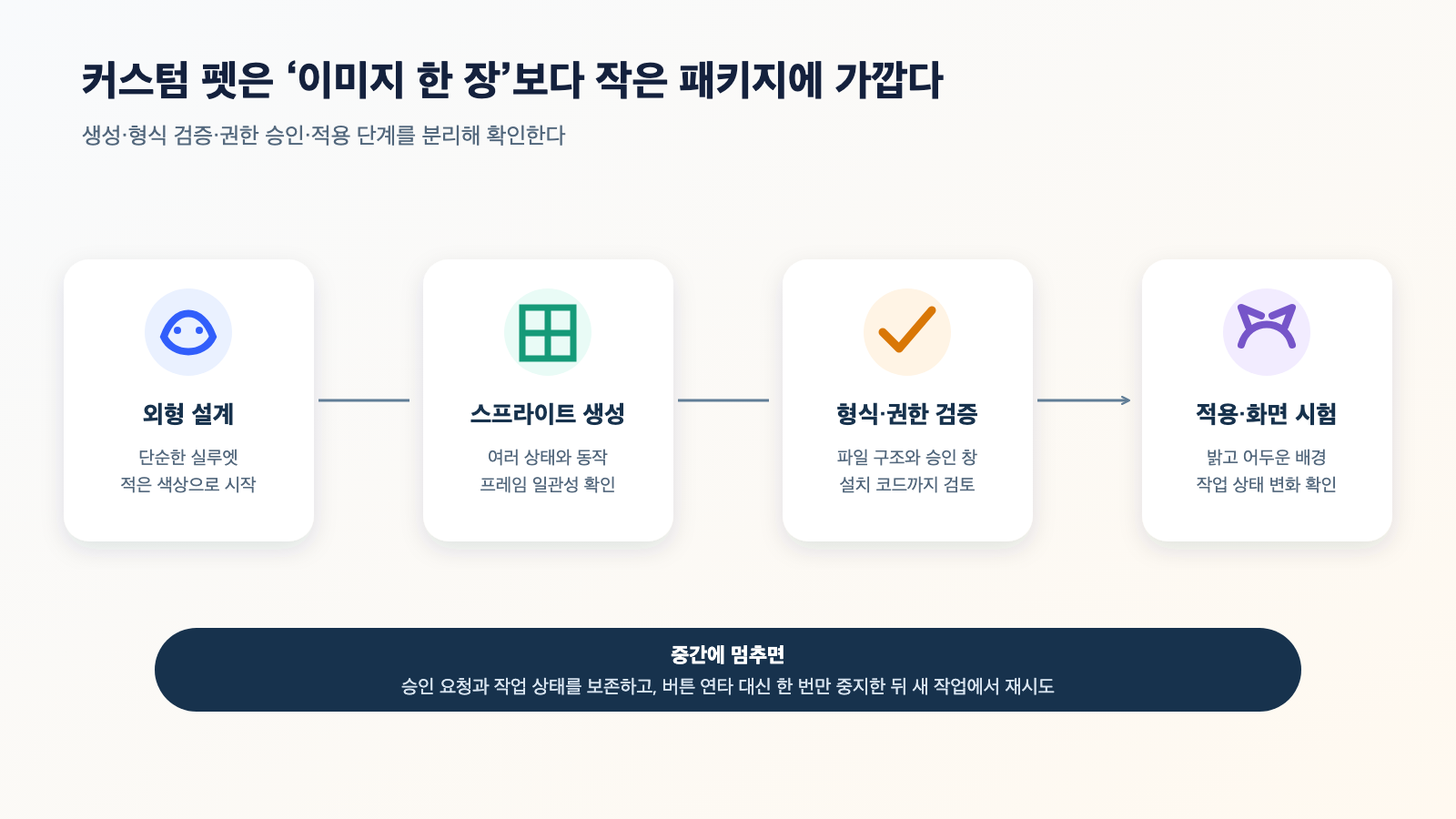
Figure: Recommended validation steps before creating and applying a custom pet. Reconstructed based on OpenAI community cases
6. When the Pet Does Not Appear Over Other Windows
Desktop overlays can be affected by operating system permissions and window management settings. If the pet is visible within the app but does not appear over other applications, check the following:
- Is the pet in “Tuck Away” (hidden) status?
- Are you checking in a full-screen app or a separate desktop space?
- Has the ChatGPT app been terminated in the background?
- Are window display-related permissions restricted in macOS or Windows?
- Is the app in a state that requires a restart after an update?
Even in this case, you should not unconditionally allow broad permissions like screen recording, accessibility, or file access. Verify if the permission request is actually necessary on the app screen and in the operating system settings, then allow it with the minimum scope.
7. When You Want to Delete or Reset
If you want to stop displaying the pet, first use the “Tuck Away” or “Hide” function on the Pets screen. If you want to change the character, select a default pet to isolate issues with custom pets.
When deleting or resetting a custom pet, you should prioritize using the app’s internal deletion function. Manually deleting files by opening paths found on the internet can delete different data or corrupt settings depending on the app version. Only when official UI methods fail, create a backup and then check the paths indicated in support documents or app guides.
Reinstallation is also a last resort. Deleting and reinstalling the app will not solve account-specific feature availability, workspace policies, or server-side rollout issues.
Quick Troubleshooting Table by Symptom
| Symptom | First to Check | Recommended Action | Actions to Avoid |
| — | — | — | — |
| Pets menu missing | App type, version, account, workspace | Check latest desktop app and current screen, await rollout | Repeated reinstallation, arbitrary account changes |
| /pet sent as plain text | Supported screen and pet selection status | Select/activate first in Pets menu in settings | Repeated commands in general Chat |
| Pet not moving | If actual long-running task is executing | Test status with multi-step tasks in Work/Codex | Judging as broken based on short conversations only |
| Creation task frozen | Approval window, tool status, error message | Preserve work, stop once, retry after update | Mashing buttons, immediate forced termination |
| Import menu missing | Official UI support scope | Independently check package structure and installation method | Running scripts from unknown sources |
| Not visible over other apps | Hidden status, full screen, OS permissions | Check minimum permissions and window status | Unconditionally allowing all system permissions |
Most Efficient Troubleshooting Order
Changing multiple settings simultaneously makes it impossible to know which action was effective. Checking one step at a time in the following order is the fastest:
제품 화면 확인
→ 앱 업데이트
→ 계정·워크스페이스 확인
→ 기본 펫으로 테스트
→ 장시간 작업에서 상태 확인
→ 커스텀 펫 생성 재시도
→ 필요할 때만 권한과 재설치 점검
If the default pet functions normally, the Pets feature for the account and app is generally active, allowing you to focus on custom files or the creation process. If even the default pet is not visible, you should first look at the app, account, and environment where it’s provided, rather than trying to create a custom pet again.
Final Summary
When your GPT Pet, ChatGPT Pet, or GPT Pet is not visible, the most important thing is to distinguish between product screens and the scope of feature availability, rather than assuming it’s a model issue.
- Pets are not models that enhance performance, but a UI that displays task status.
- Features on web, mobile, and desktop, or Chat, Work, and Codex, may not be identical.
- If the menu is missing, first check the app version, account, workspace policy, and whether it’s a phased rollout.
- If /pet doesn’t work, check the supported screen and whether a pet is selected.
- Custom pet creation freezing can occur during permission requests or tool execution, so preserve your work and retry after stopping once.
- Always review unofficial pet packages and installation scripts before running them.
Ultimately, the best diagnostic method is to first confirm feature activation with a default pet, then sequentially isolate custom creation and operating system permissions. By checking one step at a time instead of changing multiple settings at once, most problems can be quickly narrowed down.
Leave a Reply