Hello, server engineers and Linux users!
Did you know that there’s a ‘treasure map’ that a Linux system refers to first when it boots up? It’s the /etc/fstab file. If even a single dot is misplaced in this file, your server won’t boot and will display a terrifying ‘Emergency Mode’ screen.
Today, we’ll dissect an /etc/fstab file example used in real-world scenarios (with a few hidden errors!) and provide a complete guide, from the principles of file system mounting to practical tips and preventing fatal mistakes. Invest just about 10 minutes to master this file!
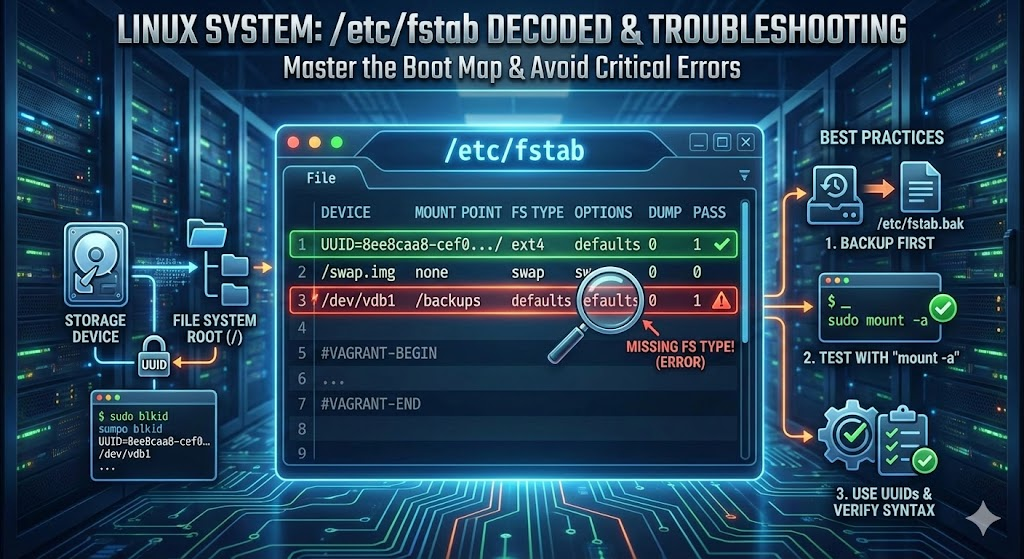
1. 🔍 What is /etc/fstab?
This file, an abbreviation for File System Table, is a configuration file that tells the Linux kernel “which storage device to connect (Mount), where, and how.”
Unlike Windows, where a D: drive is automatically assigned when you plug in a USB, Linux connects hard drives to directories at boot time according to the rules specified in this file.
Basic Syntax (6 Fields)
This file consists of 6 fields separated by spaces or tabs.
| Order | Field Name | Meaning | Example |
|---|---|---|---|
| 1 | Device | Device to mount (UUID or path) | /dev/sda1 |
| 2 | Mount Point | Directory location to connect to | /, /home |
| 3 | FS Type | File system type | ext4, xfs |
| 4 | Options | Mount options | defaults |
| 5 | Dump | Backup (Dump) status (0 or 1) | 0 (do not) |
| 6 | Pass | Integrity check order at boot | 1 (1st priority) |
—
2. 📝 In-depth Analysis of Actual Code Line by Line
Now, let’s examine the actual code you’ve provided, line by line, under a microscope. Here, best practices and risky configurations coexist.
✅ Line 1: Root Partition (Best Practice)
/dev/disk/by-uuid/8ee8caa8-cef0... / ext4 defaults 0 1- Device Name (UUID): Instead of a physical device name like /dev/sda1, UUID (Universally Unique Identifier) was used.
- Why is this good? If you change the hard disk cable position or add a USB, /dev/sdb might change to /dev/sda, preventing booting. However, UUID is the disk’s unique identification number and never changes. This is the most recommended setting.
- Mount Point: / (The top-level directory that is the root of the system)
- Type: ext4 (Linux’s standard file system)
- Pass: 1 (Since it’s the root partition, disk checks are performed first.)
✅ Line 2: Swap File (Latest Trend)
/swap.img none swap sw 0 0- Device Name: /swap.img
- In the past, a separate partition was used for swap (virtual memory). However, recently (in cloud and virtualization environments), swap is managed as a file. If capacity is insufficient, you can simply increase the file size, making it much more flexible.
- Mount Point: none (Swap is not connected to a specific folder; the kernel uses it like memory, so it has no location.)
- Type: swap
- Option: sw (Means to activate as swap.)
⚙️ Line 3: Vagrant Section (Traces of Automation)
#VAGRANT-BEGIN
...
#VAGRANT-END- This server is a virtual machine created with a tool called Vagrant.
- The content between these comments should not be modified by humans. This is because Vagrant automatically adds and removes settings to share folders with the host computer (your PC).
3. 🛠️ Practical! 3 Commandments to Follow When Modifying fstab
fstab is like a blood vessel connected to the heart of the system. Tampering with it incorrectly can be fatal. Here’s how to modify it safely.
1️⃣ Backup Before Modification is Essential
Always make a copy of the original file.
sudo cp /etc/fstab /etc/fstab.bak2️⃣ How to Check UUID
If you want to use a secure UUID instead of /dev/vdb1, use the blkid command.
$ sudo blkid
/dev/sda1: UUID="8ee8caa8-..." TYPE="ext4"
/dev/vdb1: UUID="1234abcd-..." TYPE="ext4"  <-- 이 값을 복사해서 쓰세요!
3️⃣ ‘Virtual Mount’ Test Before Reboot (Most Important ⭐)
Don’t just reboot after modifying fstab! You must check the syntax beforehand with the command below.
sudo mount -a- If you run this command and it’s silent with no messages? 👉 Success (No syntax errors)
- If an error message appears? 👉 Failure (Reopen fstab and correct the typo)
- If you had left the /dev/vdb1 line we analyzed earlier as is and ran this command, an error would have occurred immediately.
4. 🚀 Concluding Remarks
The file we examined today was not just a few lines of text.
- Stable system configuration through UUID
- Flexible memory management using Swap File
Is your server’s /etc/fstab in good shape? Open your terminal right now and check!
We support your safe and robust server operations. 🛡️
Leave a Reply