Hello! When dealing with Linux, you often encounter peculiar permissions that cannot be explained by rwx (read/write/execute) alone.
“Why can I change my own password, but the /etc/shadow file can only be viewed by root?”
“Why can someone else delete a file I created in a shared folder?”
The answer to all these questions lies in Special Permissions. Today, we will thoroughly dissect SetUID, SetGID, and Sticky Bit, which system engineers and security administrators must master. ☕ Grab a cup of coffee and follow along slowly!
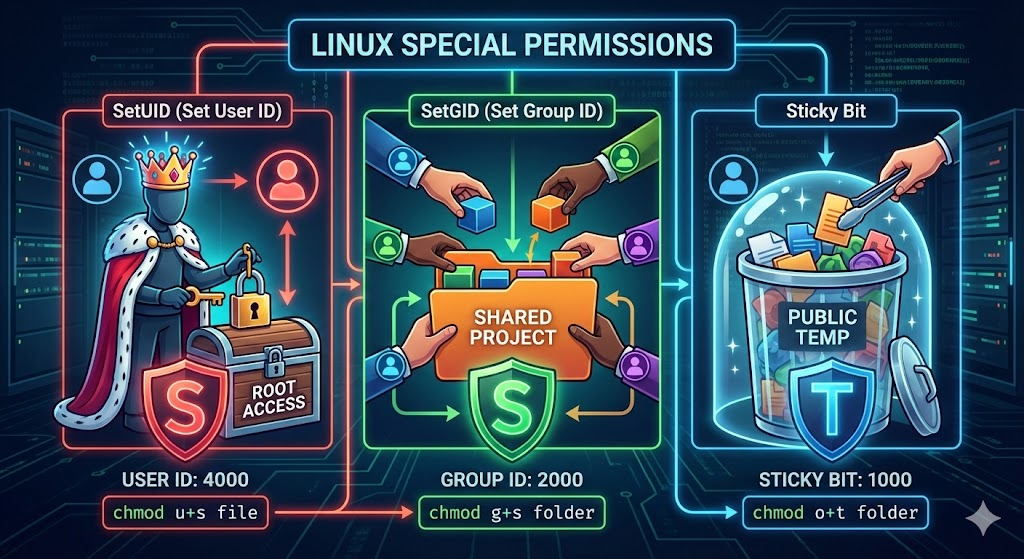
1. 🎭 SetUID: “The Start of the Masquerade Ball”
SetUID (Set User ID) is the most powerful and potentially most dangerous feature in the Linux permission system.
💡 Core Concept
Normally, when you execute a program, the process runs with the permissions of the ‘person who executed it’. However, a file with SetUID set runs with the permissions of the ‘file’s owner’. It’s like wearing a king’s mask and temporarily wielding the king’s power.
🔍 Representative Case: passwd
Let’s look at the passwd command we use to change our password:
$ ls -l /usr/bin/passwd
-rwsr-xr-x 1 root root 68208 ... /usr/bin/passwd- Owner: root
- Permissions: rws (Here, ‘s’ is SetUID!)
Password information is stored in the /etc/shadow file, which only root can modify.
- A regular user (user1) executes passwd.
- Thanks to the SetUID setting, the process temporarily gains root privileges while running.
- With those privileges, it safely modifies /etc/shadow and then terminates.
- Once the process ends, the permissions revert to their original state.
⚙️ How to Set
- Symbolic Mode: chmod u+s filename
- Octal Mode: chmod 4755 filename (The leading 4 signifies SetUID)
2. 🤝 SetGID: “Smart Rules for Collaboration”
SetGID (Set Group ID) behaves completely differently when applied to files versus directories. In practice, it is primarily used on directories to establish collaborative environments.
📂 SetGID on Directories (Core of Collaboration)
Let’s assume multiple developers share a single project folder.
- Problem: If developer A creates a file, its owning group becomes dev-a, and developer B might not be able to modify it. This creates the hassle of having to modify permissions every time.
- Solution: Apply SetGID to the project directory.
- All files/folders created within this directory automatically inherit the Group Ownership of the parent directory.
- Regardless of who creates the file, the group is unified, facilitating smooth sharing.
📄 SetGID on Files
Similar to SetUID. When executed, it runs with the permissions of the file’s owning group. (Less frequently used than SetUID.)
⚙️ How to Set
- Symbolic Mode: chmod g+s directoryname
- Octal Mode: chmod 2775 directoryname (The leading 2 signifies SetGID)
- Verification: An ‘s’ appears in the group execute permission spot, like drwxr-sr-x.
3. 🛡️ Sticky Bit: “Only I Can Throw Away My Own Stuff”
This permission “sticks” to the directory, as its name suggests. It primarily exists to prevent disorder in shared directories.
💡 Core Concept
In Linux, if a directory has ‘write (w)’ permission, files within it can be deleted. The problem is that files created by others can also be deleted.
In a directory with Sticky Bit set, “only the file’s owner (and root) can delete or rename that file.”
🔍 Representative Case: /tmp
/tmp, Linux’s temporary storage, must be accessible for anyone to create files.
$ ls -ld /tmp
drwxrwxrwt 19 root root 4096 ... /tmp- Permissions: rwxrwxrwt (The ‘t’ at the end is Sticky Bit.)
- All users can write files (w), but with ‘t’ set, it prevents other users from accidentally (or intentionally) deleting temporary files you created.
⚙️ How to Set
- Symbolic Mode: chmod o+t directoryname
- Octal Mode: chmod 1777 directoryname (The leading 1 signifies Sticky Bit)
4. 🧮 Advanced: The Secret of Octal Mode and Uppercase Notation
To fully understand special permissions, you must not miss these two details.
1) 4-Digit Octal Mode Calculation
Have you ever seen 4-digit numbers instead of 3 when using chmod?
- 4000: SetUID
- 2000: SetGID
- 1000: Sticky Bit
For example, chmod 4755 is a combination of 4000 (SetUID) + 755 (rwxr-xr-x).
2) Meaning of Uppercase ‘S’ and ‘T’
Sometimes, in the ls -l output, you might see uppercase S or T instead of lowercase s or t. This is not a typo!
- Lowercase (s, t): Special permission granted when execute permission (x) is present. (Normal operation)
- Uppercase (S, T): Special permission granted when execute permission (x) is absent.
- Example: If SetUID is applied to a rw-rw-r– file, it becomes rwSrw-r–.
- Meaning: It’s like a warning sign saying, “Special permission is set, but it won’t actually work because there’s no execute permission itself.”
5. 🚨 Advice for Security Administrators
SetUID can be the biggest loophole in system security.
- Risk: What if someone secretly applied SetUID (owned by root) to a program like bash shell or vim editor?
- The moment a regular user opens vim, they gain root privileges, allowing them to modify all files on the system. This is called a Privilege Escalation attack.
- Security Check Tip: Periodically search for all SetUID files on the system to check for any unintended files.
# Find files with SetUID set across the entire system
find / -user root -perm -4000 -print 2>/dev/null
📝 Summary Table
| Category | Role | Notation Position | Character | Octal Value |
|---|---|---|---|---|
| SetUID | Acquires owner’s permissions upon execution | User | s | 4000 |
| SetGID | Acquires group’s permissions upon execution / Directory group inheritance | Group | s | 2000 |
| Sticky Bit | Prevents deletion of others’ files in shared folders | Other | t | 1000 |
I hope today’s content has been a great help in understanding the Linux permission system. By effectively utilizing these three special permissions, you can simultaneously enhance system security and collaboration efficiency!
In the next post, we will cover Linux ACL (Access Control List). Thank you for reading. 🙇♂️
Leave a Reply