Want to use your office MacBook from home? You have more options than you think.
>

🎯 What this article covers
- How to use macOS’s built-in remote features (Screen Sharing, SSH)
- Comparison of free third-party remote control tools
- Paid/enterprise options and usage scenarios
- Security considerations
- Summary of recommended tools by situation
📌 Introduction / Background
With remote work and hybrid work becoming commonplace, remote control tools are no longer just a convenience feature but a core component of business continuity. Especially for MacBook users, while you might be familiar with iCloud or AirDrop, remote control is an entirely different domain.
The problem is the sheer number of options. From macOS’s built-in features to TeamViewer, AnyDesk, NoMachine, and RustDesk, there’s a wide variety. If you’re unsure which one to use, this article will help. We’ll organize them based on three criteria: purpose of use, security level, and cost.
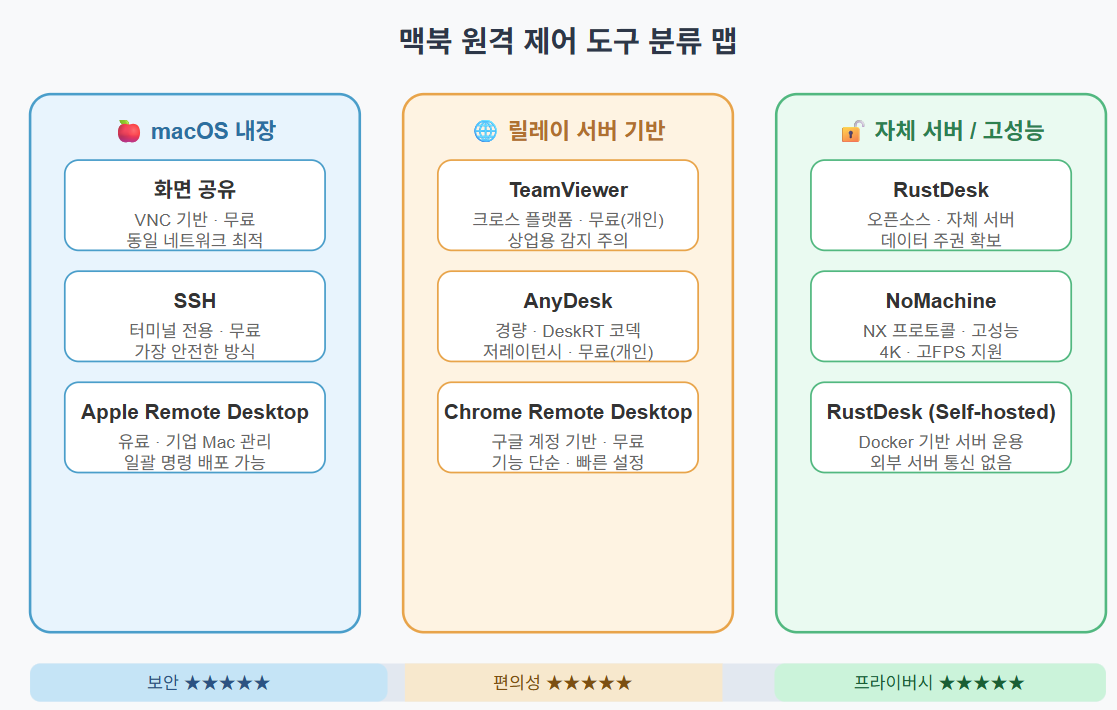
🔍 Classification of Remote Control Tools
Remote control tools are broadly divided into three types.
| Method | Description | Example |
| VNC-based | Direct screen transmission (pixel streaming) | macOS Screen Sharing, ARD |
| Relay Server-based | Connects via an intermediate server without NAT | TeamViewer, AnyDesk |
| Terminal/CLI-based | Control with commands without GUI | SSH, Mosh |
Each method has clear pros and cons, so you should choose according to the situation.
🍎 1. macOS Built-in Features — 0 Cost, 0 Second Setup
Screen Sharing
macOS comes with a built-in VNC server. You don’t need to install a separate app; just turn it on in System Settings.
How to activate:
시스템 설정 → 일반 → 공유 → 화면 공유 ONYou can access it directly from Finder → Network on another Mac on the same network. To connect from outside, port forwarding (default port 5900) or VPN is required.
Pros:
- Completely free, no separate account needed
- Excellent quality for Mac-to-Mac connections
Cons:
- Cumbersome setup for external network access
- Potential compatibility issues when connecting from Windows/Android
SSH — The Absolute King of Terminal Work 🖥️
For development and operations tasks that don’t require a GUI, SSH is the fastest and safest option.
# Activate SSH server on MacBook
# System Settings → General → Sharing → Remote Login ON

# Connect from another device
ssh username@macbook-ip-address

# Change port (enhance security)
sudo nano /etc/ssh/sshd_config
# Recommended to change Port 22 → Port 2222
When connecting from outside, it is recommended to minimize port exposure and always use public key authentication.
# Generate and register public key
ssh-keygen -t ed25519 -C "my-macbook"
ssh-copy-id -i ~/.ssh/id_ed25519.pub username@macbook-ip
🌐 2. Apple Remote Desktop (ARD) — The Choice for Mac Administrators
Apple’s official remote management tool. It’s designed for IT administrators managing multiple Macs within an organization, not for personal use.
- Price: Approximately $80 from the App Store (one-time purchase)
- Features: Execute commands on multiple Macs simultaneously, software deployment, screen observation, reporting
For companies operating multiple Macs, it offers excellent value for money. However, it’s an overkill tool for individual users.
🤝 3. TeamViewer — The Ultimate in Versatility
This is probably the most widely known remote control tool. It connects via a relay server, so its biggest advantage is that you can connect from anywhere without router configuration.
Key Features:
- Supports all platforms: macOS, Windows, Linux, iOS, Android
- Built-in file transfer, chat, and session recording features
- Free for personal non-commercial use
Important Note:
⚠️ TeamViewer automatically restricts connections if commercial use is detected. There are frequent cases where the free version is suddenly blocked when used for company work.
Price:
- Personal non-commercial use: Free
- Business plan: From approximately $24/month (based on annual billing)
⚡ 4. AnyDesk — A Lightweight and Fast Alternative
AnyDesk is characterized by its much lighter performance compared to TeamViewer. The installation file size is small, and it provides a relatively smooth experience even on low-spec networks.
Key Features:
- Achieves low latency with its proprietary DeskRT codec
- Can connect immediately by just running the .dmg without app installation
- Supports Unattended Access
Price:
- Personal non-commercial use: Free
- Solo plan: From approximately $14.90/month
It’s similar to TeamViewer in functionality but generally cheaper and offers better performance.
🔓 5. RustDesk — The Dark Horse of Open-Source Remote Control
If you’re concerned about security or privacy, RustDesk is the most powerful alternative. It’s an open-source remote control tool written in Rust, allowing you to operate your own server directly.
# Install with Homebrew
brew install --cask rustdesk
Self-hosted Relay Server Configuration (Docker example):
version: '3'
services:
  hbbs:
    image: rustdesk/rustdesk-server:latest
    command: hbbs
    ports:
      - "21115:21115"
      - "21116:21116"
      - "21116:21116/udp"
    volumes:
      - ./data:/root
  hbbr:
    image: rustdesk/rustdesk-server:latest
    command: hbbr
    ports:
      - "21117:21117"
    volumes:
      - ./data:/root
If you specify the above server address in the client, it communicates only through your own infrastructure without going through external servers. Suitable for enterprise environments where data sovereignty is important.
Pros:
- Completely free (including server)
- No data leakage to external parties by operating your own server
- Code can be audited on GitHub
Cons:
- Requires self-server setup (cloud knowledge needed)
- Stability is still developing compared to TeamViewer
🚀 6. NoMachine — When High Performance is Needed
If you need high-resolution, high-performance remote control for graphic work, video editing previews, etc., NoMachine is a good choice. Based on the NX protocol, it shows amazing performance in the same LAN environment.
- Price: Free for personal use (limited to 2 concurrent connections per server)
- Features: Supports 4K resolution, high FPS, strong for multimedia streaming
🌍 7. Chrome Remote Desktop — The Simplest Method
This tool only requires a Google account for setup. While its functionality is simple, it’s useful when you need to provide remote assistance to non-technical users.
Chrome 브라우저 → remotedesktop.google.com → 접속 코드 공유- Price: Completely free
- Cons: Very limited functionality, no file transfer, difficult to customize security settings
⚠️ Security Precautions
Remote control is like leaving a door always open. The following points must be observed:
- Turn OFF remote access when not needed: Disable when not in use
- Strong password + 2FA: TeamViewer and AnyDesk both support two-factor authentication
- Regularly check connection logs: Always check who connected and when
- Do not connect directly from public Wi-Fi without VPN: Risk of Man-in-the-Middle (MITM) attacks
- Disable password authentication for SSH: Recommended to set PasswordAuthentication no
# /etc/ssh/sshd_config recommended security settings
PermitRootLogin no
PasswordAuthentication no
PubkeyAuthentication yes
MaxAuthTries 3
✅ Summary / Conclusion
Here’s a one-line summary of recommended tools by situation:
| Situation | Recommended Tool |
| Same LAN, Mac-Mac connection | macOS Screen Sharing (built-in) |
| Development/Server CLI tasks | SSH + Public Key Authentication |
| Fast external remote support | AnyDesk (free) |
| Cross-platform for various OS | TeamViewer |
| Data security · Self-hosted server | RustDesk + Self-hosted Relay |
| High-performance graphics remote | NoMachine |
| Simple temporary support | Chrome Remote Desktop |
| Managing multiple Macs in an organization | Apple Remote Desktop |
The key to choosing a remote control tool is to first consider “where your data is going”. Convenience and security are in a trade-off relationship, so choose according to your purpose, but it is strongly recommended never to leave security settings at their default values.
Leave a Reply