Hello! This blog post provides a guide to setting up the cleanest and most powerful CKAD practice environment on a Mac.
Instead of just copying commands, if you read this understanding why these settings are made, in about 15 minutes, your Mac will be transformed into a perfect exam environment. 🚀
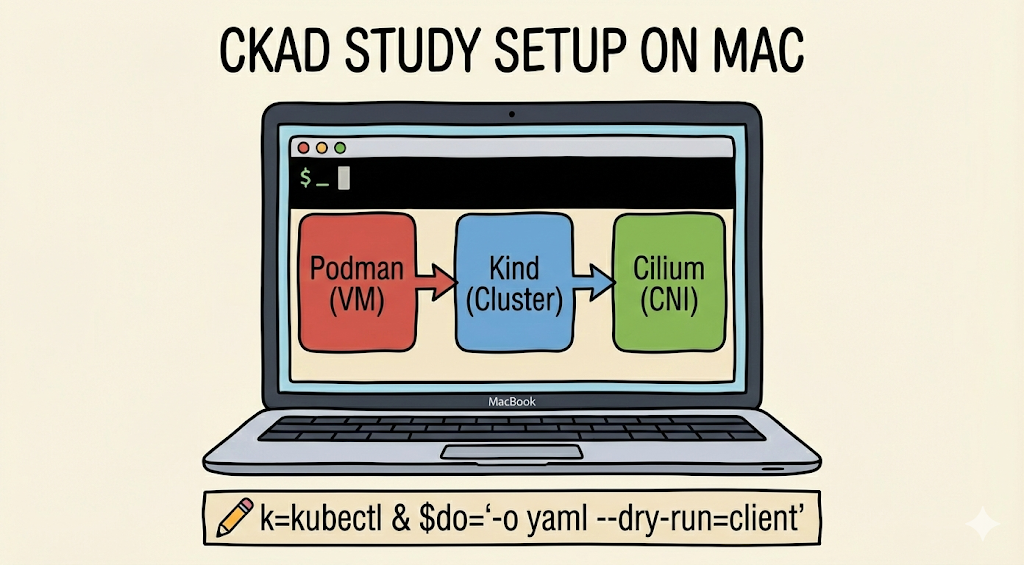
📑 Table of Contents
- Why Podman and Kind? (Escaping Docker Desktop)
- Essential Preparations Before Practice
- Analyzing the Magic Script for One-Shot Setup
- 200% Syncing with the CKAD Exam Environment (Alias & Dry-run)
- Cluster Status Check and Wrap-up
- [Appendix] Frequently Asked Questions (FAQ)
1. Why Podman and Kind? 🐳
While Docker Desktop is familiar to Mac users, Podman is emerging as an excellent alternative due to resource consumption and licensing issues. By adding Kind (Kubernetes in Docker/Podman), you can easily run multi-node clusters even in a local environment.
In particular, this guide is designed to allow you to practice advanced networking by directly installing Cilium CNI, which is the instructor’s area of expertise.
2. Essential Preparations Before Practice 🛠️
Before running the script, Homebrew must be installed on your Mac. Open your terminal (zsh) and follow the steps below.
3. One-Shot Practice Environment Setup Script 💻
This script performs Podman machine creation, Cilium installation, and exam optimization settings all at once.
# ---------------------------------------------------------
# Mac-specific practice environment setup script for CKAD success
# ---------------------------------------------------------

# Set CLI to ignore comments (prevents errors when copying and pasting)
setopt INTERACTIVE_COMMENTS

# 0. Install required programs
brew install podman kubectl cilium-cli kind

# 1. Install Podman and configure VM
# 6GB of memory is recommended to smoothly run Cilium and 2 worker nodes.
podman machine init --cpus 2 --memory 6144
podman machine set --rootful # Configure administrator privileges
podman machine start

# 2. Apply environment variables immediately and save permanently
export KIND_EXPERIMENTAL_PROVIDER=podman
echo 'export KIND_EXPERIMENTAL_PROVIDER=podman' >> ~/.zshrc

# 3. Create multi-node cluster configuration file
# Configured with 1 control plane and 2 worker nodes to enable Taints/Affinity practice.
cat <<EOF > kind-config.yaml
kind: Cluster
apiVersion: kind.x-k8s.io/v1alpha4
name: ckad-practice
nodes:
- role: control-plane
- role: worker
- role: worker
networking:
  disableDefaultCNI: true # Disable default CNI for direct Cilium installation
EOF

# 4. Create Kind cluster
kind create cluster --config kind-config.yaml

# 5. Install programs
brew install kubectl
brew install cilium-cni

# 5. Install Cilium CLI and configure CNI
# Create an advanced network practice environment using Cilium, which is the instructor's area of interest.
cilium install --version 1.18.4

# 6. Verify application
source ~/.zshrc
kubectl get nodes -w
4. Cluster Status Check and Wrap-up ✅
After the script finishes, ensure all nodes are in a Ready state.
- k get nodes: You should see 3 nodes.
- cilium status: Check if Cilium is running normally.
Now your Mac is perfectly ‘battle-ready’ to tackle any CKAD problem!
5. [Appendix] Frequently Asked Questions (FAQ) ❓
Q: It says I’m running out of memory.
A: Try increasing the allocation with the command podman machine set –memory 8192. 8GB is very comfortable.
Q: I want to delete the cluster and recreate it.
A: You can cleanly delete it with the command kind delete cluster –name ckad-practice.
Leave a Reply