Hello! 😄 Today, when you download files from the internet, we’re going to easily and thoroughly explore a method called ‘integrity verification’ to check if the file is truly the original created by the developer, and if no one has tampered with it in between.
Even if you’re not a developer, general users can easily follow along, so if you want to upgrade your computer’s security one step further, please read to the end! 💻🛡️
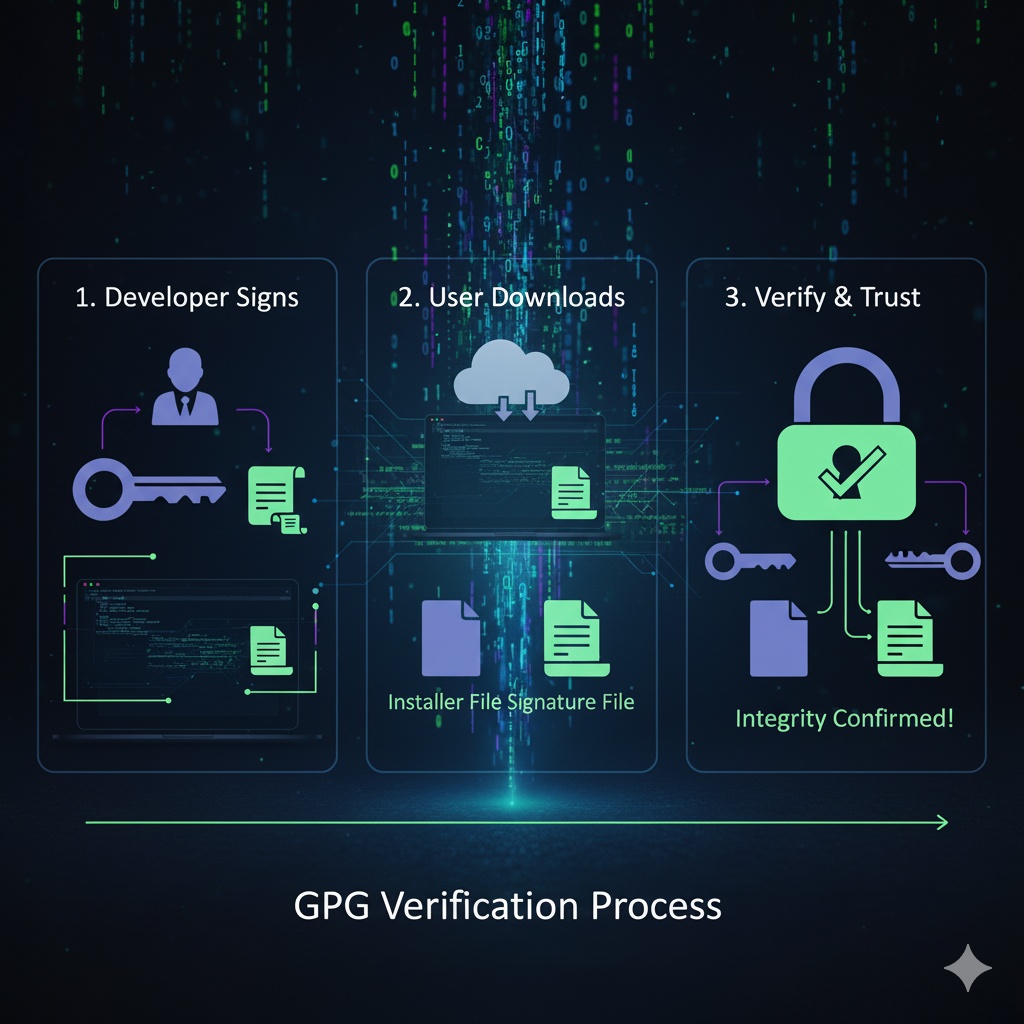
🤔 Wait, what is ‘Integrity Verification’?
When we download installation files (.exe, .dmg, etc.) from the internet, there’s an invisible risk. Hackers could intercept the file, embed malicious code, and redistribute it. 😱
Integrity verification refers to the process of confirming that the file you received is the original, in a perfect state without even a single bit changed. Along with this, the process of ‘authentication’ also takes place, confirming that the file was indeed distributed by the official developer.
Today, we will directly experience this process using GPG (GNU Privacy Guard), a widely used encryption tool worldwide!
✨ Core Principle: Asymmetric Key Cryptography (feat. Lock and Key)
GPG’s integrity verification uses a very clever method called ‘asymmetric keys’. Let’s compare it to a lock and key for easy understanding.
- Private Key 🤫: This is a secret key that only you possess. With this key, you can ‘lock’ (sign) data. Developers never disclose this key externally.
- Public Key 🔑: This is a lock that forms a pair with the private key. This lock can be distributed to anyone in the world. With this lock, you can only ‘unlock’ (verify) what was locked with the private key.
[Verification Process]
- Developer (Signing) ✍️: When the Notepad++ developer distributes a program, they create an ‘electronic signature’ for the installation file using their private key (secret key). This signature is like a certificate of quality assurance, stating “I made this file, and its contents are as follows.”
- User (Verification) 🔍: We obtain Notepad++’s public key (lock) in advance. Then, we verify the downloaded installation file and the ‘electronic signature’ file using the developer’s public key.
- Result ✨: What if the signature perfectly matches with the public key (lock)?
- Authentication ✅: This file was indeed signed by the person who possesses the private key paired with this public key (i.e., the official developer)!
- Integrity ✅: The file content has not changed by a single bit since it was signed! (If the file content changes even slightly, the signature value will be completely different, and verification will fail.)
Now, shall we directly confirm this principle through the script below?
🚀 Hands-on! GPG Integrity Verification with Scripts
Below is a shell script that downloads the installation file for the famous text editor ‘Notepad++’ and verifies its safety with GPG. Let’s break it down line by line!
#!/bin/bash

# Register GPG server
wget https://notepad-plus-plus.org/gpg/nppGpgPub.asc
gpg --import nppGpgPub.asc

# Installation file and signature file addresses
EXE_URL="https://github.com/notepad-plus-plus/notepad-plus-plus/releases/download/v8.8.5/npp.8.8.5.Installer.x64.exe"
SIG_URL="https://github.com/notepad-plus-plus/notepad-plus-plus/releases/download/v8.8.5/npp.8.8.5.Installer.x64.exe.sig"
EXE_FILE="npp.8.8.5.Installer.x64.exe"
SIG_FILE="npp.8.8.5.Installer.x64.exe.sig"

echo "[+] 파일 다운로드"
curl -L -o "$EXE_FILE" "$EXE_URL"
curl -L -o "$SIG_FILE" "$SIG_URL"

echo "[+] GPG 서명 검증 (키가 등록되어 있어야 함)"
gpg --verify "$SIG_FILE" "$EXE_FILE"
####
1️⃣ Step: Get a trusted ‘lock’ (Public Key)
# Register GPG server
wget https://notepad-plus-plus.org/gpg/nppGpgPub.asc
gpg --import nppGpgPub.asc- wget …: First, download the public key file (nppGpgPub.asc) provided on the official Notepad++ website. This is the developer’s ‘lock’. 🔑
- gpg –import …: Register the downloaded public key (lock) in your computer’s GPG key list. Now your computer is ready to verify signatures created by the Notepad++ developer.
2️⃣ Step: Download the installation file and ‘certificate’ (signature)
# Installation file and signature file addresses
...

echo "[+] 파일 다운로드"
curl -L -o "$EXE_FILE" "$EXE_URL"
curl -L -o "$SIG_FILE" "$SIG_URL"- curl … “$EXE_FILE” …: Download the actual installation program (npp.8.8.5.Installer.x64.exe). 📦
- curl … “$SIG_FILE” …: Download the developer’s ‘electronic signature’ file (.sig) for the installation file. This is the ‘quality assurance certificate’ encrypted with the private key. ✍️
3️⃣ Step: The magic moment! Verify the signature
echo "[+] GPG 서명 검증 (키가 등록되어 있어야 함)"
gpg --verify "$SIG_FILE" "$EXE_FILE"- gpg –verify [signature file] [original file]: This is the most crucial moment! This command asks GPG to verify the signature file (.sig) and the original installation file (.exe) using the public key we registered in Step 1.
Example output on successful verification:
gpg: Good signature from "Notepad++ <don.h@free.fr>" [unknown]Do you see the “Good signature” message? 🎉 This message guarantees two facts:
- Authentication Complete: This file is definitely signed by the “Notepad++” development team.
- Integrity Secured: The downloaded installation file has not been altered by a single character since the developer signed it.
If the file is corrupted or someone has embedded malicious code, a scary warning message like “BAD signature” will appear! 🚨
###
Conclusion
It might seem a bit complex, but the principle is simple: “The developer signs with a secret key, and we verify with a public lock!”
Now, you have a powerful tool to not just download files, but to directly verify their safety. When installing important programs, why not make GPG verification a habit, and protect your valuable computer more securely? 😊
Tags: GPG, Integrity Verification, File Verification, Information Security, Notepad++, Shell Script, Public Key, Private Key
Leave a Reply