Spend limits is a feature that sets a monthly spending cap for a project, and if reached, AWS stops the project. AWS Budgets is a budget management tool that tracks costs and usage. Although both names include ‘limit’, receiving a budget email is different from a running project being stopped.
The answer to the question is conditionally ‘yes’. The new AWS sign-up experience includes project-level Spend limits. However, this does not mean that a cost-blocking switch has been added to all existing AWS accounts. This article will first identify the target audience, then compare the conditions for stopping and resuming, and the notifications and Actions of existing Budgets. This is not a user review based on an actual account, but an explanation confirmed against AWS official documentation on October 21, 2026. Compare sign-up methods

1. First, check the sign-up environment
AWS documentation divides sign-up paths into Sign up for AWS (new) and Sign up for AWS (advanced). The new environment provides projects and pre-configured settings based on AWS Builder ID. Here, a project does not mean a cost tag or folder. A project includes a project account (which is an AWS account) and collaboration settings. Sign-up methods and project structure
In the official comparison table, Spend limit creation is shown as supported for the new environment and unsupported for the advanced environment. At the top of the document, there is also a warning that the new experience is currently being rolled out to some customers and may not yet be accessible to all. Therefore, it is easy to get confused if you judge availability solely by the sign-up date or look for the same feature in the Budgets menu of an existing general account. No evidence has been found to suggest that it will be retroactively applied to all existing accounts. Official comparison table
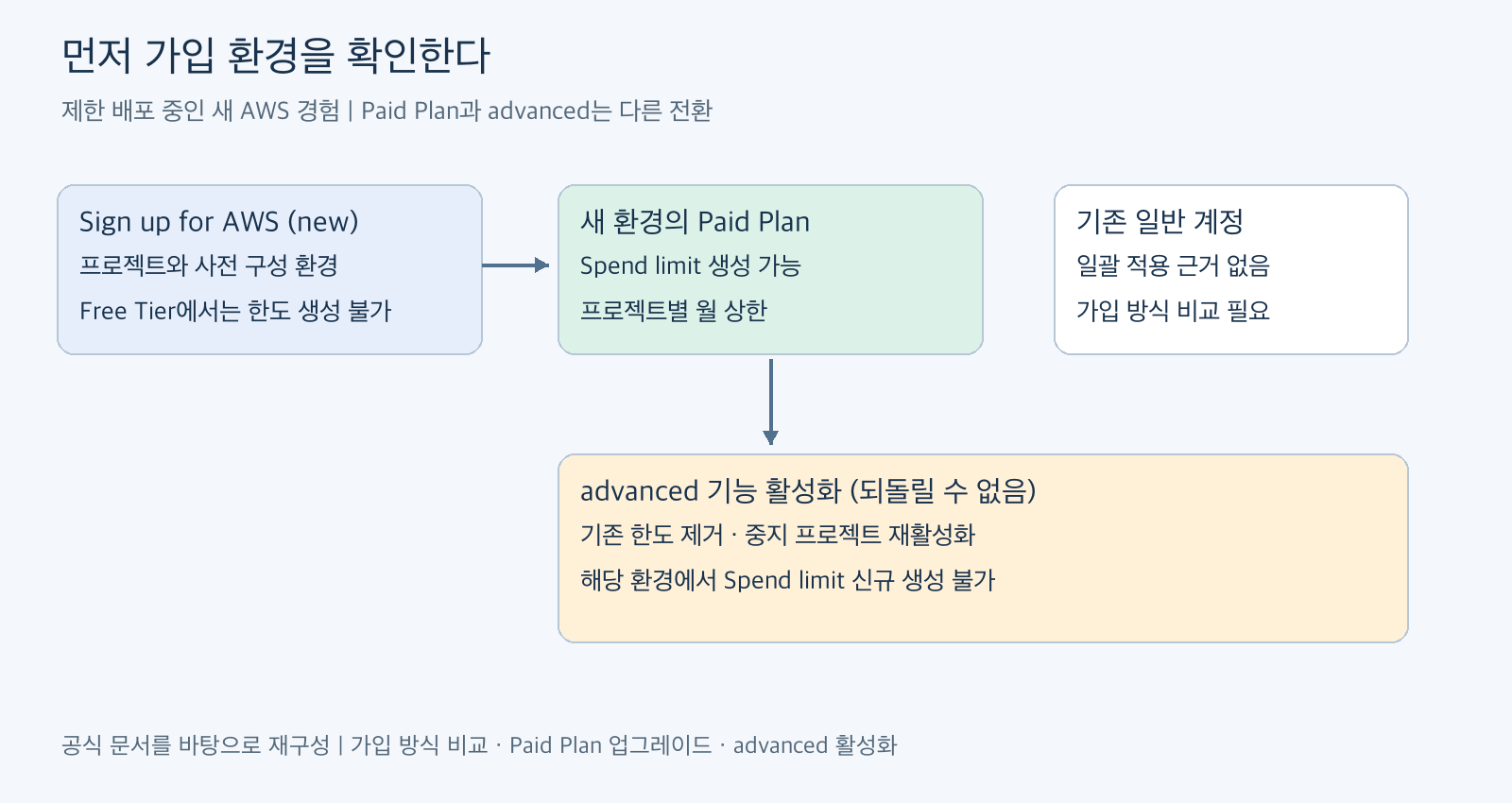
Figure 1. Reconstructed based on official documentation. Compare sign-up methods, Paid Plan transition, advanced activation.
Another distinction to make is between Paid Plan transition and advanced feature activation. In the new environment, upgrading to a Paid Plan allows you to create Spend limits for projects. This upgrade is not the procedure to switch to an advanced environment. It is also not a per-project paid transition; when you upgrade, all projects are transitioned together. Considerations for Paid Plan transition
2. What criteria does a Spend limit use to stop a project?
Spend limits are managed by the project owner in a Paid Plan. They are based on monthly pre-tax costs, excluding credits. The set amount itself is not the usage fee. The minimum value is the greater of $20 and AWS’s conservative estimated spending. Estimates reflect current month’s accumulated usage, running resources, and previous month’s activity. When resuming, current month’s spending and unbilled usage are also considered. Therefore, even if you want $40, the setting might be rejected depending on the current state. Limit calculation conditions
When the limit is reached, the project and all its resources are stopped. Data is preserved, but if no action is taken for 90 days after stopping, project data will be permanently deleted. Some resources may need to be manually restarted after resumption. The stop action of general resources should not be equated with this managed project suspension. Conditions for stopping and data retention
To resume, increase the limit in AWS Settings. The owner can modify the limit in Billing’s Cost by project, and changes are applied immediately. The recovery described in the documentation is not ‘wait until next month for automatic resumption’. Limit changes and resumption
3. Let’s assume a $40 monthly experimental project
The following is a hypothetical design to understand the behavior. It is not based on actual invoices, actual execution logs, or product performance measurements. We assume one project in the new environment’s Paid Plan where a $40 setting is allowed. This is not an example of precisely matching a card payment amount, including taxes, to $40.
Spend limits send notifications at 50%, 75%, and 90% of actual costs, and also notify when the limit is expected to be reached or exceeded within the next 10 days. Multiplying $40 by these percentages yields $20, $30, and $36. These amounts are hypothetical calculations and not actual notification records. Optional early controls are also provided, so check and select the scope of automatic suspension. Notifications and optional controls
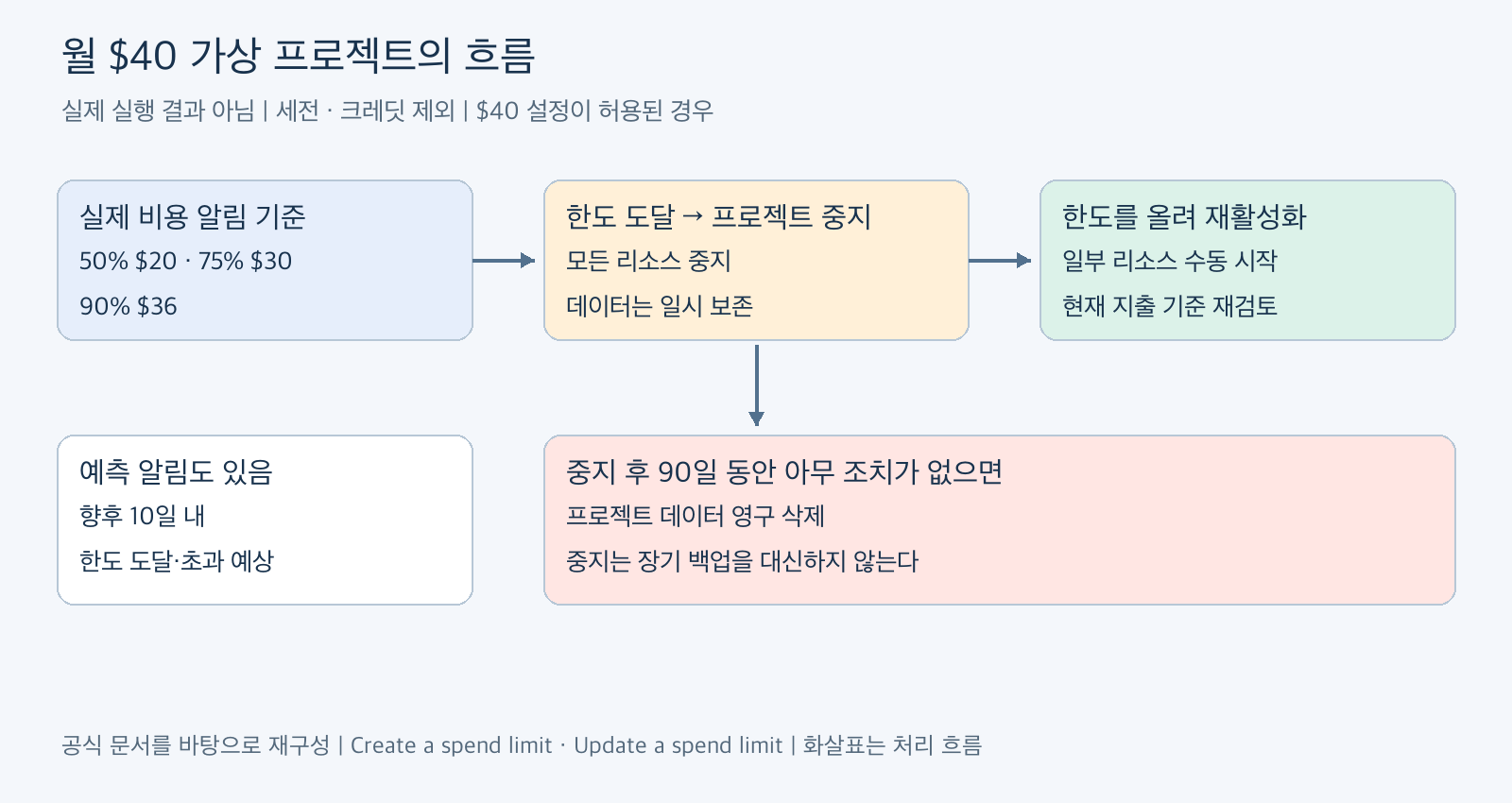
Figure 2. A hypothetical $40 case reconstructed based on official documentation. Amounts are ratio calculations and not actual occurrence records. Spend limit behavior, Resumption procedure.
In this hypothetical project, it’s not just the amount that needs to be decided. Questions like ‘Is it acceptable for the experiment to stop?’, ‘Who will check the suspension notifications?’, and ‘Has data been separately stored?’ also go into the design. The success of cost control and the safety of experimental data must be verified separately. Especially for experiments that will be left unattended for a long time, setting a limit alone does not complete the operational plan.
4. When do Budgets emails provide notifications?
With existing AWS Budgets, you can set a monthly cost target and receive notifications via email or Amazon SNS when actual or forecasted costs exceed a threshold. Simply entering a budget amount or registering an email does not automatically stop resources. While Spend limits themselves are a type of AWS Budgets according to the documentation, their notification settings and control actions differ from general budgets. Budgets overview, Location of Spend limits
A key limitation of Budgets is that cost data is not a real-time control signal. The overview document explains that budget information is updated up to three times a day, typically 8-12 hours after the previous update. There is also a delay between usage occurrence and billing reflection, meaning costs exceeding the threshold may occur before notification, and cost values can change even after notification. This should not be interpreted as a promise to ‘block within 8 hours’. Update frequency and delay warning
The best practices document explains that underlying billing data is updated at least once a day. Combining both explanations means that notifications rely on billing data updates, and the “up to three times” figure does not guarantee real-time accuracy. Forecasted cost notifications also require approximately 5 weeks of usage history. For new projects, it is more reasonable to review actual cost thresholds alongside relying on forecasted notifications. The last sentence is an operational suggestion from this article. Budgets best practices
Let’s hypothetically set the Budgets budget to $40, with actual cost notifications at 50% and 75%. The calculated thresholds are $20 and $30, but this does not mean the email arrives the exact moment $20 is incurred. These figures are criteria for notification, not mechanisms to eliminate communication or aggregation delays. For services where interruption is not allowed, you must plan for the time buffer needed to receive notifications and respond.
5. Will attaching Budgets Actions result in the same limit?
AWS Budgets Actions is a feature that executes specified actions when a threshold is exceeded. You can choose between automatic execution and execution after manual approval. You can apply IAM policies or SCPs, or target specific EC2 or RDS instances. The necessary execution roles and permissions must be configured for this. Actions configuration, Permission configuration considerations
However, ‘prohibiting new resource creation’ is different from ‘stopping all costs for current resources’. You need to consider the policy’s target, services already running, and other remaining resources separately. Official best practices warn that even if instances in an Auto Scaling group are stopped, they might restart or replacement instances could be created. This is why it’s difficult to treat a single stop button as a comprehensive cost limit. Auto Scaling and budget actions
Actions also operate based on budget information. Considering both notification delays and the scope of the action’s target, it cannot be described as a global blocker that precisely stops all service costs at the specified $40. This is a judgment based on a synthesis of the delay and target explanations in the official documentation, not a separate measurement result. Budget delays, Actions targets
WRIMO-MD-TABLE-0]Table basis: [Spend limits, Budgets, Actions.
Fees should also be considered separately. Budgets monitoring and notifications are free. For budgets with activated actions, the first two per month are free, and subsequent additional budgets cost $0.10 per day. This is a criterion separate from the number of actions within a single budget. Budgets Reports received via email cost $0.01 per delivered report, which is different from general threshold notifications. This does not mean that all connected service fees are free. AWS Budgets official pricing
6. Redesign cost control before transitioning to advanced
When advanced features are activated, existing Spend limits are removed, and suspended projects are reactivated. After that, Spend limits cannot be created in that environment. Since activation cannot be undone, even when transitioning simply to use more services or regions, changes in cost control must be considered. Changes with advanced activation
AWS recommends checking current project costs and deleting or stopping idle resources before transitioning. After the transition, cost management tools such as Budgets, Cost Explorer, and Cost Anomaly Detection can be used. The fact that these tools can be used is separate from the previous project limits remaining in place. Transition preparation
If you are running experiments in an existing account, a realistic design combines Budgets’ actual cost notifications, necessary Actions, and service-specific usage limits and cleanup procedures. If Spend limits are available in the new environment, choose them, including whether interruptions are allowed and a data recovery plan. The $40 in this article is a benchmark for comparing features and does not replace workload-appropriate cost estimation or actual configurable amounts.
When asking ‘Has AWS also introduced spending limits?’, you should first check the applicable environment rather than the amount. Then, you need to distinguish whether it involves email notifications, specified actions, or includes project suspension, to choose the cost control that suits your experiment.
Official References and Scope of Verification
- Spend limit creation·calculation·suspension·90-day data deletion
- Compare new·advanced sign-up methods
- Paid Plan upgrade
- Spend limit change·resumption
- advanced feature activation·limit removal
- AWS Budgets management·renewal·delay
- Budgets best practices·forecast history·Auto Scaling
- Budget Actions
- AWS Budgets pricing
Date of verification: 2026-10-21. This explanation is based on official documentation, and actual measurements of login screens, availability in real accounts, billing, notification delivery times, suspension, resumption, and deletion operations were not performed. The limited distribution scope and actual application screens may differ.
Leave a Reply