Hello! When managing Linux systems, ‘backup’ is a task that feels like destiny. The first command you learn is undoubtedly cp. It’s intuitive and simple. But have you ever been flustered by unexpected problems after using cp in your regular backup scripts? 🤔
“I definitely backed it up, so why is the directory structure so strange?”
Today, I’m going to tell you about this common pitfall and its clear solution. We’ll thoroughly explore why synchronization (sync) is needed instead of simple copying, and why rsync is called the standard for backup operations!
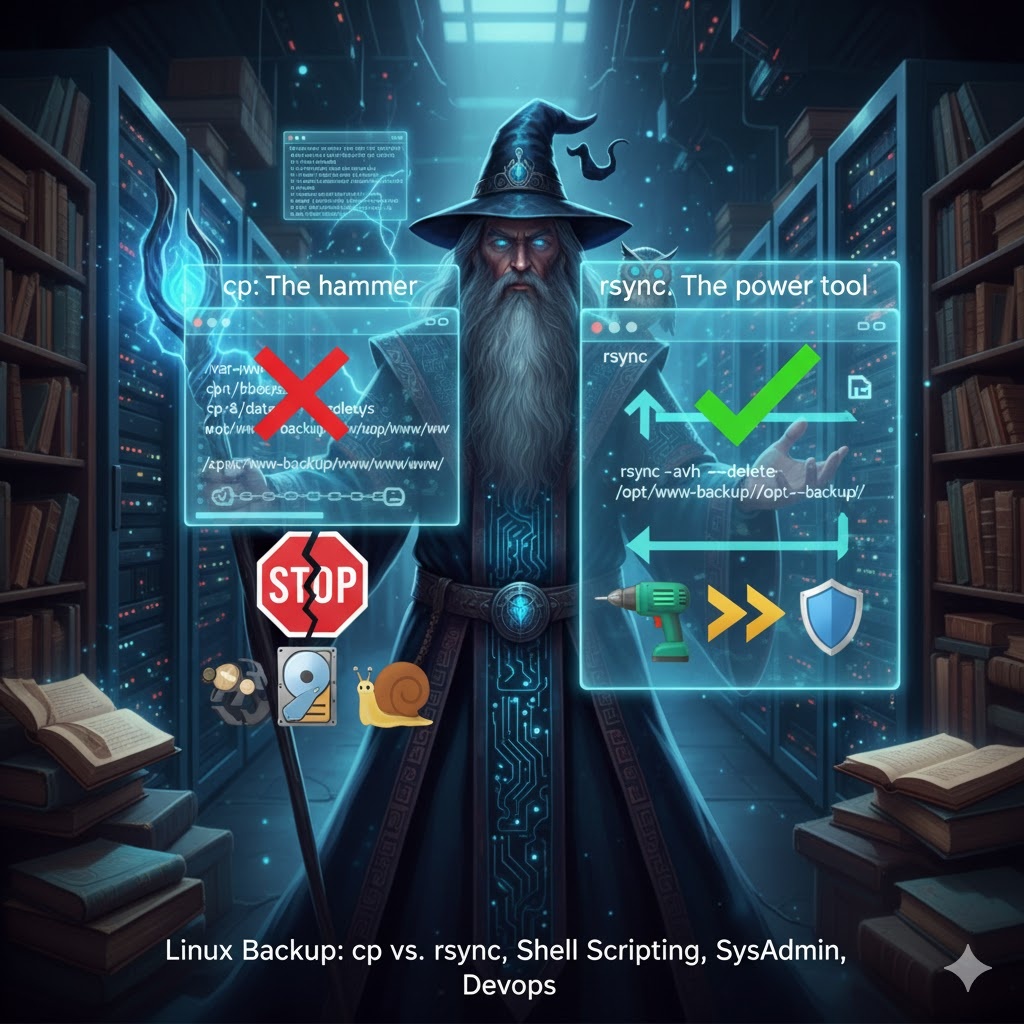
1. The Hidden Pitfall of the cp Command: “Huh? Why is another folder being created?”
Let’s assume you put the following cp command in your backup script.
Bash
# Back up the /var/www/ directory to /opt/www-backup/
cp -a /var/www/ /opt/www-backup/
When this script is run for the first time, the contents of /var/www are copied successfully into the /opt/www-backup folder without any issues. However, from the second execution onwards problems arise. Another folder named www is created inside /opt/www-backup!
- 1st run: /opt/www-backup/[…contents of www…] 👍
- 2nd run: /opt/www-backup/www/[…contents of www…] 👎
- 3rd run: /opt/www-backup/www/www/[…contents of www…] 😱
This is because cp behaves differently depending on whether the target folder exists.
- If the target does not exist: It creates the target folder and copies its contents into it.
- If the target exists: It copies the source folder itself into the target folder.
It’s like the difference between organizing items in an empty box and putting an entire box into a box that already contains items.
2. The ‘Crude’ Way to Solve the Problem with cp
Of course, you can solve this problem using only cp. That is, by deleting the entire existing backup before copying.
Bash
# 1. First, clean up the existing backup.
rm -rf /opt/www-backup/

# 2. Then copy again.
cp -a /var/www/ /opt/www-backup/
This is a primitive method that makes cp always act like a ‘first run’ by deleting the backup folder every time. While it works, this method has drawbacks that clearly show why we shouldn’t use cp for backups.
3. Why is the cp + rm Method the Worst Choice?
🐢 Extreme Inefficiency
This is the biggest problem. Even if only a 1KB text file is modified in the source, this script deletes the entire backup of tens of GBs and copies it again from scratch. This causes enormous time waste and system I/O load. It’s like remodeling the entire house just to change one picture frame.
💣 Backup Gap Time
From the moment the backup is deleted with rm until cp completes, there is a dangerous period when no backup exists on your server. What if a system problem occurs during this time? I don’t even want to imagine.
🗑️ Deleted Files Not Reflected
If you use cp -u (update) option without rm, files deleted from the source will remain in the backup folder. Over time, the backup folder will be filled with ghost files.
4. The Professional’s Choice: rsync (The Right Tool for the Job)
The command that solves all these problems is rsync. rsync is short for ‘Remote Sync’, and as its name suggests, it’s a tool specialized in ‘synchronizing’ two directories.
rsync doesn’t just copy everything; it compares two directories and intelligently transfers only the changed parts (Delta).
rsync Command for Perfect Backups
rsync -avh --delete /var/www/ /opt/www-backup/- -a (archive): Recursively copies, preserving all attributes like permissions and ownership.
- -v (verbose): Shows detailed progress.
- -h (human-readable): Shows file sizes in easy-to-read units like M, G.
- –delete: This is the key option. Files deleted from the source are also deleted from the backup, making the two directories perfect mirrors.
⚠️ rsync’s Absolute Rule: Trailing Slash (/) in Path
When using rsync, remember this one thing: a trailing slash (/) at the end of the source path means ‘the contents within it’, and without it, it means ‘the directory itself’. To avoid the problems you experienced with cp, always add a trailing slash to the source path!
- /var/www/ ➡️ Means the contents of /var/www (O)
- /var/www ➡️ Means the /var/www directory itself (X)
Conclusion: Hammer and Power Drill
The relationship between cp and rsync can be compared to a hammer (🔨) and a power drill (🔩). A hammer is quick and useful for driving a single nail. But when you need to assemble furniture with dozens of screws, a power drill is overwhelmingly more efficient and accurate.
Use cp for simple, one-time copies, but for repetitive and stability-critical backup and synchronization tasks, always use rsync. Choosing the right tool is the first step to saving your time and ensuring system stability.
Tags:
Linux, Backup, Synchronization, cp, rsync, Shell Script, System Administration, DevOps, Linux Tips
Leave a Reply