Video conferencing is a communication where you receive video and simultaneously send your voice and screen. Even if your download is fast, if your upload is insufficient or data arrival times are irregular, meeting quality can suffer. Looking at send, receive, latency, and loss together, rather than just one big number from a speed test, helps narrow down the problem.
The figures in this article use Zoom official documents and hypothetical examples confirmed on October 4, 2026. Actual locations, ISPs, or user meeting records are not included, nor are the results of direct measurements of speed tests or meeting quality.

A Hypothetical Scenario: Download 300Mbps, Upload 1Mbps
Mbps is a unit that indicates how many megabits of data are transferred per second. Sending speed and receiving speed are considered separately. Upload is required to transmit your camera video to other participants, so the download number cannot compensate for that deficiency.
Zoom’s recommended bandwidth for desktop group video conferencing is 2.6Mbps upload and 1.8Mbps download for 720p HD. For 1-on-1 meetings, the 720p standard changes to 1.2Mbps bidirectional. Actual usage adjusts to meeting conditions, so the recommended values are not fixed consumption. kb&sysparmarticle=KB0070504″>WRIMO-MD-TABLE-0]This table reconstructs general recommended values from official documents. It does not represent service guarantee standards or a passing grade for all meetings. [Zoom Meeting Statistics Explained
High latency can cause conversations to be delivered late, leading to participants talking over each other. If arrival intervals fluctuate significantly, even with good average speed, the momentary flow might be uneven. If loss occurs, received data may be incomplete, affecting quality. Do not assume that improving one metric solves other problems.
Averages can also hide momentary issues. Even if the average loss for an entire meeting is low, if loss was concentrated at the time of disconnection, checking the status at that moment is more useful. Numbers should be recorded along with the time when discomfort occurred to aid diagnosis.
FAST’s Detailed Information and Zoom Statistics Have Different Comparison Targets
FAST.com primarily shows download speed, and opening detailed information allows you to check upload and latency. Unloaded refers to latency without load, and Loaded refers to latency with traffic load. Since the measurement involves exchanging data with Netflix servers, it is not a direct measurement of the meeting path to Zoom servers. FAST.com Official Explanation
For example, if hypothetical measurements are Unloaded 20ms, Loaded 200ms, it provides a clue to investigate problems where latency increases when sending or receiving a lot of data. However, you cannot simply transcribe this difference and say that Zoom meeting latency is exactly 200ms. Measurement time, target server, and transmission load are different.
Speed tests are tools to check the overall connection status outside of a meeting, while checking problems during a meeting with Zoom statistics is more appropriate for the purpose. Running a speed test simultaneously during a meeting adds transmission load, making it difficult to distinguish from the original meeting status.
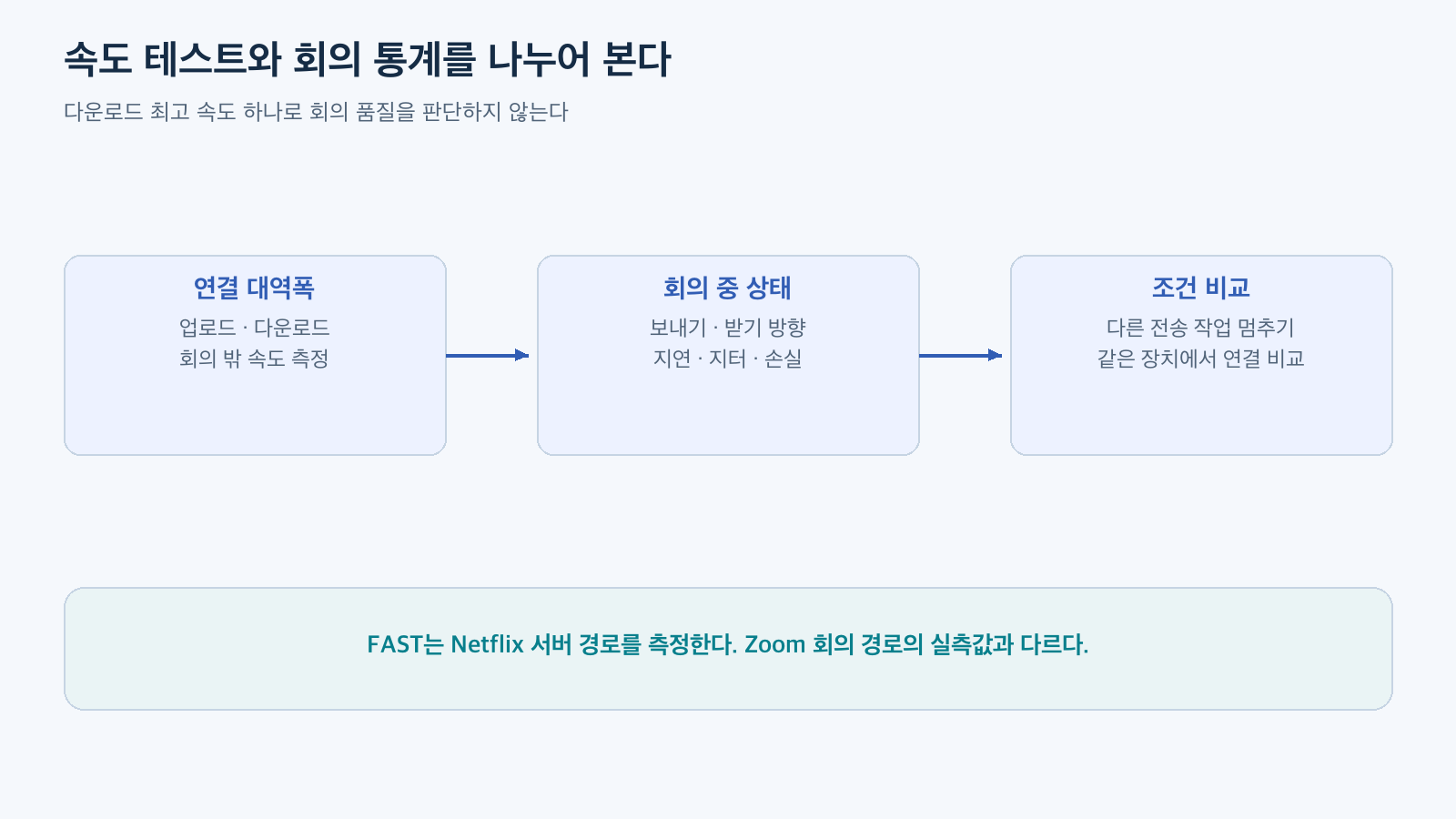
Figure: Do not judge meeting quality by a single maximum download speed · kb&sysparmarticle=KB0070504″>How to Access Statistics
If others say only your video is cutting out, there’s a basis to first check the upload status on your end. If only the other person’s video is cutting out on your screen, there’s a basis to compare the receiving end. If both are bad, investigate common connections or other conditions. This direction is not a rule for confirming the cause but a method for setting the next verification order.
| Hypothetical Observation | Conditions to Compare Next |
| — | — |
| My video quality degrades during file upload | Before and after stopping upload tasks |
| Problem repeats only with wireless connection | Wired connection at the same device/location |
| Meeting statistics are good, but device is lagging | CPU usage and app status |
| Multiple participants experience issues at the same time | Status of each participant and common conditions |
Change only one thing at a time and compare under the same meeting conditions. Actions like turning off the camera or lowering video quality can help continue the current meeting, but they don’t prove the root cause. Also, check if essential functions, including screen sharing and audio, are maintained.
For diagnostic notes, time, function, send/receive direction, and the degree of change in latency, jitter, and loss are sufficient. There’s no need to disclose meeting ID, participant names, screen content, or IP addresses. A hypothetical table without identifying information can also explain the problem instead of a screenshot.
Changes, Not a Single Number, Narrow Down the Cause
Video conferencing quality cannot be judged solely by maximum download speed. You need to sequentially check if upload is required for the function, if data arrives on time, and if loss occurs on the actual meeting path.
First, compare recommended bandwidth with send/receive speeds. Then, check Zoom statistics at the time of disconnection, and change other transmission tasks or connection methods one by one, recording the differences. As changes under the same conditions accumulate, you can make a judgment closer to a solution than a vague conclusion like “the internet is slow.”
Leave a Reply