#
“WSL2 runs alongside the Windows kernel”
— This statement is half true and half false.
>

🎯 What this article covers
- Why WSL1 and WSL2 architectures are fundamentally different
- The structure and implications of WSL2 using Hyper-V lightweight VMs
- The accurate interpretation of “running in parallel with the Windows kernel”
- The identity and management of the WSL2 Linux kernel
- Criteria for choosing between WSL1 and WSL2
📌 Introduction / Background
Developers’ demand to use Linux on Windows has a long history. In the past, traditional virtual machines like VirtualBox or VMware had to be used. They were heavy, slow, and consumed disk space.
Microsoft’s WSL1 (Windows Subsystem for Linux 1), released in 2016, was revolutionary. It allowed running a bash shell without a virtual machine. However, its limitations were clear. File I/O was slow, and some Linux system calls were not supported, preventing tools like Docker from functioning correctly.
So, in 2019, Microsoft announced WSL2. And from then on, the explanation “WSL2 runs alongside the Windows kernel” began to circulate. Is this expression truly accurate?
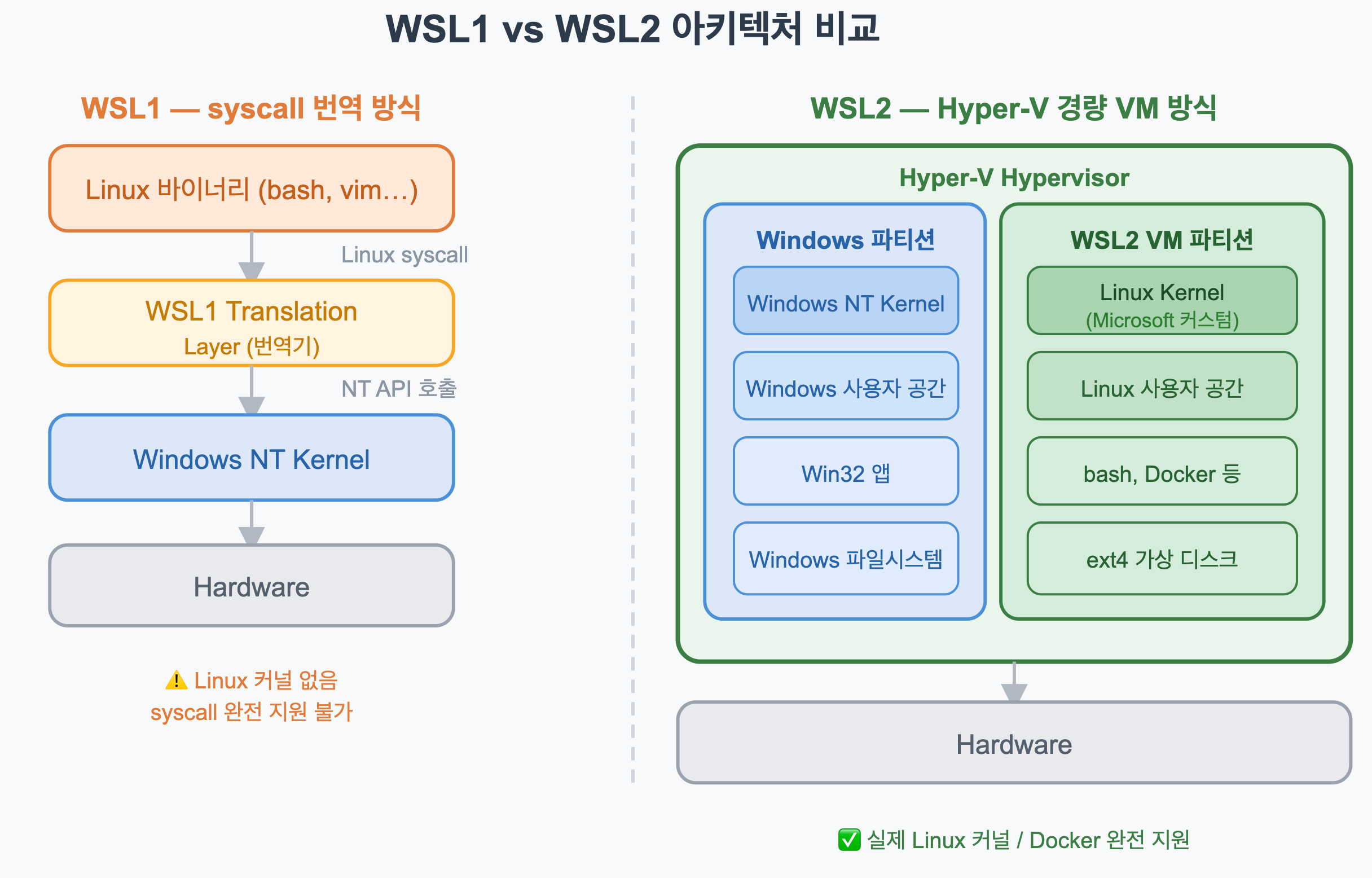
🔍 WSL1’s Structure — The Translator Method
To understand the changes in WSL2, one must first understand WSL1.
WSL1 operates without a Linux kernel. Instead, it uses a layer that translates Linux program requests for system calls (syscalls) into Windows NT kernel APIs in real-time.
[Linux 바이너리 (bash, grep, vim...)]
          ↓ Linux syscall 발생
[WSL1 Translation Layer]  ← 번역기 역할
          ↓ 변환된 NT API 호출
[Windows NT Kernel]
The advantage of this structure is its lightweight nature. Since there’s no VM, there’s no boot time, and memory overhead is minimal.
The disadvantage is that it’s not perfect. Translating 100% of Linux syscalls is virtually impossible. Kernel features like namespace and cgroup, which the Docker daemon requires, were not properly supported.
🔍 WSL2’s Structure — The Lightweight VM Method
WSL2 changed its approach entirely. It runs a real Linux kernel.
The core is the Hyper-V Lightweight Utility VM. A very small VM is launched on top of the Hyper-V hypervisor built into Windows, and within it, a custom Linux kernel managed directly by Microsoft is executed.
┌─────────────────────────────────────────────┐
│            Hyper-V Hypervisor               │
├──────────────────┬──────────────────────────┤
│  Windows 파티션  │    WSL2 VM 파티션         │
│  Windows NT      │    Linux Kernel           │
│  Kernel          │    (Microsoft 커스텀)     │
│                  │    + Linux 사용자 공간    │
└──────────────────┴──────────────────────────┘
There are two important points in this structure.
🔑 Point 1 — Hyper-V is in the middle
WSL2 does not run directly alongside the Windows kernel. Instead, Windows and Linux run as separate partitions on top of a hypervisor called Hyper-V.
The expression “parallel execution” isn’t entirely wrong. Both kernels are simultaneously loaded into memory and operate independently, so in a broad sense, it can be considered parallel. However, more accurately, it’s “two partitions on top of a hypervisor.”
🔑 Point 2 — The Identity of the Linux Kernel
The Linux kernel used in WSL2 is an open-source custom kernel maintained directly by Microsoft.
Its address is github.com/microsoft/WSL2-Linux-Kernel, and it is optimized for the WSL2 environment based on the standard Linux kernel.
Running the wsl --update command updates this kernel. It does not update the Ubuntu or Debian kernel.
🔍 Where did the term “parallel” come from?
Even Microsoft’s official documentation uses this expression when describing WSL2:
WSL 2 uses virtualization technology to run a Linux kernel inside of a lightweight utility virtual machine (VM).
Some presentation materials or YouTube videos also use visualizations showing “the Windows kernel and Linux kernel running side-by-side.” This is intended to easily convey the concept that the two operating systems run simultaneously from a user’s perspective.
However, for someone familiar with hypervisor architecture, this depiction can be a bit misleading. A more accurate expression is:
“The Windows partition and the Linux VM partition run together on top of the Hyper-V hypervisor.”
<
💻 Hands-on — Directly verifying WSL2 structure
You can directly verify WSL2’s VM structure.
Check WSL2 Kernel Version
# Run inside WSL2 shell
uname -r
# Example output: 5.15.167.4-microsoft-standard-WSL2
The suffix microsoft-standard-WSL2 is attached. This is proof of Microsoft’s custom kernel.
Check Hyper-V VMs in Windows
# Run in PowerShell (Administrator)
hcsdiag list
The WSL2 instance appears in the list as a Hyper-V Container VM.
Check Memory Usage Structure
# Check with CLI instead of Task Manager
Get-Process -Name "Vmmem" | Select-Object Name, WorkingSet
The Vmmem process is visible. This is the memory used by the WSL2 VM. It’s proof that a real VM is running.
Limit Memory/CPU with .wslconfig
Since WSL2 is a VM, resource limits can be applied. Configure this in the %USERPROFILE%.wslconfig file.
# C:Users<username>.wslconfig
[wsl2]
memory=4GB       # Maximum memory to allocate to the VM
processors=2     # Number of CPU cores to allocate to the VM
swap=2GB         # Swap file size
🆚 WSL1 vs WSL2 — Which to choose?
| Item | WSL1 | WSL2 |
| Architecture | Syscall translation | Hyper-V Lightweight VM |
| Linux Kernel | None (Translator) | Real Kernel |
| File I/O (Linux Filesystem) | Slow | Fast |
| File I/O (Windows Filesystem) | Fast | Slow (9P protocol) |
| Docker Support | Limited | Full Support |
| Syscall Compatibility | Partial | Almost Perfect |
| Boot Time | Instant | Several seconds (first run) |
| Hyper-V Required | Not required | Required |
For a typical development environment, WSL2 is overwhelmingly advantageous. Docker Desktop also recommends the WSL2 backend.
In special cases where you need to read and write large amounts of data to the Windows filesystem (/mnt/c/…), WSL1 might be faster. However, such cases are rare.
⚠️ Precautions / Common Mistakes
🚨 Keep files within the Linux filesystem
When handling files in /mnt/c/ (Windows filesystem) from WSL2, I/O will be slow because data must cross the VM boundary via the 9P protocol. It is best to keep project folders within ~/ (Linux home directory).
🚨 Hyper-V conflicts with other virtualization software
Older versions of VirtualBox or VMware may conflict with Hyper-V. Activating WSL2 turns on Hyper-V, which can cause issues with VirtualBox versions 6.0 and below. VirtualBox 6.1 or higher, or VMware 15.5.5 or higher, can coexist with Hyper-V.
🚨 wsl --shutdown takes down the VM
If you run wsl --shutdown while using WSL2, it doesn’t just terminate Linux processes; it shuts down the VM itself. The next wsl command will cause the VM to reboot (takes several seconds).
✅ Summary / Conclusion
Here’s a summary of WSL2’s core points:
- WSL1 uses a method of translating syscalls without a Linux kernel.
- WSL2 runs a real Linux kernel inside a lightweight VM on Hyper-V.
- “Running in parallel with the Windows kernel” is strictly an incorrect expression — more accurately, it’s two partitions on top of a hypervisor.
- The WSL2 Linux kernel is an open-source custom kernel directly managed by Microsoft.
- The
Vmmemprocess proves the existence of the VM.
WSL2 is a compromise that offers “real Linux without the heaviness of a virtual machine.” Understanding its structure makes performance tuning and troubleshooting much easier.
Next steps could include exploring the WSL2 + Docker Desktop architecture, WSLg (GUI app support), and WSL2 improvements in Windows 11.
Leave a Reply