Hello! Today, I’d like to delve deep into a topic that surprises many system engineers and security professionals when they first encounter Active Directory (AD): the ‘default permissions of Windows standard users (Domain Users)’. 🕵️♂️
When studying security, we learn the principle: “All permissions should be blocked by default (Default Deny), and only necessary ones should be allowed (Allow).” So, does a new employee account (Domain User) created in Windows AD truly follow this principle?
The answer is “No.” 🙅♂️
This is because Windows’ fundamental design philosophy is centered on “Usability.” Let’s now meticulously examine what is open and what is closed.
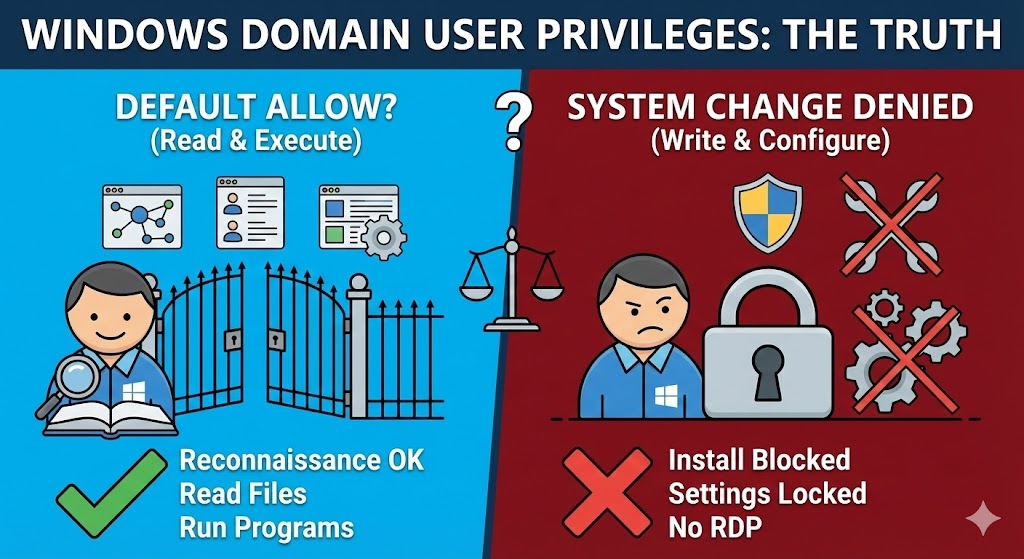
1. Shocking Truth: “More is open than you think” (Default Allow) 🔓
In an MS Windows environment, the default permissions for a standard user are closer to ‘Read & Execute’ rather than ‘Deny.’ This is to ensure that employees can perform basic tasks without hindrance. However, from a security perspective, this can pose a potential threat.
① Can log in to any PC (Interactive Logon) 🖥️
Without separate GPO settings, a new employee, azureuser, can log in not only to their own PC but also to Kim Dae-ri’s PC next door, and even the CEO’s PC.
- Fact: Client PCs (Workstations) joined to AD inherently allow local logins for the Domain Users group.
- Threat: An insider could physically access another department’s PC and attempt to log in. (Note: Server OS typically blocks this by default.)
② Can view AD internal information (Reconnaissance) 🔍
This part is the most dangerous. Even a standard user can view the company’s entire organizational chart, user list, group policies, etc., via CMD or PowerShell.
- Possible actions:
- net user /domain: Obtain a list of all employees
- net group “Domain Admins” /domain: Identify administrator accounts
- Threat: If a hacker compromises a standard account, they can use it as a foothold to perform internal network reconnaissance and target administrator accounts.
③ Read and execute programs on C drive 📂
Standard users have read and execute permissions for system folders (C:Windows, C:Program Files).
- Fact: There are no restrictions on running already installed programs like Notepad, Calculator, or web browsers.
- Threat: It may be possible to bring unauthorized portable programs on a USB drive and execute them.
2. The Good News: “System changes are blocked” (Default Deny) 🔒
However, Windows is not completely defenseless. Actions that could compromise system stability are thoroughly blocked. This is where the familiar UAC (User Account Control) shield icon🛡️ appears.
① Cannot install software 🚫
Attempting to run setup.exe or msi files to install programs in the Program Files path will prompt for an administrator password.
- This is because it requires modifying system areas of the registry (HKLM).
② Cannot change major system settings ⚙️
The following operations are not possible with standard user privileges:
- Changing IP address and DNS (Network settings)
- Turning Windows Firewall off/on
- Changing system time
- Adding/deleting Active Directory users
③ Cannot connect via Remote Desktop (RDP) ❌
This is exactly what we experienced in today’s practical session!
- Console (direct physical) login: ✅ Allowed
- Remote login: 🔒 Blocked (Default Deny)
- For security, RDP connections are only allowed for users explicitly included in the Remote Desktop Users or Administrators groups.
3. Can I see other people’s files? 👀
What about the most sensitive ‘file access permissions’?
- Public folders: Read access by default.
- My Documents: Only accessible by the owner.
- Other users’ folders: 🔒 Access Denied
- If azureuser tries to open the C:Usersadmin_kim folder, Windows will unhesitatingly display “Access Denied.”
4. Role of the Security Administrator: Tightening (Hardening) 🛠️
In conclusion, Windows’ default settings prioritize “Usability > Security.” Therefore, in an enterprise environment, security administrators must perform ‘Hardening’ by tightening default permissions through GPO (Group Policy).
✅ Essential Recommended Policies (Best Practice)
- Workstation Login Restriction: Use the Logon To attribute to restrict employees to logging in only to designated PCs.
- Command Tool Blocking: Block CMD and PowerShell execution for standard users via GPO to prevent internal reconnaissance.
- Hide C Drive: Hide system drives in File Explorer to prevent unnecessary browsing.
- Remove Unnecessary Services: Disable unused features to minimize the attack surface.
📝 Summary
- Standard User Permissions: Not a “helpless dummy,” but an “observer who can read and execute everything.”
- Key Point: Actions that can damage the system are blocked, but a lot is open for information gathering.
- Solution: The system only becomes secure when administrators apply the Least Privilege Principle through GPO.
Is your AD environment securely hardened? Don’t blindly trust default settings; be sure to review your policies! 💪
Leave a Reply