Hello, security students! 🛡️
Today, I’ve prepared a somewhat thrilling and dangerous (?) hands-on lab. It’s time to dissect a real (but safe for educational purposes) ransomware sample right before our eyes.
There are two main methods for malware analysis.
- Dynamic Analysis: Running the malware in a virtual environment and observing its behavior (involves risk)
- Static Analysis: Examining the file’s internal information without executing it (relatively safe)
Today, we will lay the foundation for ‘Static Analysis’. It’s like a doctor taking an X-ray before surgery; we’ll examine the ransomware’s structure and ‘organs’ to see what functions it’s hiding before executing it.
Are you ready? Then let’s carefully step into the world of ransomware! 🚀
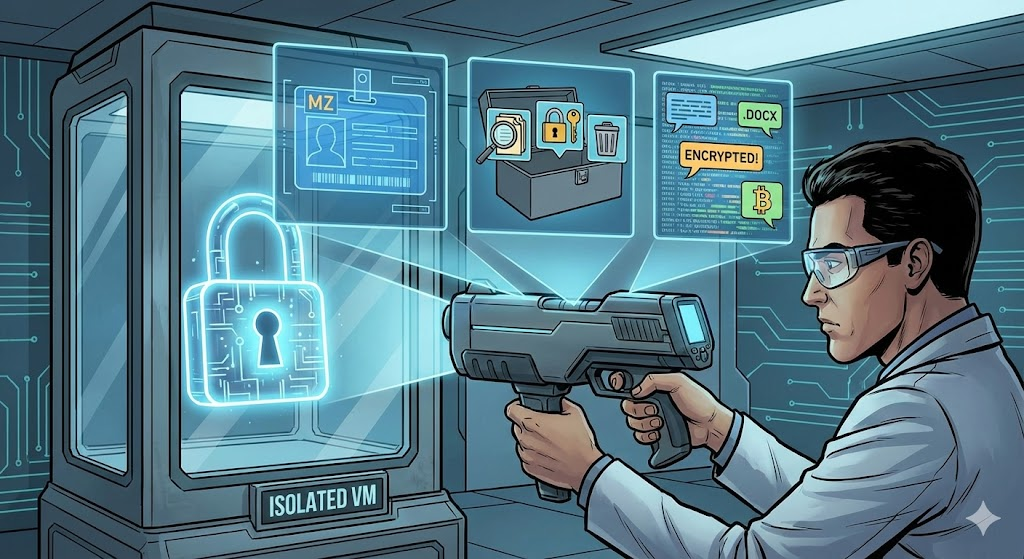
🛑 Step 0: [Very Important] Safety Rules and Preparations
This lab uses ‘ransomware simulation samples’ created for educational purposes or already neutralized samples. However, good habits are crucial.
⚠️ Warning: Never perform this lab on your host PC (the computer you actually use)! You must conduct it in a virtual machine (VMware, VirtualBox, etc.) environment with internet access blocked. Accidentally double-clicking and executing it could lead to serious trouble! 😱
🛠️ Preparations (Free Analysis Tools) Please install the following tools in your virtual machine beforehand.
- PE-bear: A tool that makes PE headers easy to view visually
- Pestudio: The ultimate tool for initial malware analysis (shows IAT, strings, hashes, etc., at a glance)
- Strings (Sysinternals): A command-line tool that extracts only text from binaries
Step 1: Show Me Your ID! – PE Header Analysis 🆔
Windows executable files (.exe, .dll, etc.) follow a specific format called PE (Portable Executable). The header of this file contains important identity information such as “what kind of file I am, when I was created, and where in memory I should be loaded.”
[Follow the Lab]
- Run PE-bear and drag and drop the ransomware sample file.
- Look at the ‘DOS Header’ tab.
👉 Observation Point 1: Magic Number Do you see the characters MZ (4D 5A) at the very beginning? This is a certificate that says, “I am indeed a Windows executable file.” What if the extension is .jpg but the header starts with MZ? It’s 100% disguised malware!
👉 Observation Point 2: Compile Time (Time Date Stamp) If you go to the ‘File Header’ tab, you’ll find the Time Date Stamp. This tells you when the file was created.
- Tip: Attackers sometimes manipulate this time (Timestumping), but it can also be a very important clue. If it shows a date in the 1990s, it’s likely manipulated; if it’s a very recent date, it could be a new variant.
Step 2: What’s in Your Toolbox? – Import Address Table (IAT) Analysis 🧰
This part is the core of today’s lab! ⭐⭐⭐
A program cannot create everything by itself. To read files, encrypt them, or perform network communication, it needs to borrow functions (APIs) provided by the Windows operating system.
The IAT (Import Address Table) is a ‘loan application list’ where the program requests from Windows, “I need these tools (functions) when I run!” Just by looking at this list, you can tell what ransomware is up to.
[Follow the Lab]
- This time, run Pestudio and load the sample file.
- Click on ‘imports’ in the left menu. (Pestudio highlights suspicious APIs in red! 👍)
👉 Observation Point: Finding the 3 Essential Ransomware APIs
Look for suspicious tools that ransomware must have.
- Tools for Searching Files (File System)
- It needs to find your precious documents on your PC to encrypt them, right?
- FindFirstFile, FindNextFile (File search)
- SetFileAttributes (Change file attributes, hide files, etc.)
- Tools for Encrypting Files (Cryptography) 🔐
- This is the most decisive evidence. It imports Windows’ encryption libraries.
- CryptAcquireContext (Start encryption operation)
- CryptGenKey (Generate encryption key)
- CryptEncrypt (Perform actual encryption) 👈 If you see this, it’s undeniable!
- Tools for Manipulating Files (File I/O)
- It needs to read the original file, overwrite it with encrypted content, or delete the original.
- ReadFile, WriteFile (Read/write files)
- MoveFile, DeleteFile (Move/delete files – for original destruction)
- Method A (Pestudio): Click ‘strings’ in the left menu. Pestudio automatically filters out suspicious strings.
- Method B (Command Line): In the terminal (cmd/PowerShell), enter the command `strings -n 8 sample.exe`. (This means extract only strings with at least 8 characters)
- Ransom Note Content 📜
- Your files have been encrypted!
- readme_restore.txt (Ransom note filename)
- Words related to monetary demands like bitcoin, wallet
- List of Target Extensions
- Ransomware doesn’t encrypt just any file. It picks out important documents.
- If extensions like .doc, .xls, .jpg, .pdf, .zip appear in a list, it’s a sure sign.
- Suspicious Paths or IPs
- PDB information (developer path) like C:UsersHackerDesktopRansomProject… might remain.
- External server IP or domain address for key transmission.
- ✅ PE Header: Confirmed it’s a Windows executable file starting with MZ.
- ✅ IAT: It’s borrowing suspicious tools to find files (FindNextFile) and encrypt them (CryptEncrypt).
- ✅ Strings: Ransom messages like “Your files encrypted” and target extension lists (.doc, .pdf) were found.
How many were found in your sample? When these functions are combined, the scenario “find files -> encrypt them -> delete originals” is complete.
Step 3: Tell Me Your Inner Thoughts – String Extraction 💬
Executable files are mostly machine code, but they often hide human-readable strings (text). Messages left by hackers, C&C server IPs, and target file extensions can sometimes be exposed in plain text.
[Follow the Lab] There are two methods.
👉 Observation Point: Finding Decisive Clues
It’s a treasure hunt to find meaningful words among countless gibberish. 🕵️♀️
🎉 Lab Conclusion: X-ray Scan Complete!
Great job! 👏👏👏
Today, without executing the file, we scientifically proved that this file is very likely ransomware using X-ray (static analysis tools).
Today’s Summary:
With this much evidence, it’s enough to immediately quarantine this file, right?
Static analysis is the absolute fundamental of malware analysis. Based on what you’ve learned today, I encourage you to challenge yourself with deeper analysis (reverse engineering, dynamic analysis) in the future!
I’ll be back next time with another useful and safe (?) security lab. Goodbye! 👋
Leave a Reply