How are you compiling your TypeScript projects, where countless .ts files are organically connected? If you’re still specifying individual files or wasting time with inefficient methods, this article will revolutionize your workflow. Experience the true synergy of the tsconfig.json file and the tsc command! ✨
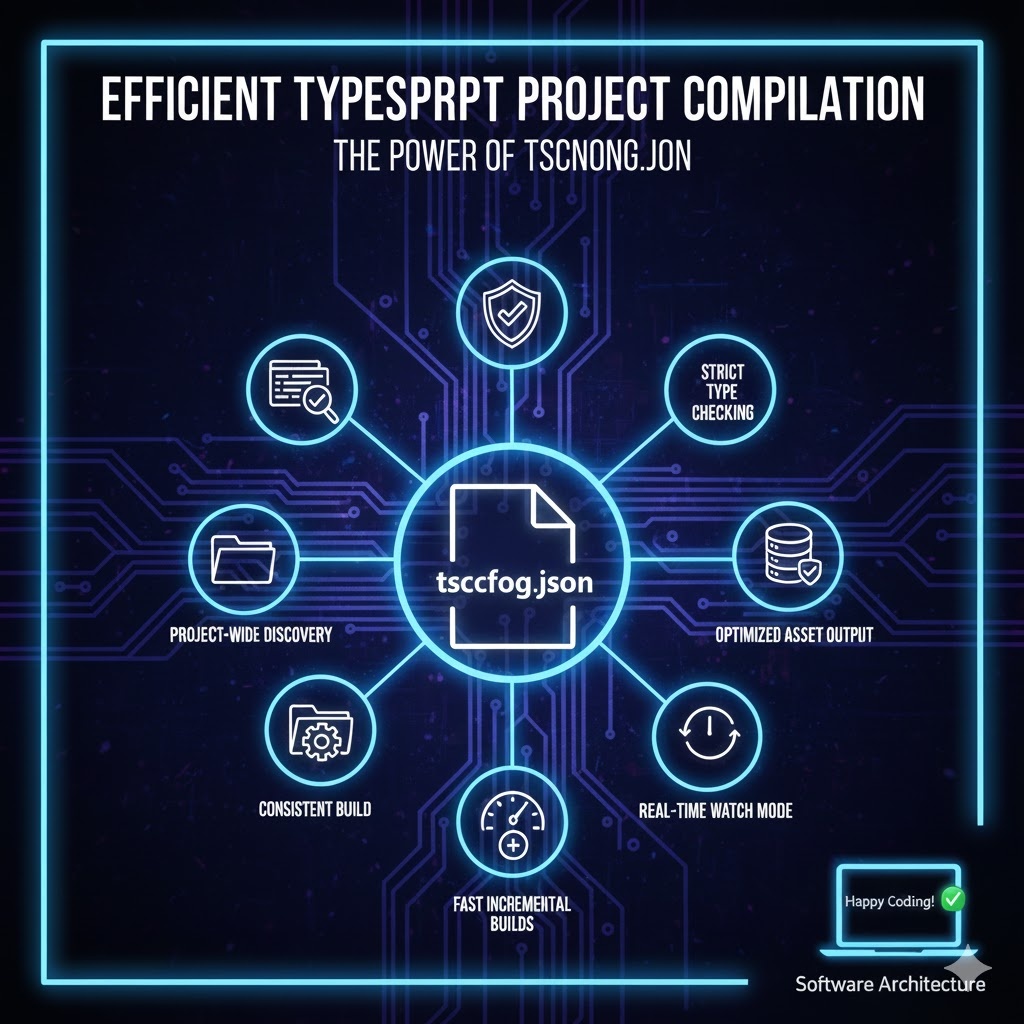
1. Why is efficient compilation important? ⏰
Time is gold for developers. Especially in large-scale projects, an efficient compilation strategy is essential for the following reasons:
- Fast Feedback: Quickly checking results after code modifications ensures an uninterrupted development flow.
- Resource Saving: Re-reading and compiling all files every time wastes CPU and memory.
- Consistent Environment: All team members must build with the same settings to achieve predictable results.
2. The tsc command, looking at the entire project 🔭
The tsc (TypeScript Compiler) command goes beyond simply converting .ts files to .js files; it provides powerful functionality to compile the entire project as a single unit. The core of this functionality lies in the tsconfig.json file.
Role of the tsconfig.json file 🔑
- Located in the project’s root directory, it contains all settings for how the TypeScript compiler should compile the project.
- If the tsc command is executed without file arguments, the compiler will look for a tsconfig.json file in the current directory and compile the entire project according to the defined settings.
The most efficient compilation command 🥇
# In the project root directory
tsc
Yes, that’s right. Without needing to specify file names individually, you can efficiently compile the entire project with just the tsc command, as long as you have a tsconfig.json file. This is the most basic core principle.
3. tsconfig.json Complete Guide: Unpacking Essential Settings ⚙️
Let’s take a detailed look at the key options that make project-wide compilation efficient through the tsconfig.json file.
3.1. compilerOptions – Core settings for compiler behavior 🛠️
This object defines how the TypeScript compiler should behave when converting .ts files to .js files.
- target: “ES2020” (or “ES6”, “ESNext”)
- Specifies the ECMAScript target version for the generated JavaScript code. Choosing a newer version means the .ts code is converted almost as-is to .js, resulting in better execution performance.
- module: “commonjs” (or “ESNext”, “Node16”)
- Specifies the module system for the generated JavaScript code. commonjs is typically used in Node.js environments, while ESNext is often used with bundlers in browser environments.
- outDir: “./dist” (example)
- Specifies the output directory path where compiled JavaScript files (.js and .d.ts) will be saved. All output is gathered in one place for convenient management.
- rootDir: “./src” (example)
- Specifies the root directory of TypeScript source files. With this setting, the rootDir path structure is maintained when outputting to outDir.
- strict: true
- Activates all strict type-checking options in TypeScript (e.g., noImplicitAny, strictNullChecks). While it might be cumbersome initially, it’s essential for writing stable, bug-free code in the long run. Highly Recommended! ✨
- esModuleInterop: true
- Improves interoperability between CommonJS and ES modules, allowing more flexible use of import syntax.
- forceConsistentCasingInFileNames: true
- Enforces consistent casing in file names. Prevents potential bugs that can occur on file systems that are not case-sensitive.
- skipLibCheck: true
- Skips type checking of declaration files (.d.ts files). Omitting type checks for libraries in the node_modules folder can significantly improve compilation speed. This is particularly effective in large-scale projects. 🚀
3.2. include, exclude, files – Clarifying compilation targets 🎯
- include: [“src/**/”]
- A list of global patterns for source file paths that the compiler should find. This means including all TypeScript files (**/*.ts) under the src folder.
- exclude: [“node_modules”, “dist”]
- A list of files/folders to exclude from compilation, even if they are included by the ‘include’ pattern. Excluding node_modules or already built ‘dist’ folders prevents unnecessary compilation and speeds up the process.
- files: [“src/index.ts”, “src/types/global.d.ts”]
- Used when you want to explicitly compile only a specific list of files, instead of using include or exclude patterns. (include is generally used more often.)
// tsconfig.json example
{
  "compilerOptions": {
    "target": "ES2020",
    "module": "commonjs",
    "outDir": "./dist",
    "rootDir": "./src",
    "strict": true,
    "esModuleInterop": true,
    "forceConsistentCasingInFileNames": true,
    "skipLibCheck": true
  },
  "include": [
    "src/**/*.ts" // Include all .ts files in the src folder
  ],
  "exclude": [
    "node_modules", // Exclude node_modules
    "**/*.spec.ts" // Exclude test files as well (if necessary)
  ]
}
4. tsc Pro Tips to Boost Productivity Even Further 🍯
Beyond the basic use of tsc and tsconfig.json, here are additional ways to maximize your developer experience (DX).
4.1. Generate a basic tsconfig.json with tsc –init 🚀
When starting a new TypeScript project, you don’t need to write tsconfig.json manually; just run the following command in your project root:
tsc --initThis command generates a basic tsconfig.json file with various commented-out options, which you can then modify to suit your needs.
4.2. Utilize incremental builds ⚡
By adding “incremental”: true to compilerOptions in tsconfig.json, the TypeScript compiler leverages previous build information to recompile only changed files. This dramatically reduces rebuild times in large-scale projects.
4.3. Real-time compilation with watch mode 🔍
During development, it’s best to use watch mode to automatically compile code whenever you make changes.
tsc --watch
# Or briefly
tsc -w
Executing this command continuously monitors project files according to tsconfig.json settings, and automatically recompiles only the necessary parts whenever changes are detected. This allows you to check errors in real-time and quickly see results, greatly increasing development efficiency. 🚀
5. Summary: TypeScript Project Compilation Workflow 📝
- Project Initialization: Generate a tsconfig.json file with tsc –init.
- Setting Optimization: Configure options like target, module, outDir, rootDir, strict, skipLibCheck, include, and exclude to fit your project. Don’t forget to add incremental: true to enable incremental builds.
- Build All at Once: For deployment or when a full project build is needed, simply type tsc in the project root.
- Real-time Build During Development: While modifying code, use tsc –watch for automatic compilation and feedback.
🏁 Concluding Remarks
No matter how many .ts files your TypeScript project has, you don’t need to worry with the powerful combination of tsc and tsconfig.json. We hope this guide makes your TypeScript development workflow more efficient and enjoyable! 💡 Happy Coding!
Leave a Reply