Exposing the Docker socket directly to the internet is equivalent to exposing the root account on your server.
>

🎯 What this article covers
- Why the Docker socket (/var/run/docker.sock) is dangerous
- 3 ways to securely access Docker sockets with SSH tunnels
- DOCKER_HOST environment variable vs. docker context comparison
- Practical application in CI/CD pipelines
- A collection of common security mistakes to avoid
📌 Introduction / Background
When you want to manage Docker on a remote server, the first method that comes to mind is often opening the Docker daemon’s TCP port (2375 or 2376) and accessing it externally.
But wait, this is a truly dangerous choice.
The Docker daemon primarily listens on a Unix socket for requests from local clients. What happens if you open this over TCP?
Since the Docker daemon runs with root privileges on the host system, accessing its API without authentication is equivalent to exposing root access to your server to the world.
In reality, servers with port 2375 open to the internet are discovered by bots within minutes, and malicious containers are deployed. There are many cases leading to cryptocurrency mining, ransomware, and backdoor installation.
So, how can you securely manage Docker remotely? The answer is SSH tunnels.
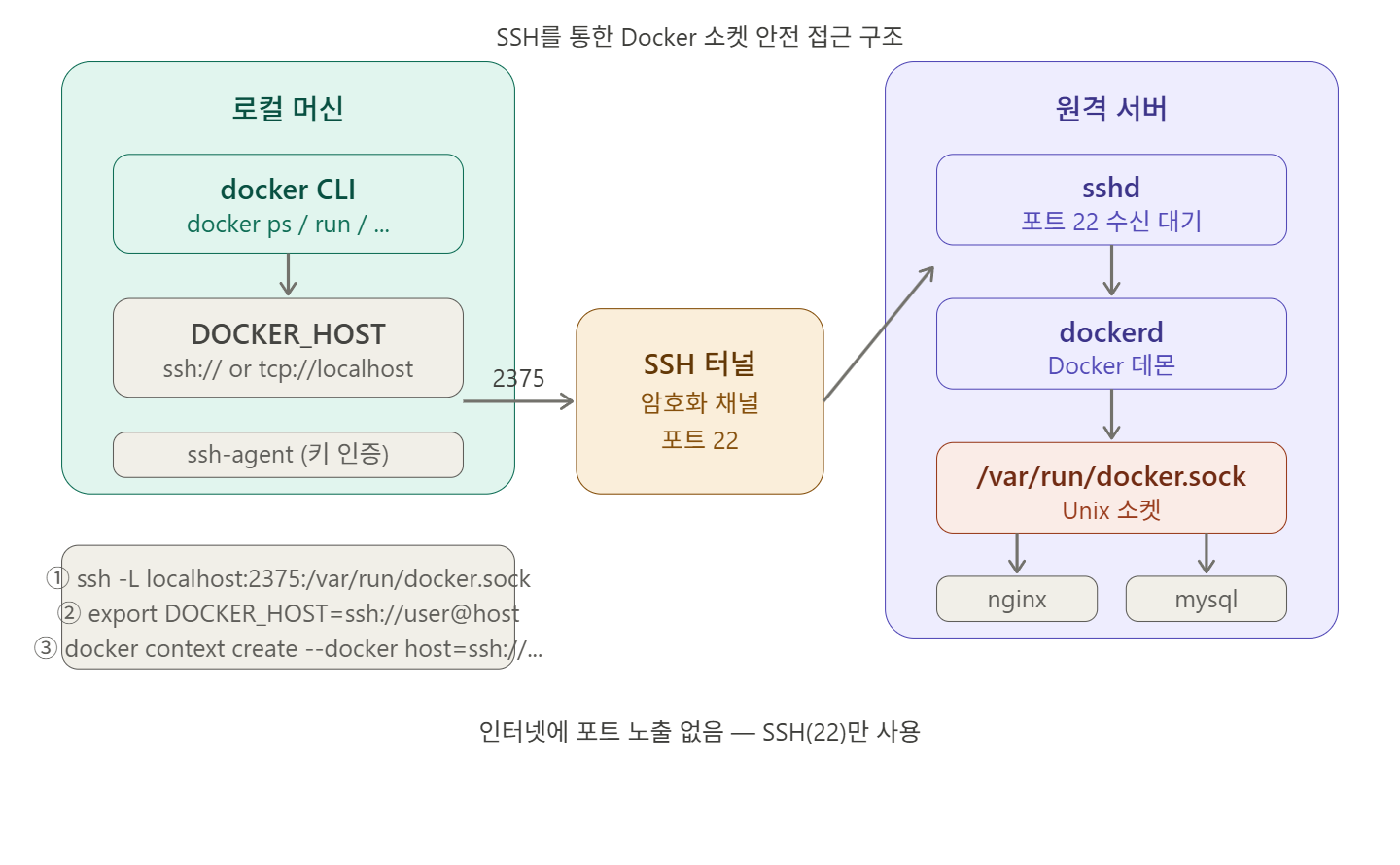
🔍 Basic Concepts of Docker Sockets and SSH Tunnels
What is a Docker Socket?
It’s the channel through which the Docker CLI (docker command) communicates with the Docker daemon. The default path is /var/run/docker.sock, and all Docker commands are processed via this Unix socket file.
[docker CLI] ──── /var/run/docker.sock ──── [dockerd 데몬]What is an SSH Tunnel?
It’s a technique for securely carrying traffic of other protocols over an SSH connection. Since SSH already handles encryption, authentication, and integrity verification, secure communication is possible without separate TLS configuration.
💻 Method 1: Socket Tunneling with SSH Local Port Forwarding (Most Basic Method)
This method forwards the remote server’s Docker socket to a local port.
# Forward local port 2375 to the remote server's Docker socket
ssh -L localhost:2375:/var/run/docker.sock user@REMOTE_HOST -fN
Explanation of each option:
- -L localhost:2375:/var/run/docker.sock : Connects local port 2375 to the remote socket
- -f : Runs in the background
- -N : Maintains the tunnel without executing remote commands
After the tunnel is open, set an environment variable to make the Docker CLI use this tunnel:
export DOCKER_HOST=tcp://localhost:2375
docker ps       # List containers on the remote server
docker images   # List images on the remote server
The advantage of this method is that it doesn’t expose ports to the internet and leverages SSH’s proven authentication methods (keys, MFA, etc.).
To terminate the tunnel:
# Find tunnel process
ps aux | grep ssh

# Terminate by PID
kill $PID

# Unset DOCKER_HOST
unset DOCKER_HOST
💻 Method 2: Using ssh:// Scheme in DOCKER_HOST (Docker 18.09+)
Docker 18.09 and later versions natively support SSH. You can directly specify the SSH address in the DOCKER_HOST environment variable without needing to create a separate tunnel.
# Environment variable method (temporary)
export DOCKER_HOST=ssh://docker-user@host1.example.com
docker ps
docker run -d nginx

# Restore to original after use
unset DOCKER_HOST
This method is useful for temporary connections to different engines as it doesn’t require creating a separate context.
⚠️ Important: The ssh:// method requires SSH key authentication. Password authentication is not supported by Docker and is not possible with DOCKER_HOST-based configurations.
SSH Key Registration:
# Generate key
ssh-keygen -t ed25519 -C "docker-remote-key"

# Register public key on remote server
ssh-copy-id docker-user@host1.example.com

# Add key to ssh-agent
ssh-add ~/.ssh/id_ed25519
SSH Connection Optimization (~/.ssh/config):
Host docker-remote
    HostName host1.example.com
    User docker-user
    IdentityFile ~/.ssh/id_ed25519
    ControlMaster auto
    ControlPath ~/.ssh/control-%C
    ControlPersist yes
By using ControlMaster and ControlPersist settings, a single SSH connection can be reused across multiple docker CLI calls, avoiding repeated handshakes.
After this, usage becomes much simpler:
export DOCKER_HOST=ssh://docker-remote
docker ps
💻 Method 3: Managing Remote Engines with docker context (Recommended for Operations)
If you frequently manage multiple remote servers, docker context is the cleanest method.
# Create remote context
docker context create my-remote-engine
  --docker "host=ssh://docker-user@host1.example.com"
  --description "Production Server"

# Check context list
docker context ls

# Switch context
docker context use my-remote-engine

# Now all docker commands will run on the remote server
docker ps
docker run -d --name web nginx

# Revert to local
docker context use default
After creating a remote engine context and activating it with docker context use, both VS Code and Docker CLI will use that remote machine context.
💻 Method 4: Utilizing in CI/CD Pipelines
This is a useful pattern for deploying to remote Docker hosts in GitHub Actions, GitLab CI, Jenkins, etc.
#!/bin/bash
# deploy.sh — CI/CD remote deployment script

SSH_USER="deploy"
SSH_HOST="prod.example.com"

# Just set environment variables (SSH key registered in CI secrets)
export DOCKER_HOST="ssh://${SSH_USER}@${SSH_HOST}"

# Pull image and redeploy container
docker pull myapp:latest
docker stop myapp || true
docker rm myapp || true
docker run -d
  --name myapp
  --restart unless-stopped
  -p 80:8080
  myapp:latest

echo "✅ 배포 완료"
unset DOCKER_HOST
GitLab CI Example:
# .gitlab-ci.yml
deploy:
  stage: deploy
  image: docker:latest
  before_script:
    - eval $(ssh-agent -s)
    - echo "$SSH_PRIVATE_KEY" | ssh-add -
    - mkdir -p ~/.ssh
    - ssh-keyscan $PROD_HOST >> ~/.ssh/known_hosts
  script:
    - export DOCKER_HOST="ssh://deploy@$PROD_HOST"
    - docker pull $CI_REGISTRY_IMAGE:latest
    - docker run -d --name app $CI_REGISTRY_IMAGE:latest
⚠️ Precautions / Common Mistakes
① known_hosts not registered error
Connection will be refused due to host key verification failure on the first connection.
# Must register in known_hosts first
ssh-keyscan -H host1.example.com >> ~/.ssh/known_hosts
# Or connect via SSH once to confirm
ssh docker-user@host1.example.com
② SSH Key Passphrase Issue
If a passphrase is set for the key, Docker commands will prompt for a password every time. The key must be registered with ssh-agent beforehand.
eval $(ssh-agent -s)
ssh-add ~/.ssh/id_ed25519
# Registration confirmation
ssh-add -l
③ Remote user not in docker group
On the remote host, SSH_USER must be a user with access permissions to the Docker socket (e.g., a member of the docker group).
# Run on remote server
sudo usermod -aG docker docker-user
# Apply group changes (requires logout and re-login)
④ Do not directly expose TCP ports to the internet
# ❌ Absolutely forbidden — open port to all IPs
"hosts": ["unix:///var/run/docker.sock", "tcp://0.0.0.0:2375"]

# ✅ Allow loopback only (for local SSH tunnel)
"hosts": ["unix:///var/run/docker.sock", "tcp://127.0.0.1:2375"]
✅ Summary / Conclusion
| Method | Advantages | Suitable Situation |
| ssh -L Port Forwarding | Most flexible, fine-grained control | Temporary connections, legacy environments |
| DOCKER_HOST=ssh:// | Simple setup, no additional software needed | Quick temporary connections, CI/CD |
| docker context | Optimized for multi-server management | Production environments, daily remote management |
To summarize the key points once more:
- Never expose the Docker socket directly to the internet
- SSH tunnels are the safest remote access method, usable without additional infrastructure
- Docker 18.09 and later natively support the ssh:// scheme, simplifying configuration significantly
- In production environments, manage remote hosts systematically with docker context
For the next steps, consider exploring Docker remote access methods using TLS mutual authentication or Zero-Trust networks like Tailscale/ZeroTier.
Leave a Reply