Caps Lock is usually a key that changes the input state of English uppercase letters. However, if pressing this key switches between Korean and English, it’s worth checking the key remapping settings before replacing the keyboard. Remapping is a function that changes the input of one key to another key or action.
If you use PowerToys on Windows, Keyboard Manager is the first thing to check. However, you cannot conclude that PowerToys is the cause just by looking at the symptoms. This article outlines a general diagnostic procedure, compiled by checking official documentation on October 4, 2026. It does not reflect actual user PC cases or setting change results.

Pressed key and executed function can be different
Even if “Caps Lock” is written on the keyboard, if a program changes its input, a different function will be executed. This means that there are remapping settings in the process leading to the app receiving the input. In this case, even if you replace the hardware with a new one, the symptoms may persist if the same settings are applied.
PowerToys Keyboard Manager can change the behavior of keys and shortcuts. According to Microsoft documentation, remapping is applied only when PowerToys is running and Keyboard Manager is enabled. Also, when first opened, no default remappings are pre-registered. Microsoft Official Documentation
Therefore, one must distinguish between the assumption “PowerToys was installed, so it must have automatically changed Caps Lock” and the observation “a Caps Lock mapping is currently registered.” You also cannot conclude that an update created the settings just because symptoms appeared after an update.
Change and compare one condition at a time
The following are procedures a reader can perform on their Windows PC. This manuscript did not manipulate the settings of user devices. If the PC is managed by a company, follow the organization’s change procedures.
- Save any content you are working on, and check the symptoms in a simple input window like Notepad.
- Check the current PowerToys running status and Keyboard Manager settings.
- Temporarily turn off Keyboard Manager, and press Caps Lock again in the same app and with the same input language.
- Record the results and revert to the original settings. If necessary, compare whether the symptoms reappear when it is turned back on.
Microsoft advises turning off Keyboard Manager or exiting PowerToys to stop incorrect remapping. Temporarily turning off settings for comparison is easier to revert than deleting all mappings. Official Remapping FAQ
| Observation Result | Next Judgment |
| — | — |
| Normal when off, reproduces when turned back on | High probability of PowerToys mapping involvement |
| Same symptom even when off | Continue checking other remapping, IME, and app settings |
| Occurs only in specific app | Compare key handling and settings of that app first |
| Reproduction results inconsistent | Further fix conditions like input language, window state |
The judgments in the table indicate the direction for diagnosis. A single comparison cannot rule out all other causes. Especially, if the app or input language changes between turning on and off, the comparison becomes unclear.
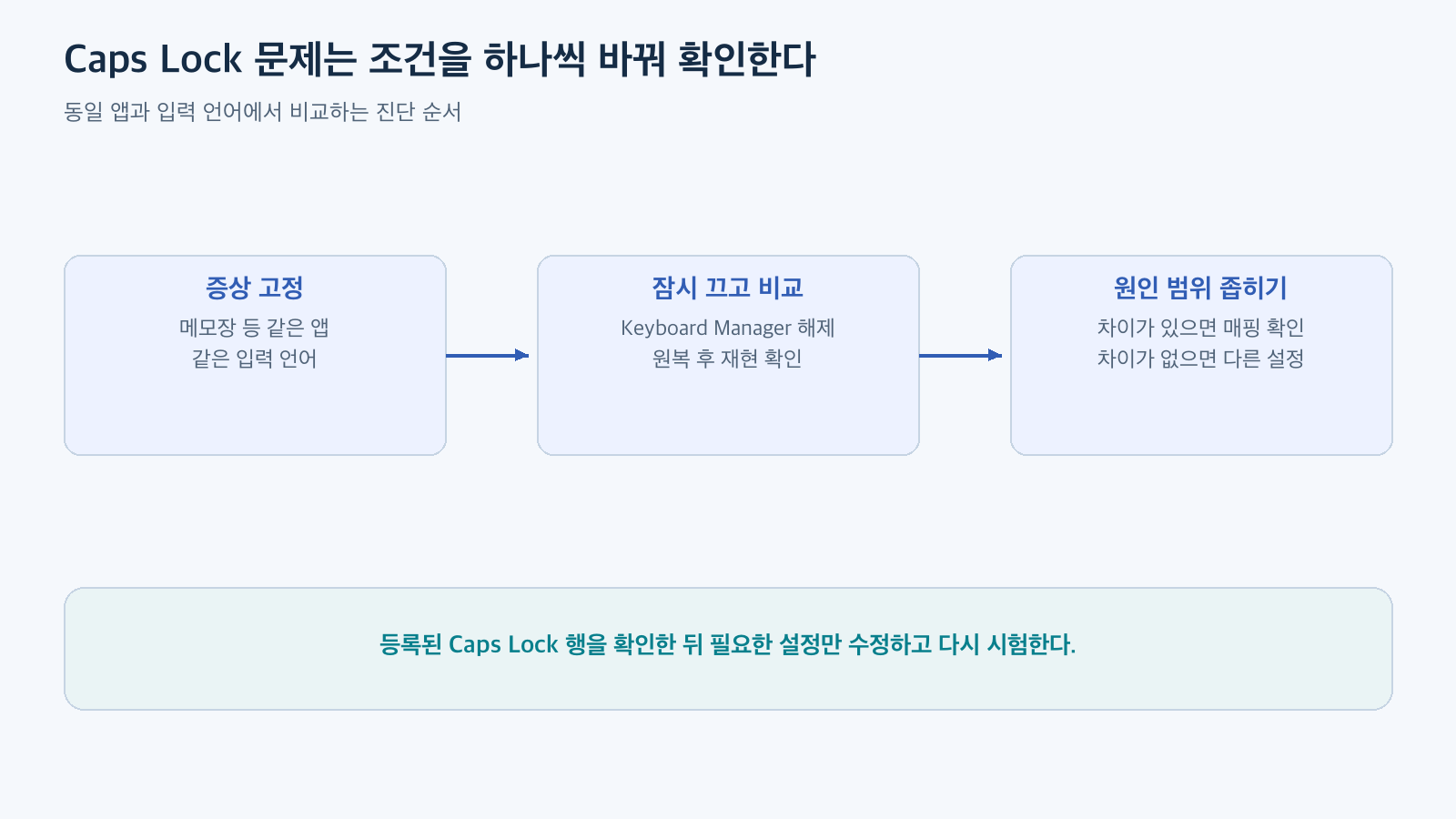
Figure: Diagnostic sequence comparing in the same app and input language · Reconstructed based on official documentation
Revert desired action by looking at registered rows
In PowerToys settings, open the Keyboard Manager’s key remapping list and check if Caps Lock is linked to another input. Also, check the shortcut list. The names on the screen and the available options may vary depending on the PowerToys version and input environment.
Microsoft documentation also mentions IME Mode Change and other IME-related keys, but assuming a single fixed notation for names or actual behavior seen in a Korean environment can lead to confusion. You must check both the original key and the input to be sent for the Caps Lock row. Supported Keys and Remapping Screen Description
If you find an unwanted Caps Lock mapping, record that row and then delete it or modify it to your desired setting. Leave other useful key mappings as they are, save, and retest under the same conditions. Starting with “Reset all” can change other shortcuts, making it difficult to identify the cause and recover.
Before making changes, ensure you have a way to revert. If you capture settings, check that app names or work content remaining on the screen are not included, and diagnostic notes should only contain necessary information like key names and actions. You can explain the procedure without attaching actual PC setting screenshots to public posts.
If it’s the same on the on-screen keyboard, is it a hardware failure?
If the same phenomenon is observed on both the physical keyboard and the on-screen keyboard, it helps to suspect a common software processing path. However, this alone cannot 100% confirm that a specific program is the cause. The input method of the on-screen keyboard and the processing method of the app may differ, and multiple settings can influence simultaneously.
Let’s break down the observation a bit more. Compare if it’s the same when only the input language is changed in the same app, if it’s the same in other apps, and if it changes when Keyboard Manager is turned off. If you simultaneously delete programs, reinstall drivers, and modify the registry, it becomes difficult to know which action was effective.
If PowerToys is not involved, consider other remapping tools, keyboard manufacturer programs, Windows input language/IME settings, and the shortcuts of the relevant app as candidates to check. This list indicates possible directions for investigation, not that one of them is necessarily the cause. For managed devices, it’s best to convey the symptoms and condition comparison results to the administrator.
Confirm resolution with desired input
If you wanted the original Caps Lock behavior, check if the uppercase state changes as expected in English input. Also, see if Korean/English switching is possible with the key you originally used. If you normalize one key but another necessary function disappears, you need to re-examine the relationship of the entire mapping.
A simple diagnostic record is sufficient. You can write it as “Normal when Keyboard Manager is off in the same Notepad window, reproduces when turned back on. Normal after modifying Caps Lock row.” This is a virtual record format and not an actual user result.
When Caps Lock acts like the Korean/English key, first check PowerToys settings, then connect the result of temporarily turning it off with the actually registered mapping to make a judgment. Narrowing down the cause and then restoring only the necessary rows reduces unnecessary device replacement or setting initialization.
Leave a Reply