When you want to run large language models directly on your PC or server instead of calling external AI services like ChatGPT or Claude, one of the first tools you encounter is Ollama. This is because it abstracts away complex inference engine settings and model file management, providing a simple `ollama run` command and an HTTP API.
While Ollama can be installed directly on the operating system, running it as a Docker container separates installation files from the execution environment, allowing for consistent version changes, deletion, and recovery. On the other hand, GPU connectivity, model data persistence, and network exposure need to be understood separately in a containerized environment.
This article will first examine Ollama’s role and internal structure, then provide step-by-step instructions for installing it in containerized environments for CPU, NVIDIA GPU, and AMD GPU. We will cover model downloads, REST API, OpenAI-compatible API, Docker Compose configuration, and operational security all in one place.
What is Ollama?
Ollama is a model execution and management tool that allows users to download and run generative AI models locally or on their own servers. Instead of combining detailed inference engine options every time, users can specify a model name to run it and interact via CLI or HTTP API.
Ollama’s main functions include:
- Downloading model manifests and layers from the model registry
- Managing local model files and versions
- Selecting CPU/GPU inference backends suitable for the hardware
- Managing model loading/unloading and memory retention time
- Providing Text Generation, Chat, Embedding, Vision, and Tool Calling APIs
- Configuring custom models based on system prompts and parameters using Modelfiles
- Offering endpoints compatible with a subset of the OpenAI API
Ollama itself is not a complete web chat service like ChatGPT. It is closer to a Model Runtime and Model Server that executes models and provides APIs. If a browser UI is needed, a separate Web UI must be connected, and if RAG or Agents are required, an application layer must be added.
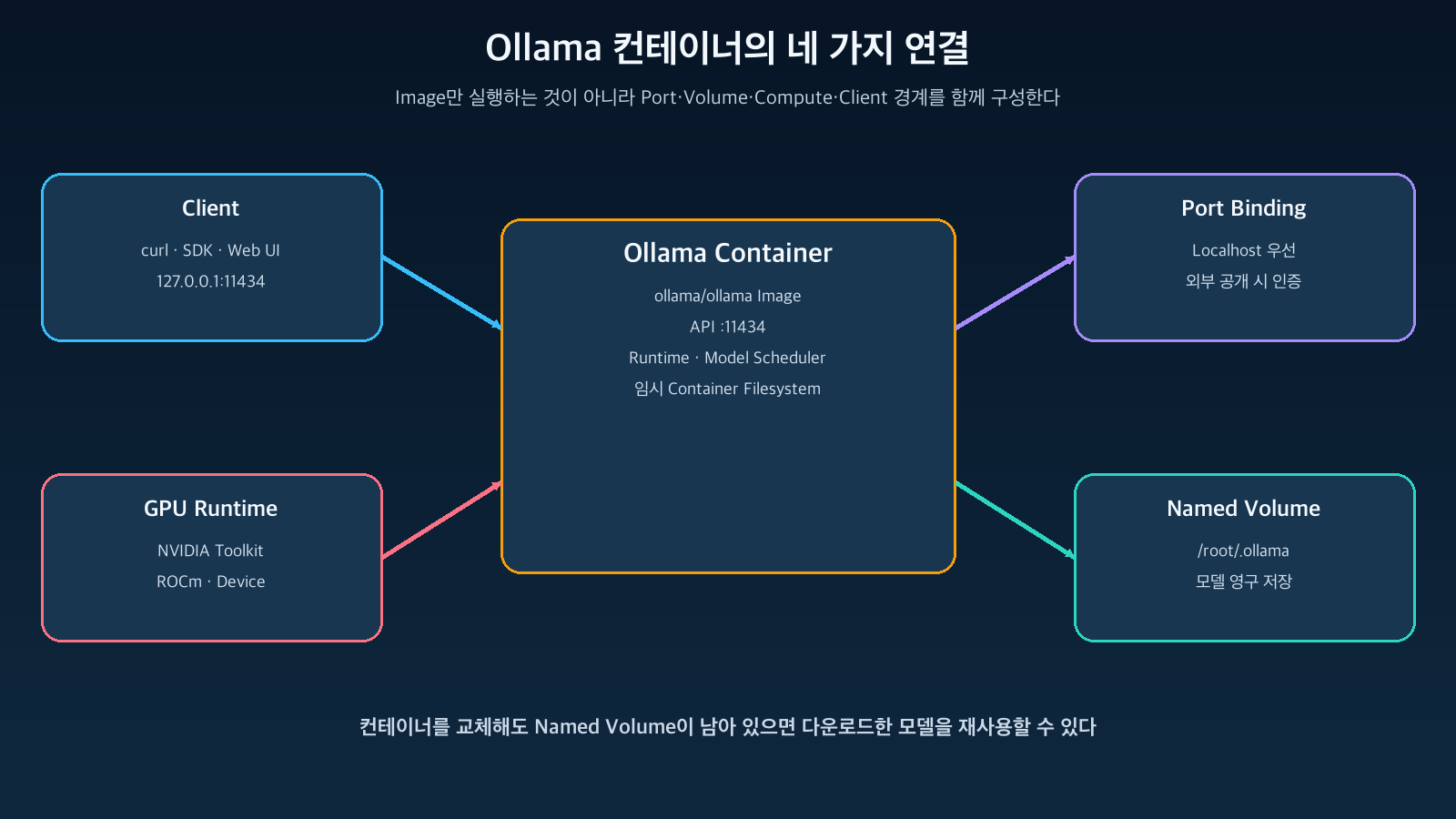
Figure: Ollama’s basic configuration and request processing flow · Reconfigured based on Ollama API and Docker installation documentation
Are Ollama and vLLM the same tool?
Both run models, but their objectives differ. Ollama excels at providing an easy experience for downloading and running models in personal development environments and small-scale self-hosting. vLLM focuses more on high-throughput model serving for multiple user requests and optimizing GPU utilization.
| Category | Ollama | vLLM |
| — | — | — |
| Primary Use Case | Local development, individual/team model execution | High-throughput GPU Model Serving |
| Ease of Getting Started | Easy execution with just the model name | Requires designing model, GPU, and serving options |
| Model Management | Integrated Pull, List, Run | Centered around external model paths like Hugging Face |
| API | Ollama Native API + partial OpenAI compatibility | OpenAI-compatible serving focused |
| Scalability Perspective | Suitable for single hosts and simple services | Suitable for parallel processing and server-grade operations |
Therefore, if a “developer wants to quickly use local models,” Ollama is convenient. If you need to “operate a GPU inference API used by many users simultaneously,” you should compare vLLM or dedicated serving platforms.
What changes when installing with containers?
Containers encapsulate Ollama executables and libraries within an image and run them isolated from the host. However, if model files are also stored in the container’s temporary filesystem, you risk losing several GBs to tens of GBs of models when replacing the container.
Therefore, three connections are key for Ollama containers:
Host의 11434 Port
→ Ollama Container의 11434 Port

Named Volume ollama_data
→ Container의 /root/.ollama

Host GPU Device 또는 GPU Runtime
→ Container의 추론 Backend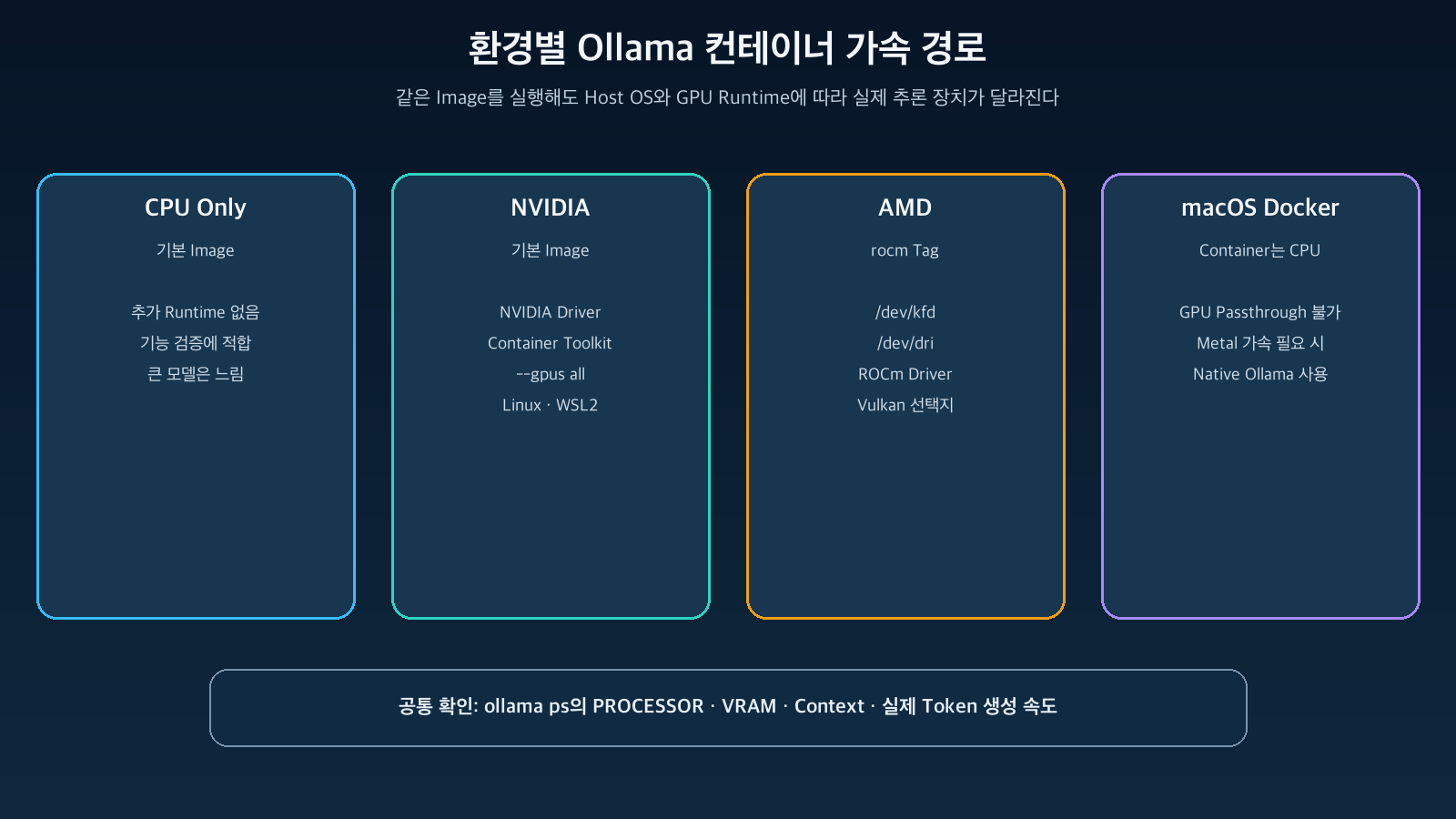
Figure: Essential components to connect in Ollama container installation · Reconfigured based on Ollama Docker official documentation
Even if a container is deleted, if the Named Volume remains, a new container can use the existing models as is. Conversely, if `-v ollama:/root/.ollama` is omitted, models become dependent on the container’s lifecycle.
Prerequisites before installation
First, Docker Engine or Docker Desktop must be installed.
docker versionIf you plan to use a GPU, first check your operating system and GPU type.
# NVIDIA GPU
nvidia-smi

# AMD ROCm environment
rocminfo
Memory requirements vary significantly depending on the model’s parameter count and quantization. A 4GB model file does not mean exactly 4GB of VRAM is needed. In addition to model weights, KV Cache and Runtime Buffer are required, and increasing the Context Length consumes more memory.
Initially, it’s best to validate the installation flow with a model significantly smaller than your available RAM or VRAM. Specific model sizes and tags can be found in the Ollama Model Library.
Step 1: Run a CPU-only container
To verify functionality without a GPU, you can start with the following command:
docker run -d
  --name ollama
  --restart unless-stopped
  -p 127.0.0.1:11434:11434
  -v ollama_data:/root/.ollama
  ollama/ollama:latest
The official documentation uses `-p 11434:11434`, but this format can expose the port on all network interfaces of the host, depending on Docker settings. In this article, we bind only to 127.0.0.1 for local use by default.
The meaning of each option is as follows:
| Option | Meaning |
| — | — |
| -d | Run container in background |
| –name ollama | Specify container name as ollama |
| –restart unless-stopped | Automatically run after Docker restart unless stopped by user |
| -p 127.0.0.1:11434:11434 | Connect Host’s Localhost Port to container API Port |
| -v ollama_data:/root/.ollama | Persistently store models and settings in a Named Volume |
| ollama/ollama:latest | Use official Ollama Image |
In a production environment, it is safer to pin a verified Version Tag or Image Digest instead of `latest`. This is because `latest` can pull a different version at the time of redeployment.
Check container status and logs.
docker ps --filter name=ollama
docker logs --tail 100 ollama
Verify that the API is responding.
curl http://localhost:11434/api/versionStep 2: Model Download and First Run
The official Docker documentation guides you on how to run the CLI inside the container as follows:
docker exec -it ollama ollama run llama3.2If the model is not present, it will be downloaded first, and once the download is complete, a conversation prompt will open immediately. After ending the conversation, you can check the list of models.
docker exec ollama ollama listIf you want to separate model download and execution, use the following:
docker exec ollama ollama pull llama3.2
docker exec -it ollama ollama run llama3.2
Models can also be pulled via API.
curl http://localhost:11434/api/pull
  -H 'Content-Type: application/json'
  -d '{"model":"llama3.2","stream":false}'
Model pulling generates significant network traffic and disk usage. It is simpler to have a single Ollama instance manage the volume rather than configuring multiple containers to modify the same Model Volume simultaneously.
Step 3: Calling Ollama Native API
Ollama’s default API Base URL is http://localhost:11434/api. By setting `stream:false` in the Chat Endpoint, you can receive a single JSON Response.
curl http://localhost:11434/api/chat
  -H 'Content-Type: application/json'
  -d '{
    "model": "llama3.2",
    "messages": [
      {"role": "user", "content": "컨테이너의 장점을 세 문장으로 설명해줘"}
    ],
    "stream": false
  }'
The default value for `stream` is `true`. In this case, instead of a single complete JSON, the generation process is delivered sequentially as multiple JSON objects. While natural in the CLI, directly feeding this into a typical JSON parser might result in errors, so it should be configured according to the application’s method.
The response includes not only the answer but also Model Load time, Prompt Token count, Generated Token count, and inference time. Using this, you can calculate the approximate generation speed as follows:
초당 생성 Token
= eval_count / (eval_duration / 1,000,000,000)
Step 4: Connecting with OpenAI SDK
Ollama also provides a `/v1` endpoint compatible with a subset of the OpenAI API. By changing the `base_url` of an existing OpenAI Client, you can call Ollama Models.
from openai import OpenAI

client = OpenAI(
    base_url="http://localhost:11434/v1/",
    api_key="ollama",
)

response = client.chat.completions.create(
    model="llama3.2",
    messages=[
        {"role": "user", "content": "Ollama를 한 문장으로 설명해줘"}
    ],
)

print(response.choices[0].message.content)
The `api_key=”ollama”` in the official documentation example is a placeholder required by the OpenAI SDK, and the Local Ollama API does not authenticate this value. According to Ollama’s official documentation, authentication is not required for the Local API at `localhost:11434`.
“OpenAI compatible” does not mean all features are exactly the same. You should verify that the endpoints, Tool Calling, Vision, Structured Output, and Streaming you intend to use actually work with the target model.
Running with NVIDIA GPU
To connect an NVIDIA GPU to a container on Linux or Windows WSL2, you need the NVIDIA Driver and NVIDIA Container Toolkit on the host. Installation methods vary by operating system, so you should follow the NVIDIA Container Toolkit official installation documentation.
After installing the Toolkit, configure the Docker Runtime and restart Docker.
sudo nvidia-ctk runtime configure --runtime=docker
sudo systemctl restart docker
First, verify that the GPU is visible from within the container.
docker run --rm --gpus all nvidia/cuda:12.4.1-base-ubuntu22.04 nvidia-smiThen, run Ollama with the GPU option.
docker run -d
  --name ollama
  --restart unless-stopped
  --gpus all
  -p 127.0.0.1:11434:11434
  -v ollama_data:/root/.ollama
  ollama/ollama:latest
To use only a subset of multiple GPUs, you can check the GPU UUIDs on the host and restrict `CUDA_VISIBLE_DEVICES`. Ollama’s official hardware documentation recommends UUIDs over numerical indices for better stability.
Check GPU offload status after running the model once.
nvidia-smi -LVerify if the PROCESSOR is 100% GPU or if some CPU offload occurred. If the model and context are larger than VRAM, some computations might offload to the CPU, significantly slowing down performance.
Running with AMD GPU
When using AMD ROCm, pass the official `rocm` tag and GPU device.
docker exec ollama ollama psSupported GPUs and required ROCm Driver versions should be checked in Ollama’s Hardware Support documentation. Some Linux distributions might have SELinux blocking container access to GPU devices, so if permission errors occur, check the Audit Log and Container Device policies.
Recent official images also include a Vulkan backend that can be used when an accessible device is present. Which of Vulkan or ROCm is more stable depends on the GPU and driver combination, so actual performance and errors should be compared with the same model and prompt.
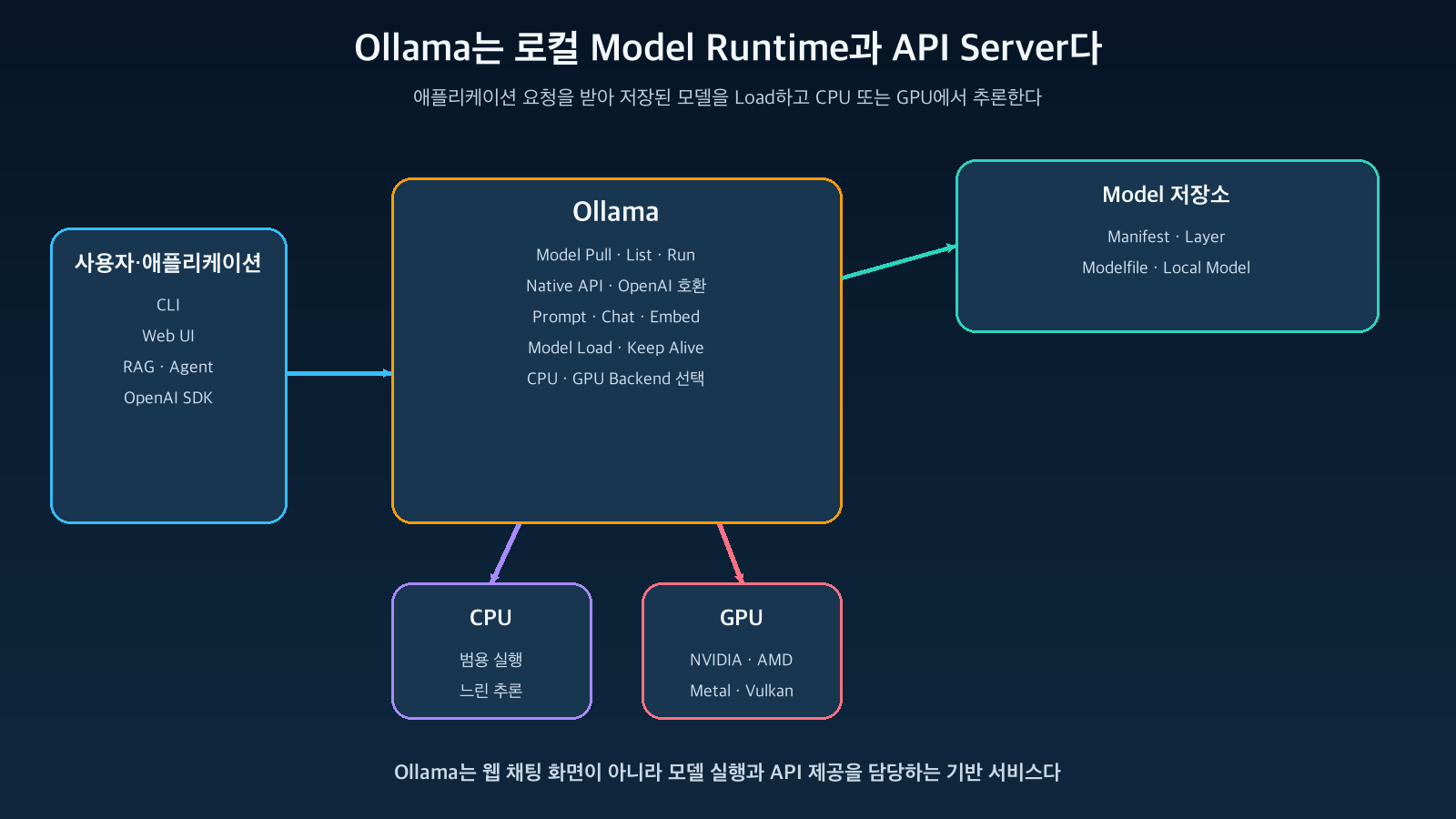
Figure: Ollama acceleration paths by container environment · Reconfigured based on Ollama Docker and Hardware Support documentation
Can GPUs be used with macOS Docker?
There is an important limitation. Ollama’s official FAQ states that Ollama GPU acceleration cannot be used with Docker Desktop on macOS due to GPU passthrough and emulation constraints.
To leverage Apple Silicon’s Metal GPU, using the Ollama macOS App or a native installation is more suitable. If container isolation is strictly necessary, Docker will run with CPU, and you can consider configuring a native Ollama Server on the Host and having other containers access it via `host.docker.internal:11434`.
In this case, if the Native Server is bound externally, an unauthenticated API might be exposed to the network. Host Firewall and Reverse Proxy authentication should be designed together.
Managing with Docker Compose
For repetitive execution and configuration management, you can use the following `compose.yaml`:
docker run -d
  --name ollama
  --restart unless-stopped
  --device /dev/kfd
  --device /dev/dri
  -p 127.0.0.1:11434:11434
  -v ollama_data:/root/.ollama
  ollama/ollama:rocm
Execution and status checks are as follows:
services:
  ollama:
    image: ollama/ollama:latest
    container_name: ollama
    restart: unless-stopped
    ports:
      - "127.0.0.1:11434:11434"
    volumes:
      - ollama_data:/root/.ollama
    environment:
      OLLAMA_KEEP_ALIVE: "5m"
    healthcheck:
      test: ["CMD", "ollama", "list"]
      interval: 30s
      timeout: 10s
      retries: 3

volumes:
  ollama_data:
To reserve an NVIDIA GPU in Compose, you can add the following settings to the `ollama` Service. You should first verify if your Docker Compose version supports GPU Device Reservation.
docker compose up -d
docker compose ps
docker compose logs -f ollama
If other services in the same Compose Network call Ollama, there is no need to expose the port on the host.
    deploy:
      resources:
        reservations:
          devices:
            - driver: nvidia
              count: all
              capabilities: [gpu]
In this case, removing `ports` and using the service name `ollama` within the internal network can reduce the attack surface.
Understanding Model and Memory Operations
Ollama typically keeps models in memory for a certain period after use to reduce load time for subsequent requests. The default value in the official FAQ is 5 minutes and can be adjusted via `OLLAMA_KEEP_ALIVE` or the API’s `keep_alive` parameter.
Web UI Container
→ http://ollama:11434
→ Ollama Container
Keeping models in memory indefinitely reduces first token latency but might lead to insufficient VRAM for other models. On smaller GPUs that switch between multiple models, keep the duration short; if requests are concentrated on a single model, extend it.
Context Length also significantly impacts memory. Ollama sets the default context differently based on VRAM, and a longer context length increases the KV Cache size. When increasing the context for agent or coding tasks, don’t just check if the model loads; measure VRAM usage and token speed with actual long prompts.
environment:
  OLLAMA_KEEP_ALIVE: "10m"
Update and Backup
If you used a Named Volume, model data persists even if the Container Image is replaced. In Compose, you can update in the following order:
docker exec ollama ollama ps
docker stats ollama
In a production environment, you should first validate the new version in a separate environment and then change the Version Tag or Digest. Although the API generally aims for backward compatibility, Ollama’s official documentation states that the API is not strictly versioned.
The volume itself should be included in your backup policy. However, the importance of model layers that can be re-downloaded from a public registry at any time differs from custom Modelfiles or private models. If recovery time is critical, back up the entire volume; if storage costs need to be reduced, prioritize preserving custom assets and configuration information.
Security Considerations Before Public Exposure
The Local Ollama API has no default authentication. Therefore, configurations like the following should be avoided:
docker compose pull
docker compose up -d
If an attacker gains access to the API, they can repeatedly call models to consume CPU, GPU, and memory, use disk and network for model pulling, or access models not intended by the operator.
If you need to expose it to an external or internal network, place a Reverse Proxy or API Gateway in front of Ollama and apply the following controls:
- TLS and user/service authentication
- IP/Network Allowlist
- Per-user rate limits and concurrent request limits
- Allowed model list and endpoint restrictions
- Request body size and timeout limits
- Personal information masking in Prompt/Response logs
- Separation of management APIs like Model Pull, Create, Delete
- Monitoring container CPU, memory, and GPU usage
Simply setting `OLLAMA_HOST=0.0.0.0:11434` only broadens the access scope and does not add authentication.
Common Issues
API is open, but the response is too slow
It might be running on CPU or some layers might have been offloaded to the CPU.
Internet
→ 0.0.0.0:11434
→ 인증 없는 Ollama API
Reduce the model size or context length, and verify that the GPU Runtime and Driver are correctly passed to the container.
Models disappeared after recreating the container
It’s highly likely that you didn’t mount a volume to `/root/.ollama` or used a different volume name.
docker exec ollama ollama ps
docker stats ollama
You should check the current mount and volume name before deletion.
localhost:11434 is not connecting from another container
`localhost` inside a container refers to that container itself. Within the same Docker Network, use the Ollama Service name.
docker volume ls
docker inspect ollama
If a Docker Desktop Container needs to access Ollama running on the Host, you can use `host.docker.internal`.
CORS error occurs in the browser
Ollama allows adding allowed origins via `OLLAMA_ORIGINS`. Instead of unconditionally allowing all origins, you should specify only the origin of your actual Web UI. CORS is a browser policy and does not replace API authentication.
When Ollama Container is Suitable and When It’s Not
Ollama Container is well-suited for the following situations:
- When quickly testing multiple models on a developer’s PC or team server
- When processing documents locally with a local model that are difficult to send to external APIs
- When an internal model endpoint is needed for RAG, Agent, or AI Gateway development
- When replicating identical configurations across multiple Linux servers
Conversely, if the following requirements are critical, you should compare other serving stacks:
- High throughput for numerous concurrent users
- Distributed serving using multiple GPUs and nodes
- Auto-scaling, rolling updates, and sophisticated request scheduling
- Strict multi-tenancy and per-model SLAs
- Operating large-scale GPU pools based on Kubernetes
Placing an API Gateway in front of Ollama can supplement authentication and rate limits, but it does not transform the runtime itself into a large-scale distributed serving platform.
Conclusion
Ollama is a tool that lowers the barrier to entry for local LLMs by bundling model download, execution, memory management, and API provision into a single user experience. The core aspects when running with Docker are not complex.
http://ollama:11434The simplest CPU installation finishes in one line, but in actual operation, three things must not be overlooked: persisting the Model Volume, verifying that the GPU is actually being used, and not directly exposing the unauthenticated 11434 port externally.
It’s also important to note that GPU acceleration is not available when using Docker on macOS. To utilize Apple GPUs, use the Native Ollama application, and for NVIDIA environments on Linux/WSL2, configure the NVIDIA Container Toolkit.
Initially, it is safest to verify functionality with a small model and localhost binding, then expand to a configuration suitable for your environment by measuring model size, context, concurrent requests, and security requirements.
Leave a Reply