Hello, platform engineers! 👋 When operating Backstage, you might encounter these concerns:
“Our team only wants to show the K8s tab for services that use Kubernetes…”
“Is there a way to only expose the SonarQube tab for Java projects?”
Backstage elegantly solves this problem by combining EntityLayout.Route with ‘Filter Functions’. Let’s dive into the details of how to do this!
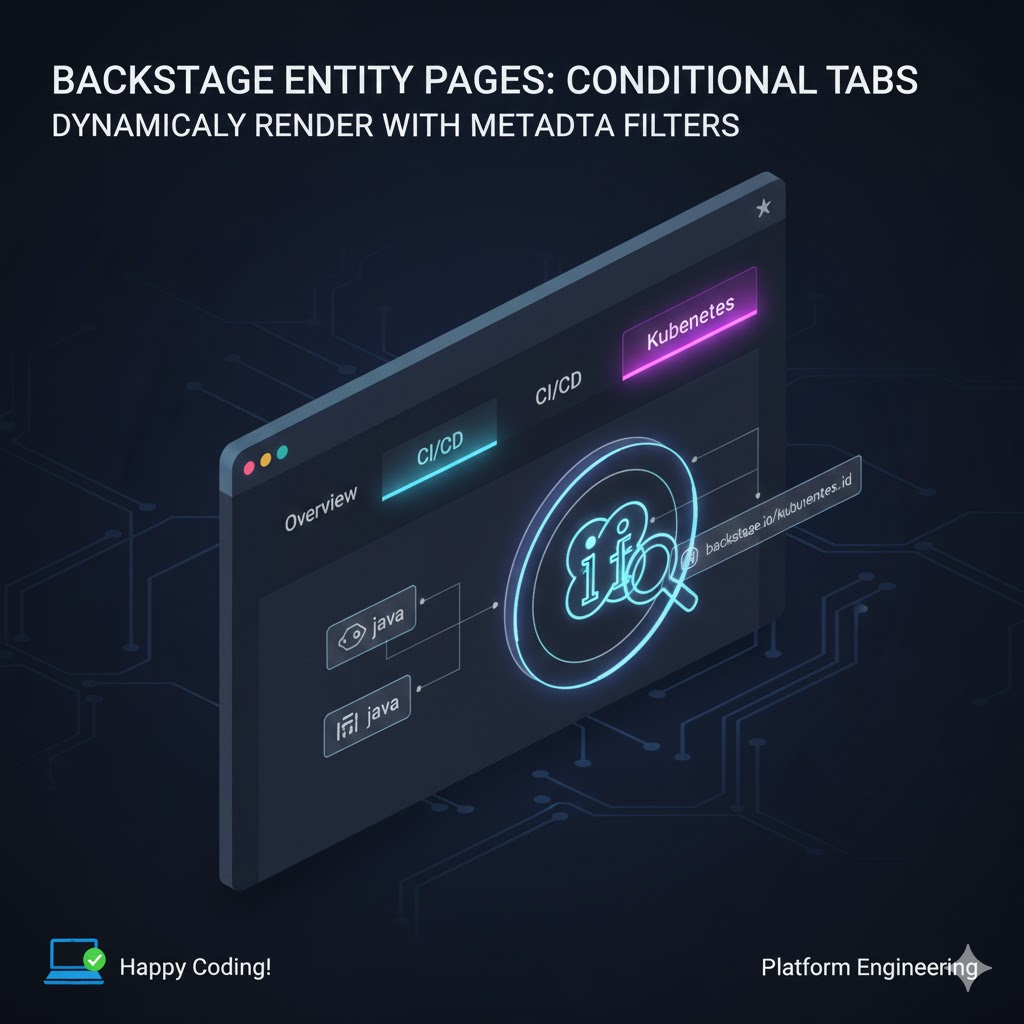
1. Basic Concepts: EntityLayout.Route and the ‘if’ Prop 🧩
Each tab on a Backstage entity page is defined by an EntityLayout.Route component. This component has a very special prop called if.
- How it works: If the function passed to the ‘if’ prop returns true, the tab is rendered; if it returns false, the tab does not appear at all.
- Input Value: This function receives the current page’s Entity object as an argument to inspect its metadata.
2. Frequently Used Filter Functions 🛠️
Backstage provides commonly used utility functions for filtering through the @backstage/plugin-catalog-react package.
① Show based on specific Kind
TypeScript
import { isEntityKind } from '@backstage/plugin-catalog-react';

<EntityLayout.Route if={isEntityKind('component')} path="/docs" title="Docs">
  <EntityTechdocsContent />
</EntityLayout.Route>
② Show based on Annotation existence (Most frequently used!)
Use this when you want to show a tab only if a specific plugin configuration exists in catalog-info.yaml.
TypeScript
import { isAnnotationNonEmpty } from '@backstage/plugin-catalog-react';

<EntityLayout.Route
  if={isAnnotationNonEmpty('backstage.io/kubernetes-id')}
  path="/kubernetes"
  title="Kubernetes"
>
  <EntityKubernetesContent />
</EntityLayout.Route>
③ Show based on Component Type
Distinguish between services, libraries, or websites.
TypeScript
import { isComponentType } from '@backstage/plugin-catalog-react';

<EntityLayout.Route if={isComponentType('service')} path="/api" title="API">
  <EntityApiDefinitionCard />
</EntityLayout.Route>
3. Expert Tip: Creating Custom Filters 💡
Sometimes the provided functions aren’t enough, right? You can also create your own filter functions. For example, if you want to show a tab only when a specific tag is included, you can write it like this:
TypeScript
const isJavaProject = (entity: Entity) =>
  entity.metadata.tags?.includes('java') ?? false;

// ... inside EntityPage.tsx
<EntityLayout.Route if={isJavaProject} path="/jvm-metrics" title="JVM Metrics">
  <MyCustomJvmComponent />
</EntityLayout.Route>
4. Combining Multiple Conditions: isAnd 🤝
When two or more conditions must all be met, use the isAnd function.
TypeScript
import { isAnd, isEntityKind, isAnnotationNonEmpty } from '@backstage/plugin-catalog-react';

const myCondition = isAnd([
  isEntityKind('component'),
  isAnnotationNonEmpty('my-plugin/id')
]);

<EntityLayout.Route if={myCondition} path="/my-plugin" title="My Plugin">
  <MyPluginContent />
</EntityLayout.Route>
5. Practical Tips for a Pleasant UX ✨
- Remove unnecessary noise: Instead of showing an empty screen for tabs without data, it’s much better for user experience (UX) to hide the tab itself using an ‘if’ statement as described above.
- Set default values: Always expose essential information (Overview, CI/CD, etc.) without conditions to maintain consistency.
- Provide catalog guidance: To help users who might be confused by a missing tab, it’s a good idea to create a guide on your internal wiki explaining “what annotation needs to be added to catalog-info.yaml to see this tab.” 📚
🏁 Concluding Remarks
The ‘if’ prop of EntityLayout.Route is a key tool for evolving Backstage entity pages from simple dashboards into “entity-specific intelligent portals.” Now, go ahead and configure optimized screens that perfectly match the nature of your services!
Leave a Reply