“Even at this very moment, 15 Claude sessions are running simultaneously.”
— Boris Cherny, Creator of Claude Code
>

🎯 What this article covers
- The actual workflow used by the designer of Claude Code
- Parallel execution strategies for one person to handle 100 PRs
- How to level up your entire team with the CLAUDE.md file
- How to increase output quality by 2-3 times with a self-verification system
- Practical setup methods you can follow right now
📌 Introduction — “How can one person handle 100 PRs?”
Among developers these days, a common question is heard: “How did that team churn out that feature so quickly?” The answer, it turns out, is simple: they are not just using AI for ‘code autocompletion,’ but rather as independently working agents.
Boris Cherny, the creator of Claude Code, is famous for handling 100 PRs a week by himself. What’s his secret? It’s not because he’s exceptionally smart. It’s because he leverages tools ruthlessly.
This article summarizes the 13 survival strategies he revealed, translated into Korean. Don’t forget to open your terminal after reading. 🖥️
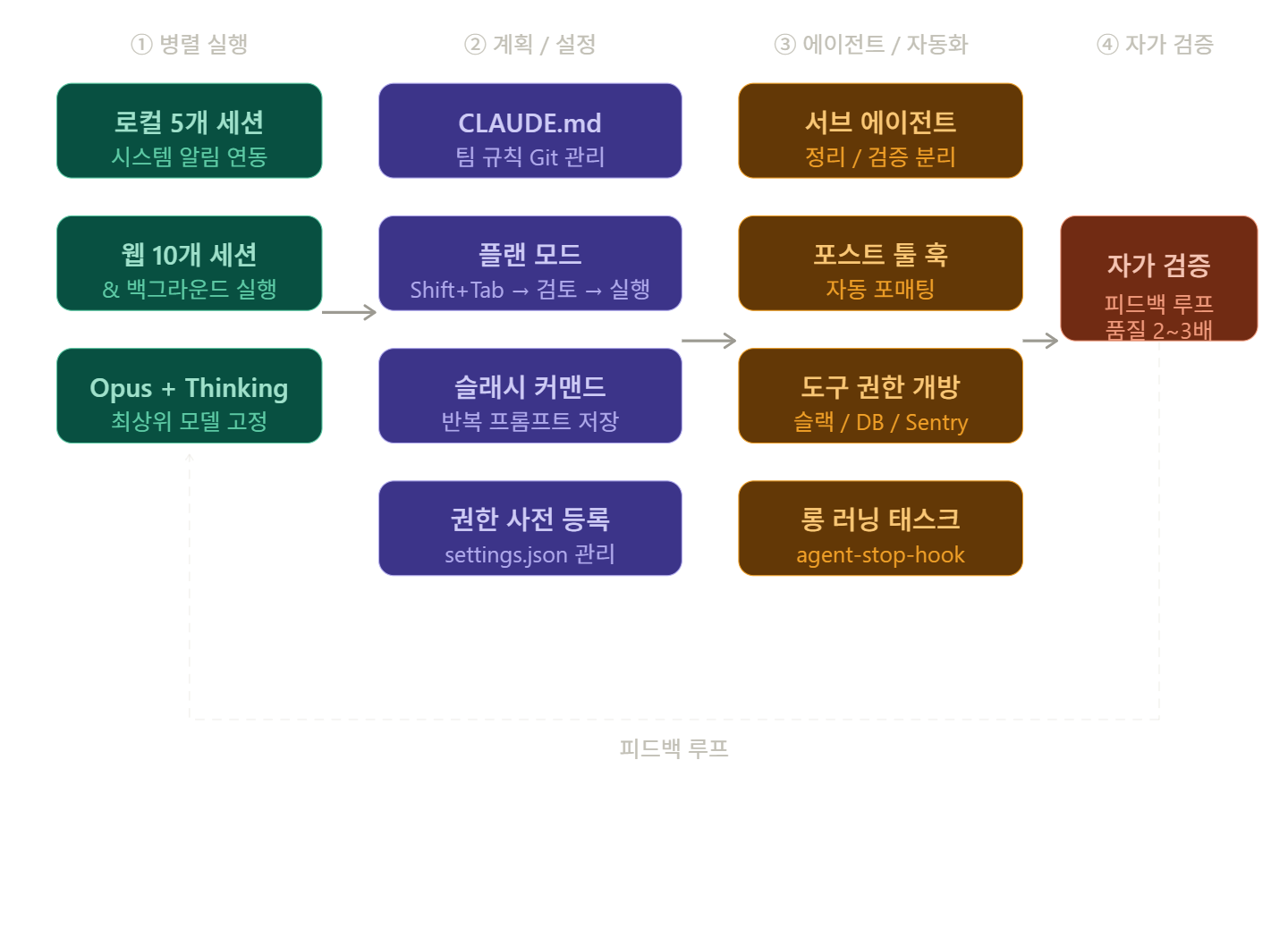
🔍 Strategies 1-3: Parallel Execution — The Art of Duplication
1️⃣ Simultaneous execution of 5 local sessions
Boris fundamentally runs 5 Claude sessions simultaneously on his local machine. The key is assigning different tasks to each session.
- Session A: Feature development
- Session B: Bug fixing
- Session C: Test code writing
- Session D: Documentation updates
- Session E: Code review responses
And system notifications only sound when user input is required. The rest of the time, Claude runs on its own. This uninterrupted flow helps maintain focus.
2️⃣ Adding web sessions for a total of 15 duplicates
He doesn’t stop at 5 local sessions. He adds 5-10 web sessions, operating a total of about 15 sessions simultaneously.
The key command here is &.
# Move current task to background
claude "이 모듈 리팩토링해줘" &
claude "테스트 커버리지 높여줘" &
claude "README 업데이트해줘" &
The moment you append &, Claude becomes a background task. I immediately move on to the next task.
3️⃣ Always activate top-tier model + Thinking mode
Rather than trying multiple times with a smaller model, it’s better to start with a top-tier model like Opus 4.5 with Thinking mode enabled from the beginning.
Why? Because even if the model is heavier, the number of human interventions decreases. If the desired result comes out on the first try, the total time spent will ultimately be shorter.
💡 What is Thinking mode? It’s a feature where Claude goes through an internal ‘thinking process’ before providing an answer. For complex problems, accuracy significantly increases.
🔍 Strategies 4-7: CLAUDE.md and Command System
4️⃣ CLAUDE.md — The Team’s AI Constitution
CLAUDE.md is a file that tells Claude how it should behave within a project. Boris designed this file to be committed to Git from the start.
The usage pattern is simple:
- If Claude makes a mistake → Add “Don’t do this” to CLAUDE.md
- If a team rule is established → Add it to CLAUDE.md
- When a new team member joins → Onboard them with CLAUDE.md
# CLAUDE.md Example

## 코딩 규칙
- TypeScript strict 모드 사용
- any 타입 사용 금지
- 함수 하나당 책임 하나

## 테스트 규칙
- 새 기능은 반드시 unit test 포함
- 테스트 파일명: *.test.ts

## 절대 하지 말 것
- console.log 커밋 금지
- TODO 주석만 남기고 커밋 금지
5️⃣ Tagging Claude directly on GitHub
You can tag Claude during a PR review. By setting install-command, you can instantly call Claude with the @claude tag in GitHub comments.
# Integrate Claude with GitHub Actions
claude install-command --github
Now, if you write @claude add this convention to CLAUDE.md in a PR comment, Claude will directly modify and commit the file.
6️⃣ Plan Mode First — Plan Before Execution
Most sessions start in Plan Mode. The shortcut is Shift + Tab.
In Plan Mode, Claude proposes a plan, saying, “I think this is how it should be done.” It doesn’t execute immediately.
Workflow:
- Enter Plan Mode (Shift + Tab)
- Review and modify the plan (multiple repetitions OK)
- Finalize the perfect plan
- Switch to Auto-accept edit mode → Execute in one go
🎯 Key: If you sufficiently refine the plan, execution finishes in one go.
7️⃣ Save repetitive prompts as commands
Frequently used prompts are saved as slash commands.
# Create command files in .claude/commands/ folder
# .claude/commands/review.md
코드 리뷰를 해줘. 다음 관점에서:
- 보안 취약점
- 성능 병목
- 가독성
- 테스트 누락 여부

# Usage
/review
This command file is also committed to Git and shared with the entire team.
🔍 Strategies 8-10: Agents and Automation
8️⃣ Operating specialized sub-agents
He operates specialized agents that handle only specific roles.
| Agent | Role |
| Code Simplifier | Dedicated to code cleanup and simplification after feature completion |
| Verify Agent | Dedicated to E2E testing and specification-based verification |
| Security Agent | Dedicated to security vulnerability scanning |
Each agent is given a clear role and limited permissions. The clearer the role, the higher the quality of the output.
9️⃣ Automate formatting with post-tool hooks
Set up hooks so that formatting is automatically executed every time code is written.
// .claude/settings.json
{
  "hooks": {
    "postTool": [
      {
        "matcher": "Write|Edit",
        "hooks": [
          {
            "type": "command",
            "command": "prettier --write $CLAUDE_FILE_PATH"
          }
        ]
      }
    ]
  }
}
Now, the moment Claude saves a file, Prettier runs automatically. You no longer need to worry about code style issues.
🔟 Permission Management — Pre-register with slash commands
The dangerously skip permission mode is convenient but risky. Boris instead uses a method of pre-registering available Bash commands.
// .claude/settings.json
{
  "permissions": {
    "allow": [
      "Bash(npm test)",
      "Bash(npm run build)",
      "Bash(git status)",
      "Bash(git diff)",
      "Bash(prettier --write *)"
    ],
    "deny": [
      "Bash(rm -rf *)",
      "Bash(git push --force)"
    ]
  }
}
This configuration file is also committed to Git and shared with the entire team.
🔍 Strategies 11-13: Tool Integration and Self-Verification
1️⃣1️⃣ Full tool access permissions
Give Claude access to various tools.
- Slack search → “How did I solve this error in the past?”
- Execute DB queries → Verify directly with actual data
- Check Sentry error logs → Handle error analysis to correction all at once
If Claude can directly collect, analyze, and even correct information, there’s no reason for a human to intervene.
1️⃣2️⃣ Long-running task processing strategy
Long-running tasks require a special strategy.
# Verify completed tasks with a background agent
claude "이전 작업 결과 E2E 테스트 돌려줘" &

# Ensure deterministic results with agent-stop-hook
# Use Wigglon plugin for infinitely repeating tasks
The key is that even after the task is finished, verification continues to run in the background. Quality improves while I work on other tasks.
1️⃣3️⃣ Building a self-verification system
This is the last and most powerful strategy: providing Claude with methods to verify itself.
# Explicitly provide Claude with verification methods
"구현 완료 후 다음 방법으로 직접 검증해줘:
1. 브라우저에서 /login 페이지 실제 접속
2. 모바일 뷰포트(375px)로 레이아웃 확인
3. 네트워크 탭에서 API 응답 코드 확인
4. 콘솔 에러 없음 확인"
Creating a self-feedback loop improves output quality by 2-3 times or more. You receive results that have already passed a primary quality filter before human review.
⚠️ Precautions — Be careful with these
Do not run without permission settings 🚫
The dangerously skip permission mode is convenient, but it can execute irreversible commands like rm -rf or git push –force. Always set the permissions.deny list first.
Do not neglect CLAUDE.md 📄
CLAUDE.md is not a one-time creation. If Claude repeats the same mistake, that’s a signal to update CLAUDE.md. Manage it as a living document.
Calculate parallel session costs 💸
Running 15 sessions simultaneously means 15 times the API cost. It’s best to start with 2-3 sessions, get used to the workflow, and then increase them.
✅ Summary — Things to start right now
| Order | Action | Estimated Time |
| 1 | Create CLAUDE.md file and write basic rules | 10 minutes |
| 2 | Set permissions for .claude/settings.json | 5 minutes |
| 3 | Convert 1 frequently used prompt into a slash command | 5 minutes |
| 4 | Attempt parallel execution of 2 sessions | Immediately |
| 5 | Make Plan Mode (Shift+Tab) a habit | A few days |
You don’t need to adopt all 13 strategies at once. Today, just creating a CLAUDE.md file is enough. The person who starts without overthinking is the one who ultimately survives. 🔥
Leave a Reply