Hello everyone! Today, we’re going to take a direct look at how Docker containers actually store and manage data, exploring their ‘magical’ structure with our own eyes.
Many people use containers, but they often wonder where and how the actual files exist. Docker uses a technology called OverlayFS (Overlay Filesystem) to combine multiple layers as if they were a single file system.
Today, instead of complex theories, we will thoroughly examine the internal structure of containers from the perspective of the host OS by directly typing commands. Are you ready? 🚀
1. Preparing for the Experiment: Running a Container 🏃♂️
First, let’s run a container to analyze. We’ll use the lightweight and fast nginx:alpine image.
# Run Nginx container (background mode)
docker run -d -p 80:80 --name nx nginx:alpine
Now Nginx is running in an isolated environment. However, from the Linux kernel’s perspective, it’s just a single process.
2. Overlay’s Secret Map: Checking Mountinfo 🗺️
Now for the most important step! Let’s check how the file system this process sees is actually assembled through the /proc file system.
# Query overlayfs configuration from mount info
mount | grep rootfs
Output example:
overlay on /var/lib/docker/rootfs/overlayfs/fea3c44e1dee873838bee303f32d739164f9a34e6a38b3c99ccc3c6e88f7e702 type overlay (rw,relatime,lowerdir=/var/lib/containerd/io.containerd.snapshotter.v1.overlayfs/snapshots/9/fs:/var/lib/containerd/io.containerd.snapshotter.v1.overlayfs/snapshots/8/fs:/var/lib/containerd/io.containerd.snapshotter.v1.overlayfs/snapshots/7/fs:/var/lib/containerd/io.containerd.snapshotter.v1.overlayfs/snapshots/6/fs:/var/lib/containerd/io.containerd.snapshotter.v1.overlayfs/snapshots/5/fs:/var/lib/containerd/io.containerd.snapshotter.v1.overlayfs/snapshots/4/fs:/var/lib/containerd/io.containerd.snapshotter.v1.overlayfs/snapshots/3/fs:/var/lib/containerd/io.containerd.snapshotter.v1.overlayfs/snapshots/2/fs:/var/lib/containerd/io.containerd.snapshotter.v1.overlayfs/snapshots/1/fs,upperdir=/var/lib/containerd/io.containerd.snapshotter.v1.overlayfs/snapshots/10/fs,workdir=/var/lib/containerd/io.containerd.snapshotter.v1.overlayfs/snapshots/10/work,nouserxattr)When you run this command, a fairly long string will appear, but you only need to find 4 key keywords.
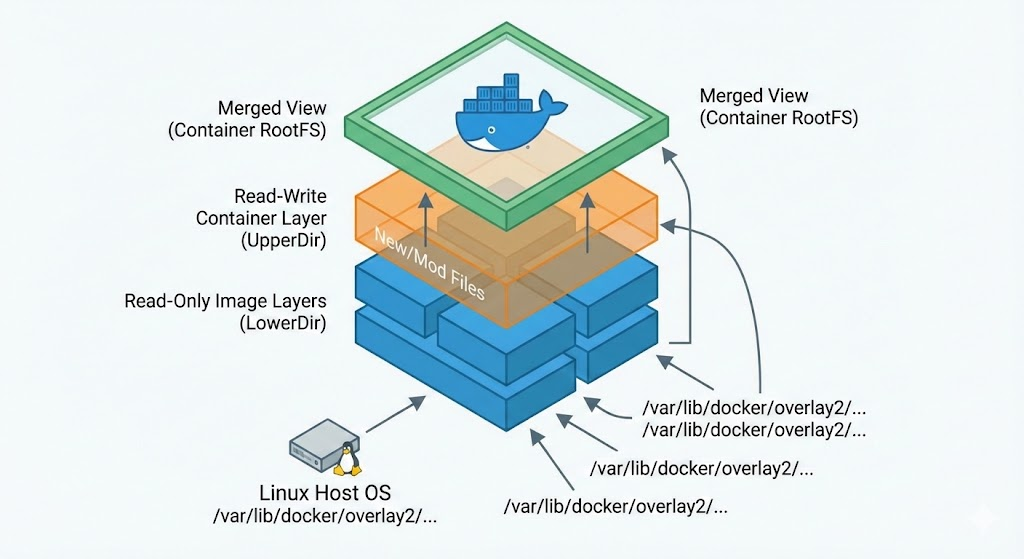
- 🔒 LowerDir (Image Layer): This is Read-Only. It corresponds to the multiple layers that make up the nginx:alpine image we downloaded. It is never modified.
- ✏️ UpperDir (Container Layer): This is the Read-Write area. When you create or modify files inside the container, they are actually stored only here.
- ⚙️ WorkDir: This is a temporary space internally used by OverlayFS for file merging operations.
- 👀 Merged (Unified View): This is the path starting with /var/lib/docker/rootfs/overlayfs/ that appears immediately after “overlay on”. It is the final result we see, formed by combining the LowerDir and UpperDir. The / (root) directory that the container sees is precisely this.
3. ‘Teleporting’ from Host to Container Internal 🚪
Can we view the container’s files from the host without connecting to the container (docker exec)? Yes, it’s possible! The Linux kernel has created a backdoor in the /proc directory.
# Method 1: Check Merged directory via container ID
ls -al /var/lib/docker/rootfs/overlayfs/$(docker inspect -f '{{.Id}}' nx)

# Method 2: Directly navigate to container's RootFS using PID (Recommended!)
ls -al /proc/$(docker inspect -f '{{.State.Pid}}' nx)/root/
The /proc/[PID]/root/ path is like a symbolic link that connects to the root directory seen by that process. If you enter here, you will see the same files as when you enter with docker exec. Isn’t that amazing? ✨
4. Data Writing Experiment and Verification 🧪
Are the view from the host and the view from the container truly connected? Let’s create a file on the host for testing.
# Create file in container's Root path from host
echo test1234 > /proc/$(docker inspect -f '{{.State.Pid}}' nx)/root/test.txt
Now, if you check inside the container, the test.txt file will magically appear. This experiment has significant implications: the container file system is not a separate, closed space, but rather a combination of specific paths on the host file system.
5. Where are my files actually located? 💾
The test.txt file we just created must physically exist somewhere on the host’s hard disk. Where exactly was it stored?
# Find the actual physical location of test.txt file
find /var/lib/docker/rootfs/ -name test.txt
The search results will show a path like /var/lib/docker/overlay2/[hash_value]/diff/test.txt.
This path matches the UpperDir path we confirmed in step 3! In other words, we have directly verified the operating principle of OverlayFS: “the image (LowerDir) is not touched, and all changes are stored separately in UpperDir.”
🎯 Conclusion and Summary
Through today’s practical session, we have learned the following facts:
- A container is not a magic box, but a Linux process.
- A container’s file system is a combination (Merged) of a read-only image (Lower) layered on top of a writable layer (Upper).
- When a container is deleted, the UpperDir is deleted, so any data written within it is also lost. (This is why volumes are needed!)
Understanding this principle will help you better understand why Docker’s image build speed and container startup speed are fast, and how to manage storage.
Have a great container voyage today! ⛵️
Leave a Reply